How to Run AI Image Generator Locally: Complete GPU Setup Guide (2026)
Learn how to run AI image generator locally on your own hardware. Complete guide covering GPU requirements, Stable Diffusion local install, Flux setup, ComfyUI installation, and VRAM optimization.
Some models you cannot download at any VRAM
Veo, Kling and Nano Banana have closed weights. There is no local build, no quantization, no 24GB workaround. Run them in the browser instead. First generation free.
There is something deeply satisfying about watching your own GPU crunch through a diffusion model and spit out a stunning image in seconds. No API keys, no subscription fees, no content policies telling you what you can and cannot create. When you run AI image generator locally, you own the entire pipeline from prompt to pixel. I have been doing exactly this for two years now, and after burning through three GPUs and more electricity than I care to admit, I can tell you that local generation is not just viable in 2026. It is the best way to create AI art if you are serious about it.
Quick Answer: To run AI image generator locally, you need an NVIDIA GPU with at least 8GB of VRAM (12GB recommended), a modern CPU, 32GB of system RAM, and an SSD with 100GB+ free space. Install ComfyUI or AUTOMATIC1111, download a model like Stable Diffusion XL or Flux, and start generating. An RTX 4060 Ti 16GB is the sweet spot for most users, while an RTX 4090 offers the best performance for serious creators. Total hardware investment ranges from $400 to $2,000 depending on your ambitions.
- Local AI image generation gives you full control, privacy, and zero per-image costs
- An NVIDIA GPU with 12GB+ VRAM is the recommended starting point for 2026 models
- Stable Diffusion XL and Flux are the two dominant model families for local generation
- ComfyUI is the most flexible frontend, while AUTOMATIC1111 is easier for beginners
- VRAM optimization techniques let you run large models on budget hardware
- The RTX 4060 Ti 16GB offers the best value, while the RTX 4090 remains the performance king
Why Run AI Image Generation Locally Instead of Using Cloud Services?
The first question most people ask is whether local generation is worth the upfront hardware investment. After running both cloud APIs and local setups simultaneously for over a year, I can give you a definitive answer. Local generation wins on cost after about two months of regular use, and it wins on everything else from day one.
Cloud services like Midjourney charge $10 to $60 per month. API-based services like DALL-E 3 or the fal.ai endpoints charge per image. Those costs add up quickly if you are experimenting, iterating on prompts, or generating at volume. On Apatero, we track cost-per-image across different platforms, and the math consistently favors local generation for anyone creating more than 50 images per week.
But cost is only part of the story. Here is what you actually gain by running locally:
- Complete privacy. Your prompts and images never leave your machine. No logs, no content moderation, no third-party access.
- Zero latency waiting. No queues, no server capacity issues, no API rate limits. Your GPU is always available when you need it.
- Unlimited experimentation. You can run thousands of generations while fine-tuning a prompt without worrying about cost. This changes how you work.
- Full model access. Run any model, any checkpoint, any LoRA. Fewer policy restrictions on what models you can load or combine.
- Offline capability. Once your models are downloaded, you can generate without an internet connection.
Hot take: cloud-based AI image generation will become a niche product within two years. The hardware keeps getting cheaper, the software keeps getting more optimized, and the models keep getting smaller without losing quality. The direction is clear. If you want the full picture on what is available right now, check out our comparison of the best AI image generators in 2026.
What GPU Do You Need for AI Image Generation?
This is the single most important hardware decision you will make. The GPU determines how fast you generate, how large your images can be, and which models you can run. I have personally tested generation on everything from an RTX 3060 12GB to an RTX 4090, and the differences are substantial.
Understanding VRAM Requirements
VRAM (Video Random Access Memory) is the bottleneck for local AI image generation. Models need to be loaded into VRAM to run, and larger models need more VRAM. Here is a practical breakdown of what different VRAM amounts actually let you do in 2026:
| VRAM | What You Can Run | Practical Limits |
|---|---|---|
| 6GB | SD 1.5 at 512x512 | Very limited, frustrating experience |
| 8GB | SDXL at 1024x1024 (with optimizations) | Workable but tight, frequent out-of-memory errors |
| 12GB | SDXL comfortably, Flux with FP8 quantization | Good experience for most workflows |
| 16GB | Flux at full precision, multiple LoRAs loaded | Comfortable for serious work |
| 24GB | Everything current, including video models | No compromises needed |
Best GPUs for AI Image Generation in 2026
Let me break down the actual GPU options worth considering. I am focusing on NVIDIA cards because CUDA support remains far ahead of AMD's ROCm for Stable Diffusion and Flux workflows. AMD has made progress, but the software ecosystem still lags behind meaningfully.
Budget Tier ($200-$350):
- RTX 3060 12GB (used, ~$200). The best budget entry point. That 12GB of VRAM punches well above its weight class. I started my local generation journey with this card, and it handled SDXL surprisingly well. Generation times are slow (15-25 seconds for a 1024x1024 SDXL image) but it works.
- RTX 4060 8GB (~$300). Faster than the 3060 but only 8GB VRAM is a real limitation in 2026. I would skip this one.
Mid-Range ($400-$600):
- RTX 4060 Ti 16GB (~$450). This is my top recommendation for most people. The 16GB of VRAM handles every current image model comfortably, and generation times are good (8-12 seconds for SDXL, 15-20 seconds for Flux). I upgraded to this card last year and it completely changed my workflow.
- RTX 4070 12GB (~$500). Faster compute than the 4060 Ti but 4GB less VRAM. For AI image generation specifically, VRAM matters more than compute speed, so the 4060 Ti 16GB is actually the better choice despite being cheaper. This is one of those unintuitive things about GPU shopping for AI.
High-End ($800-$2,000):
- RTX 4080 16GB (~$900). Great performance but poor value compared to the 4060 Ti 16GB. You pay double for about 40% faster generation.
- RTX 4090 24GB (~$1,800). The absolute best consumer GPU for AI image generation. The 24GB of VRAM means you never think about memory. Generation is blazingly fast (3-5 seconds for SDXL). If you are doing this professionally, whether for client work or building products on Apatero, the 4090 pays for itself.
- RTX 5090 24GB (~$2,000). The newest option. Marginally faster than the 4090 for diffusion workloads, but the price premium is hard to justify unless you also game or do other GPU-intensive work.
Hot take: the RTX 4060 Ti 16GB is the most underrated GPU in the AI image generation space. Everyone talks about the 4090, but the 4060 Ti gives you 90% of the capability for 25% of the cost. The extra 4GB of VRAM over the 4070 matters more than the 4070's faster compute for this specific workload.
Non-GPU Hardware Requirements
Your GPU is the star, but the supporting cast matters too. Here is what I recommend:
- CPU: Any modern 6-core processor works fine. The CPU mostly handles preprocessing and image encoding/decoding. An Intel i5-12400 or AMD Ryzen 5 5600 is more than enough. Do not overspend here.
- RAM: 32GB is the new minimum. Models get loaded from disk into system RAM before being transferred to VRAM. With 16GB of system RAM, you will hit slowdowns during model loading and when running multiple workflows. 64GB is nice for running multiple UIs simultaneously.
- Storage: Get an NVMe SSD with at least 500GB free. Model files are large (2-7GB each for checkpoints, plus LoRAs, VAEs, and upscalers). A single well-equipped setup can easily consume 200GB. Loading models from an HDD is painfully slow.
- Power Supply: Make sure your PSU can handle your GPU. An RTX 4090 needs a 850W+ PSU. An RTX 4060 Ti is fine with 550W.
How to Set Up Stable Diffusion Locally: Step-by-Step
Stable Diffusion remains the foundation of local AI image generation. Whether you are running SD 1.5, SDXL, or the newer SD3 variants, the installation process is similar. I will walk you through the two main approaches.
Option 1: ComfyUI (Recommended)
ComfyUI is a node-based workflow editor that gives you maximum control over every step of the generation pipeline. It has a steeper learning curve than AUTOMATIC1111, but it is significantly more powerful and has become the standard tool for serious local AI image generation. We have a detailed beginner's guide to ComfyUI workflows that walks through your first setup in ten minutes.
Here is the installation process for Windows:
Install Python 3.10 or 3.11. Download from python.org. Make sure to check "Add to PATH" during installation. Do not use Python 3.12 or newer as some dependencies have compatibility issues.
Install Git. Download from git-scm.com.
Clone the ComfyUI repository:
git clone https://github.com/comfyanonymous/ComfyUI.git
cd ComfyUI
- Install PyTorch with CUDA support:
pip install torch torchvision torchaudio --index-url https://download.pytorch.org/whl/cu121
- Install ComfyUI dependencies:
pip install -r requirements.txt
Download a model. Place checkpoint files in
ComfyUI/models/checkpoints/. For SDXL, downloadsd_xl_base_1.0.safetensorsfrom Hugging Face. For Flux, get the FP8 version offlux1-devif your VRAM is under 24GB.Launch ComfyUI:
python main.py
ComfyUI will open in your browser at http://localhost:8188. Load the default workflow, type a prompt, and hit "Queue Prompt" to generate your first local image.
For Linux users, the process is nearly identical. Just use python3 instead of python and install CUDA drivers separately through your package manager. Mac users with Apple Silicon can run ComfyUI using MPS (Metal Performance Shaders), though performance will be significantly slower than an NVIDIA GPU.
Option 2: AUTOMATIC1111 WebUI
AUTOMATIC1111 (often called A1111) provides a more traditional web interface with tabs, sliders, and a straightforward prompt box. It is easier to learn but less flexible than ComfyUI. I still recommend it for absolute beginners who want to start generating images without learning about nodes and workflows.
git clone https://github.com/AUTOMATIC1111/stable-diffusion-webui.git
cd stable-diffusion-webui
./webui.sh  # Linux/Mac
webui-user.bat  # Windows
The installer handles most dependencies automatically. Drop your models into the models/Stable-diffusion/ folder and you are ready to go. For a deeper comparison of these two frontends, our guide to open-source AI image generators covers the full landscape.
How to Run Flux Locally
Flux has emerged as the most impressive open-weight image model family in 2026. It produces stunning results with better prompt adherence than SDXL. Running Flux locally requires a bit more setup than Stable Diffusion, primarily because the model is larger and uses a different architecture.
Free ComfyUI Workflows
Find free, open-source ComfyUI workflows for techniques in this article. Open source is strong.
Flux Model Variants
There are several Flux variants to choose from:
- Flux.1 Dev. The full development model. Requires 24GB VRAM at FP16. This is the highest quality option.
- Flux.1 Schnell. A distilled version that generates in 4 steps instead of 20+. Slightly lower quality but dramatically faster. Great for iteration.
- Flux.1 Dev FP8. A quantized version of the dev model that fits in 12-16GB VRAM. Quality loss is minimal and this is what most people should use.
- Flux.1 Dev NF4. An aggressively quantized version for 8GB GPUs. Noticeable quality reduction but still produces good results.
Running Flux in ComfyUI
Flux works natively in ComfyUI. Here is the process:
- Download the Flux checkpoint to
ComfyUI/models/checkpoints/(or use the split UNET/CLIP format for more flexibility). - Download the T5 text encoder to
ComfyUI/models/clip/. - Download the Flux VAE to
ComfyUI/models/vae/. - Load a Flux workflow. The ComfyUI examples repository includes several starter workflows for Flux.
The key difference from SDXL is that Flux uses a T5-XXL text encoder in addition to CLIP. This text encoder alone is about 10GB, which is why VRAM management matters so much for Flux.
When I first tried to run Flux locally on my old RTX 3060 12GB, it was a struggle. The model would load but generation was glacially slow because the system was constantly swapping data between VRAM and system RAM. After upgrading to the RTX 4060 Ti 16GB, Flux generation became smooth and practical. That experience taught me that VRAM recommendations are not just guidelines. They are real boundaries that affect your day-to-day experience.
Flux VRAM Optimization Tips
If you are trying to squeeze Flux onto a GPU with limited VRAM:
- Use FP8 quantization. This cuts VRAM usage roughly in half with minimal quality loss.
- Enable CPU offloading. ComfyUI can offload parts of the model to system RAM. It is slower but prevents out-of-memory crashes.
- Use sequential loading. Load the text encoder, run it, unload it, then load the UNET. This uses less peak VRAM.
- Lower your resolution. Generate at 768x768 instead of 1024x1024 and upscale afterward using an upscaler like Real-ESRGAN.
Optimizing Performance for Local AI Image Generation
Getting a model to run is one thing. Getting it to run fast and reliably is another. After two years of daily local generation, here are the optimizations that actually make a difference.
Software-Level Optimizations
xFormers. Install xFormers for memory-efficient attention. This single change can reduce VRAM usage by 20-30% and speed up generation by 10-15%. In ComfyUI, xFormers is used automatically when available.
pip install xformers
PyTorch Compile. On newer GPUs (RTX 30-series and above), enabling torch.compile can speed up generation by 20-40% after a one-time compilation step. In ComfyUI, add --use-pytorch-cross-attention to your launch arguments.
Half Precision (FP16). Always run models in FP16 unless you have a specific reason not to. FP32 uses twice the VRAM for negligible quality improvement.
Batch Generation. If you need multiple variations, generate in batches rather than one at a time. Batching amortizes the model loading cost across multiple images.
Hardware-Level Optimizations
Overclock your GPU's memory. VRAM speed directly affects generation time. A modest memory overclock of +500MHz on an RTX 4060 Ti reduced my generation times by about 8%. Use MSI Afterburner and increase memory clock gradually while testing stability.
Keep your GPU cool. Thermal throttling kills performance. Make sure your case has good airflow and your GPU fans are not clogged with dust. I learned this the hard way when my generation times mysteriously increased by 30% one summer. The culprit was a dusty GPU heatsink causing the card to throttle at 85 degrees Celsius.
Want to skip the complexity? Apatero gives you professional AI results instantly with no technical setup required.
Use an NVMe SSD for models. Model loading time matters, especially when switching between checkpoints. An NVMe SSD loads a 6GB checkpoint in 2-3 seconds versus 15-20 seconds from an HDD.
Managing Models and Storage
A serious local setup accumulates models quickly. Here is how I organize mine:
models/
  checkpoints/
    sdxl/
      sd_xl_base_1.0.safetensors
      juggernautXL_v9.safetensors
    flux/
      flux1-dev-fp8.safetensors
      flux1-schnell.safetensors
  loras/
    sdxl/
    flux/
  vae/
  upscale_models/
  clip/
Creating subdirectories by model family keeps things manageable. ComfyUI and A1111 both support subdirectories in their model folders. After a year of downloading every interesting model I found on CivitAI, my models directory hit 400GB. I eventually had to be more selective. My advice is to keep only the models you actually use and delete the ones you have not touched in a month.
LoRA Training on Local Hardware
One of the biggest advantages of having a capable local GPU is the ability to train your own LoRA models. A LoRA (Low-Rank Adaptation) lets you fine-tune a model on a specific style, character, or concept without needing enterprise-grade hardware.
Training a LoRA requires more VRAM than generation. Here are the practical minimums:
- SDXL LoRA training: 12GB VRAM minimum, 16GB recommended
- Flux LoRA training: 16GB VRAM minimum, 24GB recommended
With an RTX 4060 Ti 16GB, I regularly train SDXL LoRAs in about 30-45 minutes using kohya_ss. The results are excellent for personal styles and character consistency. For production-quality work on Apatero, I use the RTX 4090 which cuts training time to under 15 minutes.
The workflow is straightforward. Collect 15-30 high-quality training images, caption them, configure your training parameters, and let the GPU work. Our professional guide to high-quality AI image generation covers LoRA usage in more detail for production workflows.
Troubleshooting Common Issues
Every local AI image generation setup hits problems eventually. Here are the issues I see most often, along with solutions that actually work.
"CUDA out of memory" Errors
This is the most common error and it means your model needs more VRAM than your GPU has available. Solutions, in order of preference:
- Close other applications using GPU memory (browsers, games, video players).
- Switch to an FP8 or NF4 quantized version of the model.
- Enable CPU offloading in your generation frontend.
- Lower your generation resolution.
- Restart ComfyUI or A1111 to clear any lingering memory allocations.
Black or Corrupted Images
Usually caused by a VAE issue. Make sure you are using the correct VAE for your model. SDXL models need the SDXL VAE, and Flux models need the Flux VAE. Mixing them produces garbage output. I once spent three hours debugging "broken" Flux output before realizing I had the wrong VAE loaded. Do not make my mistake.
Extremely Slow Generation
If generation is much slower than expected:
- Check that PyTorch is using CUDA, not CPU. Run
python -c "import torch; print(torch.cuda.is_available())"and verify it returnsTrue. - Verify your GPU drivers are up to date. NVIDIA releases optimized drivers for AI workloads regularly.
- Check for thermal throttling using GPU-Z or HWMonitor.
- Make sure xFormers is installed and being used.
Models Will Not Load
Common causes include corrupted downloads, wrong file format, or incorrect file placement. Re-download the model file if the file size does not match what the repository says. Make sure you are using .safetensors format (not .ckpt which is older and less safe). Verify the file is in the correct directory for your frontend.
Earn Up To $1,250+/Month Creating Content
Join our exclusive creator affiliate program. Get paid per viral video based on performance. Create content in your style with full creative freedom.
Local vs Cloud: A Realistic Cost Comparison
Let me share actual numbers from my own usage. In January 2026, I generated approximately 3,200 images locally. At cloud API prices (averaging $0.04 per image across different services), that would have cost $128. My electricity cost for GPU usage was about $12 for the month, assuming roughly 200 watts average draw for 4-5 hours daily at $0.12/kWh.
The hardware itself is a sunk cost that amortizes over time. If I use the RTX 4060 Ti 16GB ($450) for two years, that is about $19/month in hardware cost. Total monthly cost of local generation: roughly $31. Versus $128 for cloud APIs. Local generation saves about $97 per month at my usage level.
For lighter users generating 500 images per month, the break-even point is about 4-5 months. For heavy users, it can be as quick as 6 weeks. The math overwhelmingly favors local hardware for regular users.
What About AMD and Apple Silicon?
I have focused on NVIDIA GPUs because they remain the most practical choice for local AI image generation. However, the landscape is evolving.
AMD GPUs work with Stable Diffusion and Flux through ROCm on Linux. Windows support is experimental and unreliable. If you are a Linux user comfortable with troubleshooting driver issues, an AMD RX 7900 XTX with 24GB VRAM is a compelling option at around $900. But if you want things to just work, stick with NVIDIA. The software ecosystem gap is real and significant.
Apple Silicon (M1/M2/M3/M4) can run Stable Diffusion and Flux through MPS backends. Performance is roughly equivalent to a mid-range NVIDIA GPU (comparable to an RTX 3060 for an M2 Pro). The unified memory architecture means you can technically load larger models than your "VRAM" would suggest. An M2 Pro with 32GB of unified memory can run Flux Dev at full precision, which is impressive. But generation speeds are 2-3x slower than a comparable NVIDIA GPU. For Mac users who do not want to build a PC, it is a viable option. For everyone else, NVIDIA is the way to go.
Building a Dedicated AI Image Generation PC
If you are starting from scratch and want to build a machine specifically for running AI image generation locally, here is what I would build in February 2026 at two price points.
Budget Build (~$800)
| Component | Model | Price |
|---|---|---|
| GPU | RTX 4060 Ti 16GB | $450 |
| CPU | Intel i5-12400F | $120 |
| RAM | 32GB DDR4-3200 | $60 |
| SSD | 1TB NVMe Gen3 | $70 |
| PSU | 650W 80+ Bronze | $55 |
| Case + Mobo | Budget B660 combo | $130 |
This build handles SDXL and Flux beautifully. It is what I recommend for most people who want to run AI image generator locally without a massive investment.
Performance Build (~$2,500)
| Component | Model | Price |
|---|---|---|
| GPU | RTX 4090 24GB | $1,800 |
| CPU | AMD Ryzen 7 7700X | $220 |
| RAM | 64GB DDR5-5600 | $140 |
| SSD | 2TB NVMe Gen4 | $130 |
| PSU | 1000W 80+ Gold | $120 |
| Case + Mobo | Mid-range AM5 combo | $200 |
This build has no compromises. Every current model runs at full precision with fast generation times. If you are using AI image generation professionally or building tools on platforms like Apatero, this is the setup that lets you work without friction.
Future-Proofing Your Local Setup
The AI image generation landscape moves fast. Models that were cutting-edge six months ago are now baseline. Here is how to make sure your local setup stays relevant.
Prioritize VRAM over compute speed. New models almost always require more VRAM, but they rarely require significantly more compute per step. A GPU with 16GB of slower VRAM will stay useful longer than one with 8GB of faster VRAM.
Watch the quantization space. Techniques like FP8, NF4, and GGUF quantization for diffusion models are improving rapidly. These techniques let older hardware run newer models. What requires 24GB today might require 12GB in six months thanks to better quantization.
Invest in storage. Models keep getting bigger and more numerous. I started with a 500GB SSD and filled it within three months. If you are building new, get at least 1TB dedicated to AI models with room to add another drive later.
Follow the ComfyUI ecosystem. ComfyUI's node system means new models and techniques get integrated quickly through custom nodes. Keeping ComfyUI and your custom nodes updated ensures you can run the latest models as soon as they drop.
FAQ
How much does it cost to run AI image generator locally?
The hardware investment ranges from $450 (used RTX 3060 12GB build) to $2,500 (RTX 4090 build). Ongoing electricity costs are typically $10-$20 per month for regular use. After the initial hardware purchase, the per-image cost is essentially just electricity, which works out to fractions of a cent per image.
Can I run Stable Diffusion on a laptop?
Yes, if your laptop has a discrete NVIDIA GPU with at least 6GB of VRAM. Gaming laptops with RTX 3060, 4060, or 4070 mobile GPUs work well. Expect slower generation than a desktop due to thermal limitations and lower power delivery to the GPU. Laptops with 8GB+ VRAM and good cooling can produce results nearly as fast as their desktop counterparts.
Is 8GB VRAM enough for AI image generation in 2026?
Barely. You can run SDXL with optimizations and Flux with aggressive quantization (NF4), but you will frequently encounter memory errors and be locked out of larger workflows. I strongly recommend 12GB minimum and 16GB ideally. The RTX 4060 Ti 16GB at $450 is a much better long-term investment than any 8GB card.
What is the best model to start with for local generation?
SDXL (Stable Diffusion XL) is the best starting point. It has the largest ecosystem of LoRAs, embeddings, and community resources. It runs well on 8-12GB GPUs and produces excellent results. Once you are comfortable, try Flux Dev for a noticeable step up in quality, especially for text rendering and prompt adherence.
How long does it take to generate an image locally?
It depends heavily on your GPU, model, and resolution. Typical times for a 1024x1024 image at 20 steps: RTX 3060 12GB with SDXL takes 15-25 seconds, RTX 4060 Ti 16GB with SDXL takes 8-12 seconds, and RTX 4090 24GB with SDXL takes 3-5 seconds. Flux generation is roughly 1.5-2x slower than SDXL on the same hardware.
Do I need Linux for local AI image generation?
No. Windows works perfectly for both ComfyUI and AUTOMATIC1111. Linux offers slightly better performance (5-10% faster in some benchmarks) and better AMD GPU support through ROCm, but the difference is not significant enough to switch operating systems. Use whatever OS you are comfortable with.
Can I use multiple GPUs for faster generation?
Not easily for a single image. Stable Diffusion and Flux do not natively parallelize across GPUs. However, you can run multiple ComfyUI instances, each using a different GPU, to generate multiple images simultaneously. This is useful for batch production. Multi-GPU setups also help with LoRA training, where data parallelism is more straightforward.
How do I keep my models updated?
Follow the model creators on Hugging Face and CivitAI. ComfyUI Manager (a custom node) can help manage and update models. Check the Stable Diffusion subreddit and CivitAI weekly for new releases. New fine-tunes and LoRAs drop almost daily.
Is local AI image generation legal?
Yes. Running open-source models on your own hardware is completely legal in most jurisdictions. The models themselves are released under various open licenses (Apache 2.0 for Flux Schnell, non-commercial research licenses for some others). What you generate is your responsibility, as with any creative tool. Always check the specific license of the model you are using.
What internet speed do I need for local generation?
You need internet primarily for downloading models (one-time downloads of 2-7GB each) and software updates. A standard broadband connection works fine. During actual image generation, no internet connection is needed at all. This is one of the major advantages of running locally.
Final Thoughts
Running AI image generation locally has never been more accessible or more rewarding. The software is mature, the community resources are abundant, and the hardware costs have dropped to the point where a capable setup costs less than a year of cloud subscriptions. Whether you are an artist exploring new tools, a developer building applications, or just someone who wants to create without restrictions, local generation puts you in complete control.
My biggest piece of advice is to start with the RTX 4060 Ti 16GB and ComfyUI. That combination delivers outstanding results without requiring a massive investment. As you grow, you can upgrade your GPU, add more storage, and explore advanced techniques like LoRA training. The learning curve is real, but the community support is excellent, and the satisfaction of generating exactly what you envision on your own hardware is worth every minute spent learning.
For more guidance on getting professional results from your local setup, check out our professional guide to high-quality AI image generation. And if you want to explore what is possible with open-source tools before investing in hardware, our overview of open-source AI image generators covers the full landscape of free options available in 2026.
Some models you cannot download at any VRAM
Veo, Kling and Nano Banana have closed weights. There is no local build, no quantization, no 24GB workaround. Run them in the browser instead. First generation free.
Related Articles
AI Art for Game Developers: Complete Guide to Asset Creation
Learn how indie game developers use AI for concept art, sprites, backgrounds, and UI. Practical workflows for integrating AI into game asset pipelines.
How to Create Professional Book Covers with AI for Self-Publishing
Design stunning book covers using AI image generators. Complete guide for self-published authors covering every genre from fantasy to romance to thriller.
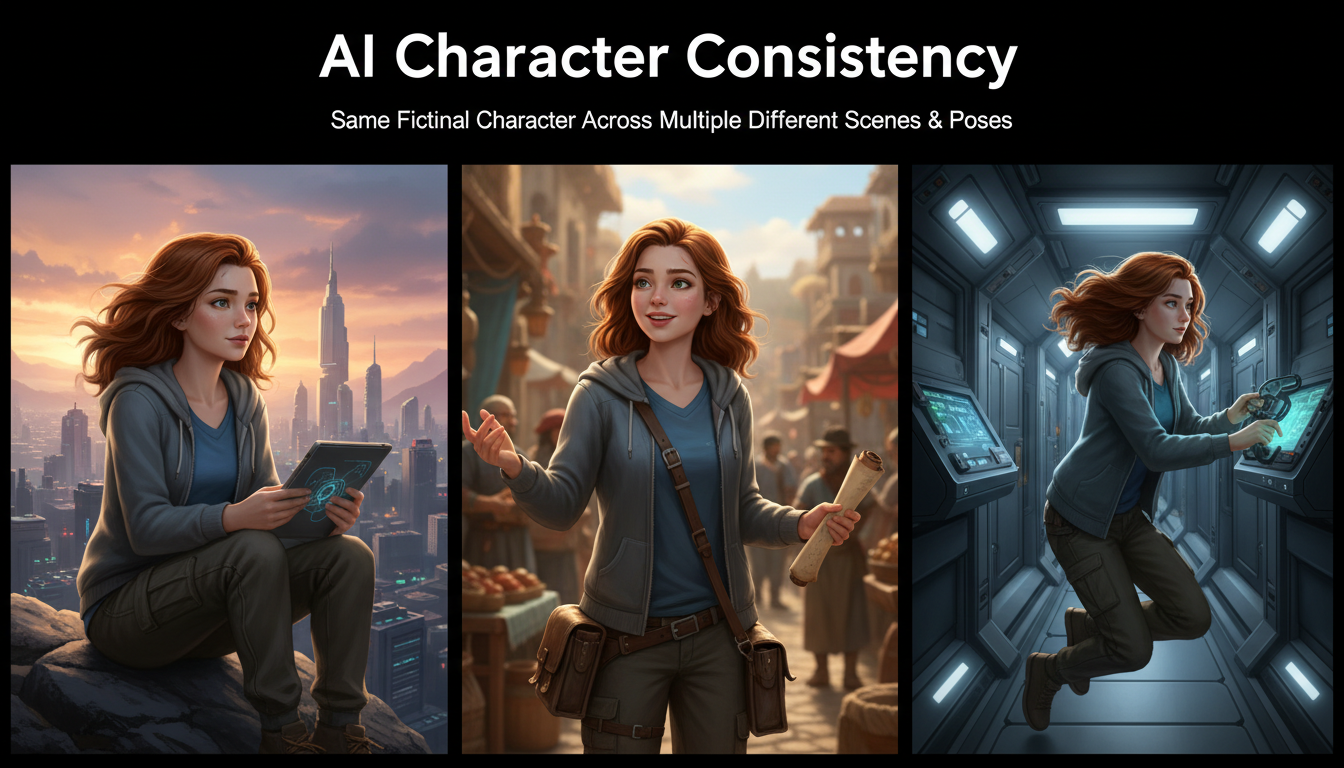
AI Consistent Character Generator: How to Keep the Same Character Across Multiple Images
Learn how to generate the same AI character across multiple scenes using LoRA training, IPAdapter, Midjourney cref, and reference image techniques. Complete 2026 guide.