AI Game Art Generator: How I Create Sprites, Textures, and Concept Art in 2026
Complete guide to using AI game art generators for sprites, textures, pixel art, and concept art. Real workflows, tool comparisons, and practical tips from hands-on testing.
Make AI images and video in your browser
Characters, video, photo packs. No GPU, no setup. Your first generation is free.
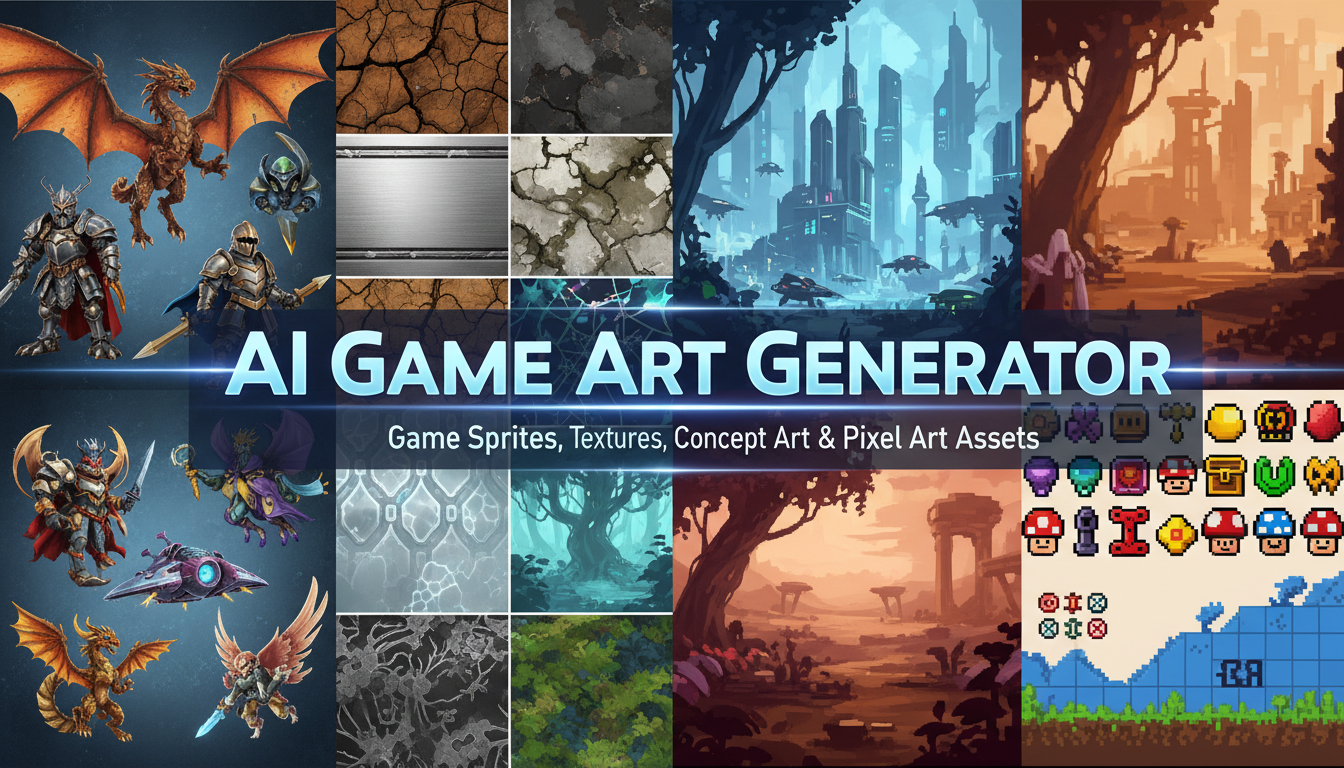
If you told me three years ago that a solo indie developer could generate production-ready game art in minutes instead of weeks, I would have laughed. I spent years outsourcing pixel art and character sprites on freelancing platforms, waiting days for revisions, and blowing through budgets that should have gone toward actual game mechanics. That reality has completely changed. An AI game art generator can now produce sprites, textures, tilesets, UI elements, and concept art faster than most artists can sketch a rough draft.
Quick Answer: The best AI game art generators in 2026 are Flux 2 for high-fidelity concept art, Z Image Turbo with pixel art LoRAs for retro-style sprites and tilesets, and Stable Diffusion XL for versatile game asset pipelines. For a hosted solution that handles all of these without GPU headaches, Apatero gives you ComfyUI-based workflows out of the box. The key to usable game art is post-processing. Raw AI output almost never works as a drop-in asset without cleanup.
- AI game art generators can produce sprites, textures, tilesets, icons, UI elements, backgrounds, and concept art
- Pixel art and sprite generation work best with specialized LoRAs and controlled resolutions
- Seamless textures require tiling-aware workflows or manual post-processing in tools like GIMP
- Concept art is the strongest use case for AI in game development right now
- Consistent character design across multiple poses still requires LoRA training or reference-based methods
- AI-generated assets need cleanup, palette reduction, and format adaptation before they ship in a game
What Exactly Is an AI Game Art Generator?
An AI game art generator is any AI-powered image creation tool that produces visual assets suitable for use in video games. That sounds straightforward, but the devil is in the details. General-purpose image generators like Midjourney or DALL-E can create beautiful artwork, but "beautiful artwork" and "game-ready asset" are very different things.
Game art has specific technical requirements. Sprites need transparent backgrounds and consistent sizing. Textures need to tile seamlessly. Tilesets need precise alignment grids. Character designs need to work at small display sizes. UI elements need to feel cohesive across dozens of screens. None of these requirements are things that a general AI image generator handles well out of the box.
I learned this the hard way about 18 months ago. I was working on a small tower defense project and thought I could just generate all my enemy sprites with Midjourney. The art looked gorgeous in isolation. But the moment I dropped those sprites into Unity, every single one had a different perspective, different lighting direction, and different level of detail. It looked like I had grabbed random clip art from five different websites. That experience taught me that effective AI game art generation is about workflow, not just prompt quality.
The tools that actually work for game development fall into a few categories. You have general-purpose generators that can be tuned for game art through prompting and LoRAs. You have specialized tools built specifically for game assets, like Scenario.gg and Leonardo AI's game asset modes. And you have pipeline approaches where you combine multiple AI tools with traditional editing software to produce final assets.
Which AI Tools Work Best for Game Art?
I have tested nearly every option available, and the landscape has shifted enough in early 2026 that previous recommendations need updating. Here is where things stand today.
Flux 2 for Concept Art and High-Fidelity Assets
Flux 2 is the tool I reach for when I need concept art, character design sheets, or environment paintings. The prompt adherence is unmatched. When I describe "a medieval blacksmith character facing right, holding a glowing hammer, with leather apron and soot-covered face," I get exactly that. Not a blacksmith facing left. Not a clean-faced blacksmith. Exactly what I specified. If you want to explore how Flux 2 compares against other top generators, check my best AI image generator comparison for 2026.
For concept art specifically, Flux 2 handles complex scene descriptions and style mixing better than anything else I have used. You can prompt for "Studio Ghibli meets Dark Souls" and get something that genuinely captures both aesthetics rather than a muddled mess.
Z Image Turbo for Pixel Art and Retro Sprites
This is my go-to for any ai pixel art generator workflow. Z Image Turbo with the pixel art LoRA produces authentic-looking retro sprites in under a second. The dithering patterns look right, the color palettes feel period-appropriate, and the proportions work at actual game resolutions.
The trick with Z Image for game sprites is running at lower resolutions and using LoRA strength around 0.8 to 1.0. Higher LoRA strength gives you chunkier, more classic 8-bit pixels. Dropping to 0.6 produces something closer to 16-bit or GBA-era aesthetics.
Stable Diffusion XL for Versatile Pipelines
SDXL remains the workhorse for anyone building a complete ai game assets pipeline. The ecosystem of LoRAs, ControlNets, and custom workflows is enormous. You can find fine-tuned models specifically for isometric game art, top-down tilesets, side-view platformer sprites, and just about any other game art style.
The main advantage of SDXL is flexibility. You can run it locally, customize it endlessly, and integrate it into automated pipelines. The trade-off is setup complexity. If you do not want to deal with model management and ComfyUI workflows yourself, platforms like Apatero provide cloud-based SDXL access with pre-built game art workflows.
Scenario.gg for Team-Friendly Asset Generation
Scenario has carved out a genuine niche in the game development space. Their tool lets you train custom generators on your existing art style, which means every asset you generate stays consistent with your game's visual identity. I used it for a jam project last fall and was impressed by how quickly I could train a style model on just 20 reference images.
The pricing is steep for solo developers, but for studios with established art styles that need to produce large volumes of assets, it makes a lot of sense.
How to Generate Game Sprites That Actually Work
Sprite generation is where most people get frustrated with AI game art, because the raw output is almost never usable as-is. Here is the workflow I have refined over dozens of projects.
Step 1: Define Your Sprite Specifications First
Before you touch any AI tool, nail down your technical specs. What resolution are your sprites? What is your color palette? How many frames of animation do you need? What perspective does your game use?
I keep a reference document for every project that looks something like this:
- Target resolution: 64x64 pixels per sprite
- Color palette: 16 colors max (I use Lospec palettes)
- Perspective: 3/4 top-down
- Animation frames needed: idle (4), walk (8), attack (6)
- Background: transparent
Step 2: Generate Base Sprites with Controlled Prompts
The prompt structure matters enormously for game sprites. Vague prompts produce beautiful but unusable art. Here is what works.
For an ai sprite generator workflow, your prompt should include the style, perspective, background specification, and subject. Something like: "pixel art game sprite, 3/4 top-down view, single character, warrior with sword and shield, transparent background, 16-bit style, clean outline, centered composition."
Add negative prompts to avoid common problems: "blurry, multiple characters, complex background, realistic, photograph, text, watermark, frame, border."
Step 3: Post-Process Everything
This is the step that separates usable game art from AI demo images. Every sprite I generate goes through this pipeline:
- Remove or clean up the background (even if you prompted for transparent, verify it)
- Resize to your target resolution using nearest-neighbor interpolation (never bilinear for pixel art)
- Reduce the color palette to match your game's palette
- Clean up any artifacts, stray pixels, or inconsistent outlines
- Export as PNG with proper transparency
Tools like Aseprite, LibreSprite, and even GIMP work perfectly for this cleanup. I spend about 2 to 5 minutes per sprite on post-processing, compared to the 30 to 60 minutes it would take to draw each one from scratch.
Step 4: Test at Actual Game Scale
Always, always test your sprites in your game engine before generating more. I have made the mistake of batch-generating 50 enemy sprites only to realize at game scale that the line weight was inconsistent across all of them. Generate three to five test sprites first, verify they look right in-engine, then scale up production.
Creating Seamless Game Textures with AI
Texture generation is actually where AI game art generators shine brightest, because the requirements are more forgiving than character sprites. A grass texture does not need to have a specific pose or expression. It just needs to tile cleanly and look good at various scales.
The Tiling Problem
The biggest challenge with AI-generated textures is making them tile seamlessly. Most AI generators produce images with natural vignetting and focal points that create obvious seams when tiled. There are a few approaches that solve this.
The first approach is using a tiling-aware workflow in ComfyUI. There are custom nodes that modify the generation process to produce seamless output directly. This works well for organic textures like stone, grass, dirt, and wood. The results are not perfect 100% of the time, but about 70% of my generations come out tileable on the first try.
The second approach is generating a larger-than-needed texture and extracting a tileable section using texture synthesis tools. I use Materialize (free) or Substance Designer for this step when I need guaranteed perfect tiling.
AI Game Texture Workflow
My texture pipeline looks like this. I generate a high-resolution base texture at 1024x1024 or larger, test the tiling by placing four copies in a 2x2 grid, fix any seams manually or regenerate, then create normal maps and roughness maps using free tools like Materialize or NormalMap-Online.
Free ComfyUI Workflows
Find free, open-source ComfyUI workflows for techniques in this article. Open source is strong.
For PBR (Physically Based Rendering) workflows, you need more than just a diffuse texture. You need normal maps, roughness, ambient occlusion, and sometimes height maps. I generate the base color with AI, then derive the other maps procedurally. Trying to generate each map separately with AI produces inconsistent results because the AI has no concept of how these maps relate to each other spatially.
Texture Styles That Work Well
Some texture types work better than others with current AI tools. Natural textures like stone, wood, grass, water, and sand produce excellent results with minimal cleanup. Architectural textures like brick, tile, and concrete work well but sometimes need seam correction. Stylized and hand-painted textures work surprisingly well, especially with style-specific LoRAs. Highly technical textures like circuit boards, mechanical surfaces, and sci-fi panels can be hit-or-miss and often require more post-processing.
AI Concept Art for Games: The Strongest Use Case
Here is my hottest take on the topic. AI concept art for games is not just a viable shortcut. It is genuinely better than what most indie developers could afford before these tools existed. A solo developer who previously had to either draw their own mediocre concept art or skip the concepting phase entirely can now generate professional-quality visual explorations in hours instead of months.
I used to spend the first two weeks of any game project trying to nail down the visual direction with rough sketches and mood boards. Now I spend an afternoon generating 100+ concept variations with Flux 2 and arrive at a cohesive visual identity before I write a single line of game code. The quality of my games has improved because I am making better visual decisions earlier.
The workflow I recommend starts with broad exploration. Generate 20 to 30 images with loose prompts describing your game's mood, setting, and tone. Do not get specific about characters or objects yet. You are looking for the vibe. Once you find two or three images that capture what you want, use those as style references. If you want to learn how to write prompts that consistently produce the results you are aiming for, my guide on AI image prompt engineering breaks down the techniques that actually work.
Then narrow down. Generate character concepts, environment layouts, prop designs, and UI mockups using the style language you developed in the exploration phase. This is where prompt engineering really matters, and being specific about art style, color palette, and composition makes the difference between useful concepts and random pretty pictures.
AI Game Character Design: Getting Consistency Right
Character design is the area where AI game art generators struggle the most, because games need the same character to look consistent across potentially hundreds of different poses, expressions, and contexts. A single beautiful character portrait is easy. Getting that same character to look right from the back, from the side, in combat, while jumping, and while taking damage is enormously harder.
There are three approaches that work right now.
LoRA Training for Main Characters
If your game has a small cast of important characters, training a LoRA on each character is the most reliable method. You generate 10 to 20 reference images of the character from various angles, clean them up to ensure consistency, then train a LoRA specifically for that character. The trained model can then produce that character in new poses and contexts with reasonable consistency.
This is my preferred approach for protagonist characters and important NPCs. It takes a few hours of setup per character, but the consistency payoff is worth it. I wrote an in-depth guide on generating consistent characters across multiple images if you want the full walkthrough.
Reference-Based Generation for Supporting Characters
For characters that only appear in a few contexts, reference-based generation using tools like IP-Adapter or Flux Kontext is faster than training a full LoRA. You provide a reference image and the AI attempts to maintain that character's appearance while generating new poses and scenes.
The consistency is not as tight as a trained LoRA, but for characters that only appear in cutscenes or static portraits, it is more than sufficient. I used this approach for all the shopkeeper NPCs in a roguelike I was prototyping, and nobody noticed the minor inconsistencies between their portrait and their in-game sprite.
Sprite Sheet Generation
The holy grail for game developers is generating complete sprite sheets. A single prompt that produces a character in eight walking frames, six attack frames, and four idle frames, all consistent and properly aligned. We are not quite there yet in early 2026, but we are close.
Want to skip the complexity? Apatero gives you professional AI results instantly with no technical setup required.
The most reliable method I have found is generating each frame individually with very specific pose descriptions, then assembling and cleaning up the sprite sheet manually. It is tedious, but it is still dramatically faster than drawing each frame by hand.
AI Tilemap Generation and Level Design
Tilemaps are a special challenge because they require not just visual consistency but structural logic. A grass tile needs to transition cleanly to a dirt tile, which needs to transition to a water tile. These transitions need to work in every possible configuration.
My current approach is generating individual tile types and then manually creating the transition tiles. I generate a base grass texture, a base dirt texture, a base water texture, and so on. Then I use traditional tile editing tools to create the edge and corner transition pieces. Trying to get AI to generate proper tilemap transitions directly has been unreliable in my testing, though some specialized tools are getting closer.
For autotile systems like those used in RPG Maker or Godot's TileMap node, I generate the base textures and then create the autotile templates using traditional methods. The AI handles the creative part (what does this grass look like?) and traditional tools handle the technical part (how does this grass connect to dirt?).
AI Game UI Design and Icons
UI design and game icon generation are underrated use cases for AI in game development. Most indie games ship with placeholder or stock UI elements because creating cohesive UI art is time-consuming and requires a different skill set than character or environment art.
An ai game icon maker workflow is actually quite straightforward. Generate icons at high resolution with consistent style prompts, then batch-resize to your target icon dimensions. The key is maintaining style consistency across all your icons, which means using the same prompt template and just swapping out the subject.
For example, my standard icon prompt template looks like: "[art style] game icon of [subject], [color scheme], centered, clean edges, [background style], high detail." I keep the art style, color scheme, and background style identical across all icons and just change the subject. This produces surprisingly consistent icon sets.
For full UI design, I generate mockup screens as concept art and then rebuild the actual UI in my game engine. AI is excellent for exploring UI layouts and visual treatments but terrible at producing pixel-perfect, resolution-independent UI elements directly.
Hot Takes on AI Game Art in 2026
Let me share some opinions that might be controversial but reflect what I have actually seen after a year of using these tools in production.
Hot take number one: AI will not replace game artists. It will replace game artists who only do production work. The creative direction, style development, and quality control that human artists provide is not something AI handles well. What AI eliminates is the tedious production pipeline of turning approved concepts into final assets. Artists who can direct AI tools and curate their output will be more productive than ever. Artists who position themselves as "I draw assets" without higher-level creative skills will struggle.
Hot take number two: Most "AI game art generator" tools marketed to game developers are worse than general-purpose generators with good prompts. I have tested several tools that specifically market themselves for game development. Most of them are just Stable Diffusion with a thin UI wrapper and some preset prompts. You get better results running your own workflows through Apatero or a local ComfyUI setup with game-specific LoRAs. The specialized tools charge premium prices for what amounts to prompt engineering you could do yourself. There are exceptions, like Scenario.gg's style training, but they are exceptions.
Hot take number three: The biggest bottleneck in AI game art is not generation quality. It is pipeline integration. The gap between "I generated a cool image" and "this asset is in my game, working correctly" is larger than most people realize. Getting transparent backgrounds, correct color spaces, proper atlas packing, and consistent style across hundreds of assets requires tooling and workflow design that barely anyone talks about. The generation step is maybe 20% of the total effort.
Earn Up To $1,250+/Month Creating Content
Join our exclusive creator affiliate program. Get paid per viral video based on performance. Create content in your style with full creative freedom.
Building a Complete AI Game Art Pipeline
Let me walk you through the pipeline I have settled on after months of iteration. This is what I use for my personal projects and what I recommend to other indie developers.
Tools in the Pipeline
- Flux 2 or SDXL for concept art and high-resolution base assets
- Z Image Turbo with LoRAs for pixel art and retro-style assets
- ComfyUI as the orchestration layer for generation workflows
- Aseprite or LibreSprite for sprite cleanup and animation
- GIMP or Photoshop for texture post-processing
- TexturePacker for sprite atlas generation
- Materialize for PBR map generation from AI textures
The entire pipeline from prompt to game-ready asset takes me about 5 to 15 minutes per asset, depending on complexity. Compare that to the 1 to 4 hours per asset that traditional creation takes (or the days of turnaround time when outsourcing). You can explore more open-source AI image generation tools to expand your pipeline options.
Batch Processing for Efficiency
Once you have a working prompt template for a particular asset type, you can batch-generate dozens of variations and cherry-pick the best ones. I typically generate 8 to 12 variations of each asset and select the 1 to 2 best results for post-processing. The generation cost is negligible compared to the time savings.
For texture libraries, I will generate 50 to 100 variations of each material type in a single session. Most of my texture generation runs through Apatero because the cloud GPU access means I can batch-generate without tying up my local machine. After filtering and post-processing, I usually end up with 15 to 25 usable textures per batch, which is enough to populate most game environments.
Version Control for AI Assets
One thing I learned the hard way is that you need to version-control your AI generation parameters just like you version-control your code. I keep a spreadsheet for each project that tracks the prompt, model, LoRA, seed, and settings for every asset I generate. When I need to create additional assets that match an existing set, I can reproduce the exact generation conditions.
This became critical during a game jam last November when I needed to add three new enemy types to match the 12 I had already created. Without my generation logs, I would have spent hours trying to reverse-engineer the right prompt and settings. With my logs, I had matching enemies in 20 minutes.
Common Mistakes and How to Avoid Them
After helping several other developers get started with AI game art, I have noticed the same mistakes coming up repeatedly.
Mistake 1: Generating at final resolution. Always generate at the highest quality you can and then downscale. An AI-generated 1024x1024 image downscaled to 64x64 looks dramatically better than a 64x64 image generated directly. The downscaling process naturally smooths out artifacts and inconsistencies.
Mistake 2: Skipping the style guide phase. Before generating any production assets, spend time creating a visual style guide using AI concept art. Define your color palette, line weight, shading style, and proportions. Then reference these in every generation prompt. Without this step, your assets will look incoherent when placed together.
Mistake 3: Trying to generate animation frames directly. Current AI tools are not reliable for generating sequential animation frames. Generate key poses individually and interpolate between them using traditional animation techniques or AI-assisted interpolation tools. Trying to prompt for "frame 3 of an 8-frame walk cycle" produces inconsistent results.
Mistake 4: Ignoring licensing implications. This is a legal minefield that changes by jurisdiction. Some AI-generated content may not be copyrightable. Some training datasets include copyrighted material. For commercial game projects, understand the licensing terms of whatever model you are using. Open-source models with permissive licenses (like Flux with Apache 2.0) are generally the safest choice. The U.S. Copyright Office has guidance on AI-generated works that is worth reading.
Mistake 5: Not testing assets in-engine early. I cannot stress this enough. Generate a small test batch, import it into your game engine, and verify everything looks right before committing to a full production run. Check scale, check color consistency under your game's lighting, and check how sprites look in motion.
RPG-Specific AI Art Workflows
RPGs deserve special mention because they have the highest art volume requirements of any game genre. A typical RPG needs hundreds of character portraits, dozens of environment tilesets, equipment icons for every item, spell effects, UI elements, and world map assets. For a solo developer or small team, this art volume is traditionally the biggest bottleneck.
AI RPG art generation has genuinely changed what is possible for small teams. I know developers who have created complete RPG visual packages of 500+ assets in a few weeks of focused AI-assisted production. That same volume would have taken a traditional artist months or cost thousands of dollars in outsourcing.
The approach I recommend for ai rpg art is to start with the most visible, highest-impact assets first. Character portraits for your main cast, the tileset for your starting area, and the key UI frames. Get these right and they set the visual standard for everything else. Then work outward, generating increasingly peripheral assets while maintaining style consistency through your prompt templates and reference images.
For equipment and item icons, consistency is paramount. I generate all icons in a single extended session using identical prompt templates and settings. This produces sets where a sword icon, a shield icon, and a potion icon all feel like they belong in the same game.
Frequently Asked Questions
Can I sell a game that uses AI-generated art?
Yes, you can sell games with AI-generated art. The legal landscape is still evolving, but there is no blanket prohibition on commercial use of AI-generated images. Check the specific license terms of the model you use. Open-source models like Stable Diffusion and Flux generally allow commercial use of generated outputs. The bigger question is whether AI-generated art can receive copyright protection, which varies by jurisdiction. Consult a lawyer for commercial projects with significant revenue potential.
What is the best AI game art generator for pixel art?
Z Image Turbo with the pixel art LoRA is my top pick for ai pixel art generator workflows. It produces authentic retro aesthetics, runs extremely fast, and handles various pixel art styles from 8-bit to 16-bit to GBA-era. For non-LoRA approaches, SDXL with pixel art fine-tuned models is a solid alternative. General-purpose tools like Midjourney can produce pixel-art-style images but struggle with the precise pixel grid alignment that game sprites require.
How do I make AI-generated textures tile seamlessly?
Use a tiling-aware generation workflow in ComfyUI, which modifies the diffusion process to produce seamless output. Alternatively, generate at high resolution and use texture synthesis tools like Materialize to extract tileable sections. For organic textures, the ComfyUI tiling nodes work about 70% of the time on the first generation. For geometric or architectural textures, you will usually need manual seam correction.
Do I need a powerful GPU to generate game art with AI?
It depends on the tool. Cloud platforms like Apatero let you generate without any local GPU. For local generation, most current models run well on GPUs with 8GB or more of VRAM. Z Image Turbo can run on as little as 6GB VRAM. Flux 2 benefits from 12GB or more. If you have a recent gaming GPU (RTX 3060 or better), you can run most game art generation workflows locally.
Can AI generate complete sprite sheets with animation frames?
Not reliably as of early 2026. AI can generate individual character poses that you assemble into sprite sheets manually. Some specialized tools attempt sprite sheet generation, but the frame-to-frame consistency is not production-ready for most games. The best approach is generating key poses individually and using traditional tools for frame interpolation and sheet assembly.
How much does AI game art generation cost?
Costs range from free (running open-source models locally) to roughly $0.01 to $0.10 per image on cloud platforms. For a typical indie game needing 200 to 500 assets, you are looking at $5 to $50 in generation costs, plus the time investment for post-processing. Compare that to $2,000 to $10,000+ for traditional art outsourcing. The savings are substantial even for the most expensive AI options.
Is AI game art "cheating" or looked down upon in the game dev community?
The game dev community is pragmatic. Players care about whether your game is fun, not how you made the art. Some vocal critics exist, but the majority of game developers recognize AI as a tool that democratizes game creation. Studios like Ubisoft are actively integrating AI into their production pipelines. For game jams and indie projects, AI art has been widely accepted as a legitimate approach.
What file formats should I export AI game art in?
PNG for sprites and UI elements (supports transparency). PNG or TGA for textures (lossless compression). PSD or layered formats for concept art that needs further editing. Never use JPEG for game assets because the lossy compression introduces artifacts that are especially visible on pixel art and sprites. For texture atlases, use whatever format your game engine prefers, but PNG is universally supported.
How do I maintain visual consistency across hundreds of AI-generated assets?
Create a style guide document that includes your exact prompt templates, model settings, LoRA configurations, and color palette specifications. Use the same generation parameters for all assets within a category. Generate assets in batches during single sessions rather than over multiple days (model updates can change output characteristics). Keep generation logs with seeds and settings for every asset. For more tips on maintaining visual consistency, see my prompt engineering guide.
Can AI replace a dedicated game artist on a team?
For small indie teams, AI can dramatically reduce the need for a dedicated artist, especially during prototyping and early development. For larger studios, AI augments artists rather than replacing them. The creative direction, quality control, and style refinement that human artists provide remains essential. Think of AI game art generators as power tools. A power drill does not replace a carpenter, but it makes the carpenter far more productive.
Final Thoughts
The AI game art generator landscape in 2026 is mature enough to be genuinely useful but still rough enough to require real skill and effort. If you go in expecting a magic "make my game look amazing" button, you will be disappointed. If you go in expecting a powerful tool that accelerates your art pipeline by 5x to 10x while requiring thoughtful workflow design and post-processing, you will be thrilled.
My recommendation for anyone getting started is to pick one tool, master its strengths and limitations, and build your workflow around it. For most indie developers, that means either Flux 2 for high-fidelity art or Z Image Turbo for pixel art. Add ComfyUI as your orchestration layer, invest time in learning proper prompt engineering, and always, always post-process your output before putting it in a game.
The developers who are shipping great-looking AI-assisted games in 2026 are not the ones with the best prompts. They are the ones with the best pipelines. Build your pipeline, refine it project by project, and you will produce game art that players genuinely enjoy looking at.
Make AI images and video in your browser
Characters, video, photo packs. No GPU, no setup. Your first generation is free.
Related Articles
Adobe Firefly vs Midjourney vs Ideogram 2026: Which Wins
Brand-safe licensing, scroll-stopping aesthetics, or text rendering. Three tools optimized for three different jobs, tested against real briefs.
AI Architecture Rendering 2026: Veras vs Paintit vs Midjourney
44 percent of architects use AI in 2026. Veras, Paintit, ArchiVinci, and Midjourney tested on five real architectural briefs from a working studio.
AI Art Market Statistics 2025: Industry Size, Trends, and Growth Projections
Comprehensive AI art market statistics including market size, creator earnings, platform data, and growth projections with 75+ data points.