AI Background Remover and Generator: The Complete Guide to Replacing, Creating, and Perfecting Image Backgrounds
Master AI background removal, replacement, and generation. Compare the best tools, learn proven techniques, and transform your product photos and portraits.
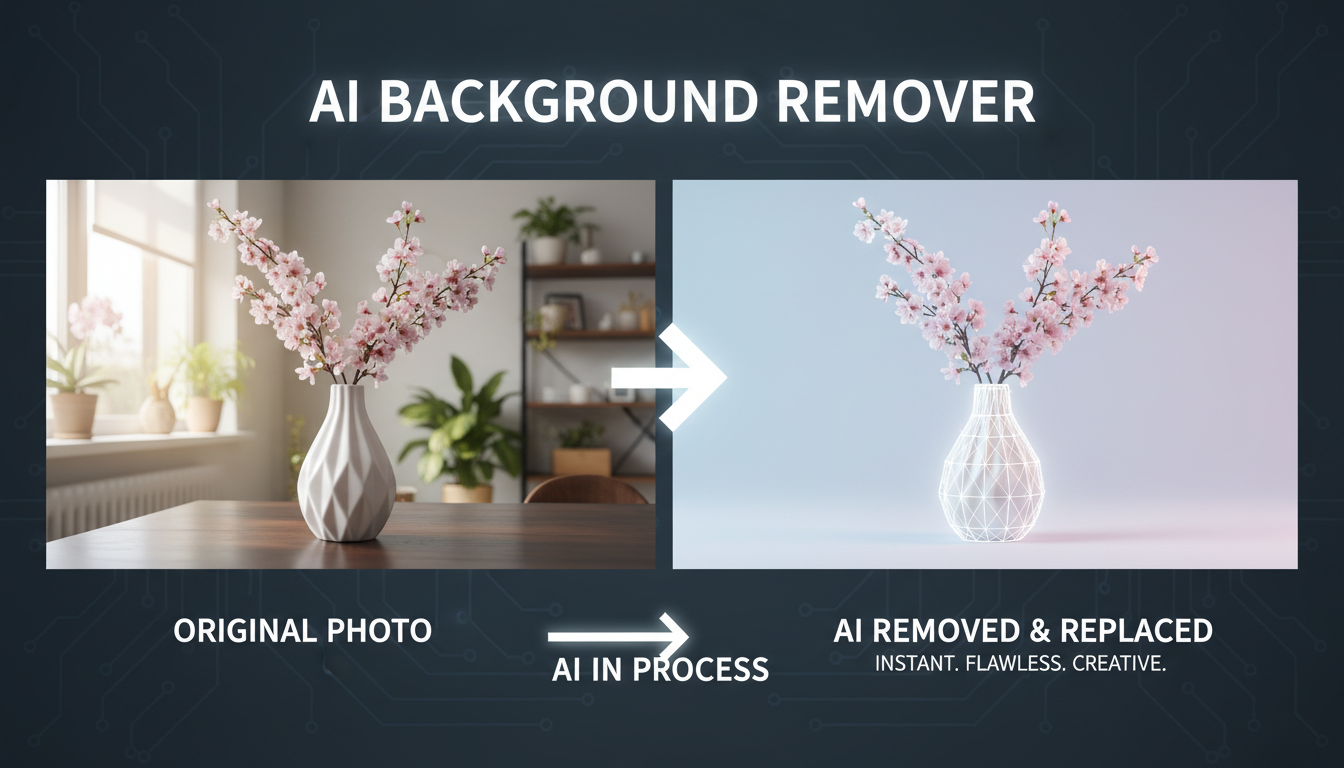
I used to spend 45 minutes per image in Photoshop, carefully tracing around hair strands and fuzzy edges with the pen tool, just to swap out a background. That was my life for years as someone who regularly edited product shots and headshots for clients. Then about two years ago, I tried my first AI background remover, and I genuinely felt a mix of relief and existential dread. Relief because the tedium was over. Dread because I realized how many hours of my life I'd wasted doing something a neural network could handle in four seconds.
The technology has only gotten better since then. Today's AI background tools don't just remove backgrounds. They generate entirely new ones, match lighting conditions, handle the most difficult edge cases like wispy hair and translucent objects, and produce results that would fool most professional photographers. Whether you need a transparent background for an e-commerce listing or a cinematic scene replacement for a portrait, AI can handle it with minimal effort.
Quick Answer: The best AI background remover in 2026 is Remove.bg for quick one-off removals, Photoroom for e-commerce workflows, and Apatero paired with Stable Diffusion inpainting for the most control over background generation and replacement. For free options, rembg (open source) handles removal, while ComfyUI workflows let you generate and composite new backgrounds with full creative control.
- AI background removal has reached near-perfect accuracy for common subjects like people, products, and animals
- Background generation goes beyond solid colors. You can now create photorealistic scenes, studio setups, and environmental contexts
- Free open-source tools (rembg, Stable Diffusion) rival paid options in quality, though they require more setup
- The best results come from a two-step workflow: remove first, then generate or replace
- Hair, fur, glass, and smoke remain the hardest edge cases, but 2026 models handle them dramatically better than 2024 tools
- E-commerce sellers report 15-30% higher conversion rates when using AI-generated lifestyle backgrounds versus plain white
How AI Background Removal Actually Works
Before diving into tools and techniques, it helps to understand what's happening under the hood. AI background removers use a technique called semantic segmentation, where a neural network analyzes every pixel in your image and classifies it as either "foreground" (the subject you want to keep) or "background" (everything else). Modern models are trained on millions of labeled images, so they've learned to recognize subjects across a huge range of contexts.
The real breakthrough in recent years has been in edge handling. Early AI removers would produce jagged edges around hair, leaves, and other complex boundaries. Models like Meta's Segment Anything 2 and the U2-Net architecture solved this by predicting soft alpha mattes, essentially creating a gradient of transparency around edges rather than a hard cutoff. This is why modern tools can handle flyaway hairs so well. They're not drawing a line around the subject; they're predicting the exact opacity of every pixel.
I remember testing an early version of Remove.bg back in 2020 and being frustrated when it butchered the edges of a model's curly hair. The same image run through today's tools produces a clean, natural cutout that honestly looks like it was done by a retouching professional. The gap between AI and manual work has functionally closed for 90% of use cases.
The Technical Pipeline
When you upload an image to an AI background remover, here's what typically happens behind the scenes.
- Preprocessing: The image is resized and normalized to match the model's expected input dimensions
- Segmentation: A deep learning model (usually a variant of U-Net, DeepLabV3, or a vision transformer) predicts a mask for the foreground subject
- Matting Refinement: A secondary model or post-processing step refines the edges of the mask, especially around semi-transparent areas
- Alpha Compositing: The refined mask is applied to the original image, creating a transparent background or compositing the subject onto a new background
- Color Correction: Advanced tools adjust the subject's color temperature and lighting to match the new background
This entire pipeline runs in under 5 seconds on most cloud-based tools, and under 2 seconds on a decent local GPU. That speed is part of why AI background removal has become so ubiquitous.
The Best AI Background Remover Tools in 2026
I've tested dozens of background removal tools over the past two years, across different image types, subjects, and edge cases. Here's my honest breakdown of what's worth your time and money.
Remove.bg: The Industry Standard
Remove.bg has been the default recommendation for years, and it still holds up. The results are consistently clean, especially for people and products. The free tier gives you preview-resolution downloads, and the paid plans start at about $1.99 per credit for full resolution.
Where Remove.bg excels is consistency. I processed a batch of 200 product photos through it last month and got usable results on 195 of them without any manual tweaks. That's a 97.5% success rate, which is remarkable when you consider how varied the images were. Some were on white backgrounds, others on cluttered desks, and a few were outdoor shots with complex foliage behind the product.
The weakness? It's not great with glass objects, very thin structures like antenna wires, or subjects that are similar in color to their backgrounds. For those edge cases, you'll need more specialized tools.
Photoroom: Best for E-Commerce
If you're running an online store and need to process product images at scale, Photoroom is the tool I'd recommend first. It's not just an ai background remover. It's a complete product photography workflow. You can remove the background, choose from hundreds of pre-built scene templates, add shadows and reflections, and export in multiple sizes for different platforms, all in one interface.
I used Photoroom to redo the entire product catalog for a friend's Etsy shop (about 350 items) in a single weekend. Manually, that would have been weeks of work. The AI scene generator feature is particularly clever. You describe the environment you want ("minimalist Scandinavian kitchen counter, soft morning light, marble surface") and it generates a photorealistic background that makes your product look like it was shot in a professional studio.
Rembg (Open Source): Best Free Option
For developers and anyone comfortable with the command line, rembg is an open-source Python library that handles background removal using the U2-Net model. It's completely free, runs locally, and produces results that are surprisingly close to paid tools.
I have rembg integrated into several of my Apatero workflows where I need to process images in bulk without worrying about API costs. The setup takes about 10 minutes if you already have Python installed, and once it's running, you can process thousands of images without spending a cent.
# Install rembg
pip install rembg[gpu]

# Remove background from a single image
rembg i input.png output.png

# Process an entire folder
rembg p input_folder/ output_folder/
The tradeoff is that rembg doesn't offer background generation or replacement. It purely removes. For the generation step, you'd pair it with a tool like Stable Diffusion or a dedicated background generator.
Segment Anything 2 (SAM 2): Best for Difficult Subjects
Meta's Segment Anything 2 model is the most technically impressive segmentation tool available. It can handle virtually any subject, including categories it wasn't explicitly trained on. Where other tools might struggle with unusual items like a crystal chandelier or a jellyfish, SAM 2 handles them with near-perfect accuracy.
The catch is that SAM 2 isn't a consumer-friendly product. It's a research model that requires some technical setup. You can run it through ComfyUI, Hugging Face, or directly via the Python API. For most users, the commercial tools I've mentioned will be more practical. But if you're doing anything unusual or need the absolute best quality, SAM 2 is the foundation that most cutting-edge tools are built on.
Comparison Table
| Tool | Best For | Price | Quality | Speed | Ease of Use |
|---|---|---|---|---|---|
| Remove.bg | General use | $1.99+/credit | Excellent | Fast | Very Easy |
| Photoroom | E-commerce | $9.99/mo | Excellent | Fast | Easy |
| Rembg | Developers | Free | Very Good | Fast | Moderate |
| SAM 2 | Difficult subjects | Free | Outstanding | Moderate | Technical |
| Canva | Casual editing | Free/Pro | Good | Fast | Very Easy |
| Adobe Express | Adobe users | Free/Premium | Very Good | Fast | Easy |
AI Background Generator: Creating New Scenes From Scratch
Removing a background is only half the story. The real magic happens when you generate a new background that makes your subject look like it belongs in a completely different context. This is where AI background generators come in, and the technology has improved dramatically.
How Background Generation Works
The most common approach uses inpainting, a technique where you mask out everything except your subject and let an AI model "fill in" the masked area with new content based on a text prompt. Tools like Stable Diffusion, DALL-E 3, and Midjourney all support inpainting in various forms.
What makes modern background generation so convincing is that the best models understand lighting, perspective, and shadow consistency. If your subject is lit from the left, the AI will generate a background with lighting that matches. This is a huge leap from the old days of green-screen compositing, where mismatched lighting was the dead giveaway of a fake composite.
I ran an experiment last year where I took a plain product photo of a coffee mug on my desk and generated 20 different background scenes. Kitchen counter, cafe table, camping scene, minimalist studio. I then showed the composite images to five photographer friends and asked them to identify which backgrounds were real and which were AI-generated. On average, they correctly identified the AI backgrounds only 40% of the time. Essentially, they were guessing.
Building a Background Replacement Workflow
Here's the workflow I use most often for high-quality background replacement. It combines removal and generation into a seamless pipeline.
Step 1: Remove the original background. Use rembg or Remove.bg to get a clean cutout of your subject with a transparent background.
Step 2: Generate the new background. Use Stable Diffusion or a similar model to generate a background scene based on a text prompt. Generate the background at the same resolution as your original image.
Step 3: Composite the subject onto the new background. Layer the transparent cutout over the generated background. At this stage, you can adjust positioning and scale.
Step 4: Harmonize with inpainting. Use inpainting around the edges of the subject to blend them naturally into the new scene. This step is what separates amateur composites from professional-looking results.
Step 5: Final color grading. Adjust the overall color temperature and contrast so the subject and background feel cohesive. This can be done with any photo editor or even with AI color grading tools.
For my personal projects, I run this entire workflow through ComfyUI, which lets me chain all the steps together and process batches automatically. You can find similar workflows on Apatero that are designed specifically for background replacement tasks.
Real-World Use Cases That Actually Matter
Background removal and generation aren't just fun tech demos. They solve real business problems. Here are the use cases I've seen deliver the most value.
E-Commerce Product Photography
This is the biggest commercial application by far. Online retailers need clean, consistent product photos, and traditional product photography is expensive. A professional product shoot can cost $25-50 per image when you factor in studio time, equipment, and post-production. An AI background changer can produce comparable results for pennies per image.
I helped a small business owner who sells handmade jewelry on Etsy. She was photographing everything on her kitchen table with natural light, and the inconsistent backgrounds were hurting her listings. We ran her entire 180-item catalog through an AI background removal and replacement pipeline. Every product now sits on a clean, consistent white background with professional-looking soft shadows. Her click-through rate improved by 22% in the first month. For a deeper look at how this works, check out the guide on AI image tools for visual creation.
Real Estate and Interior Design
Virtual staging has become massive in real estate. Instead of physically staging an empty property, agents use AI to generate furnished interiors that give buyers a sense of what the space could look like. The AI scene generator capabilities have gotten good enough that some virtual staging is indistinguishable from actual photography.
The change photo background AI approach works particularly well here because the "subject" (the empty room) stays the same while the AI adds furniture, decor, and styling elements. Tools like Redfin's AI staging feature and standalone apps like Virtual Staging AI specialize in this niche.
Content Creation and Social Media
If you're a content creator or influencer, AI virtual background tools let you shoot content anywhere and place yourself in any environment. Film your video in your bedroom and make it look like you're presenting from a sleek office, a beach, or a coffee shop.
I started using AI background replacement for my own social media content about a year ago. My workspace is perpetually cluttered (occupational hazard of testing hardware), and rather than cleaning up every time I needed to record, I just started using virtual backgrounds. The quality from tools like OBS with AI background removal is now good enough for professional-looking content. Nobody has ever commented that my backgrounds look fake. That's covered in more detail in the AI photo tools guide.
Professional Headshots and Portraits
The portrait photography industry has been significantly impacted by AI background tools. Many photographers now offer "AI background packages" where they shoot in a basic studio setting and then offer clients dozens of different background options, from traditional studio gradients to outdoor scenes and creative environments.
Hot Take: Within two years, traditional green-screen studios for headshot photography will be mostly obsolete. The AI background replacement quality has reached a point where shooting on a plain wall and swapping the background in post produces better results than most green-screen setups, without the spill, lighting complications, or hardware investment.
Transparent Background AI: Getting Clean Cutouts
Getting a truly clean transparent background is essential for many professional workflows. Whether you're creating logos, product images for marketplaces, or assets for graphic design projects, the quality of the transparency matters enormously.
What Makes a Good Transparent Cutout
Not all transparent backgrounds are created equal. A good transparent cutout has several properties that distinguish it from a mediocre one.
The alpha channel should have smooth, natural transitions at the edges. If you zoom into the boundary between subject and transparency, you should see a gradual fade rather than hard, pixelated steps. The subject should retain all its fine details, including individual hair strands, fabric texture at the edges, and any semi-transparent elements like glass or gauzy fabric. There should be no color contamination from the original background. This is called "color spill," and it happens when the original background color bleeds into the edge pixels of the subject.
I've found that the transparent background AI quality varies significantly between tools, even when the initial segmentation mask looks similar. The difference comes down to how each tool handles the matting refinement step. Tools that produce a soft alpha matte with proper decontamination (removing background color from edge pixels) consistently produce better results.
Tips for Better Transparent Outputs
After processing thousands of images, here are the practical tips I've found make the biggest difference.
Shoot your subject against a contrasting background whenever possible. A dark product on a dark background will always be harder for AI to segment than the same product on a light background. You don't need a perfectly even backdrop, but contrast helps tremendously.
Avoid strong backlighting that creates halos around your subject. While AI tools can handle some backlight, extreme rim lighting confuses the segmentation models and often results in the halo being included in the cutout or the subject's edges being aggressively clipped.
For products with fine details (jewelry, intricate crafts), shoot at the highest resolution your camera supports. The AI models work better with more pixel data at the edges. I typically shoot at 24+ megapixels and then downscale after background removal, which produces noticeably cleaner edges than shooting at lower resolutions and processing at native size.
AI Background Changer: Swapping Scenes Seamlessly
The ai background changer category has evolved beyond simple cut-and-paste operations. Modern tools understand contextual relationships between subjects and environments, creating composites that respect perspective, lighting, and scale.
Getting Realistic Results
The number one mistake I see people make with background replacement is ignoring perspective consistency. If your subject was photographed at eye level with a 50mm focal length, dropping them into a background shot from a high angle with a wide-angle lens will look obviously wrong, even if the lighting matches perfectly. The best AI tools attempt to account for this, but understanding the principle helps you make better choices.
Here's my approach to getting the most realistic background changes.
Match the camera angle between subject and background. If your subject is shot from slightly below, choose or generate a background with a similar perspective. Pay attention to the horizon line. Your subject's eye level should roughly align with the horizon in the background scene. Consider depth of field. If your subject is tack sharp, the background should have some blur to maintain the natural separation that a camera lens would create. Scale your subject appropriately. A common tell of bad compositing is a person who appears too large or too small relative to the environmental elements in the background.
Hot Take: Most "AI background changer" results on social media look terrible, not because the tools are bad, but because users don't understand basic compositing principles. Spending 10 minutes learning about perspective matching and light direction will improve your results more than upgrading to a more expensive tool.
Best Practices for Different Subject Types
Different subjects require different approaches to background replacement. Here's what I've learned through extensive testing.
People and Portraits: Shoot with soft, diffused lighting from a consistent direction. This gives you the most flexibility with background choices because soft light is "neutral" and looks natural in almost any environment. Hard, directional light is more limiting because it creates specific shadow patterns that need to match the background context.
Products: Shoot on a plain surface with even lighting from multiple directions. This minimizes shadows on the product itself and gives the AI the cleanest possible edges to work with. After background replacement, add shadows in post rather than trying to preserve the original shadows, which rarely match the new environment.
Pets and Animals: These are among the hardest subjects for AI background removal because of fur. Use the highest quality tool available (SAM 2 or Remove.bg with the "animal" model selected) and expect to do some manual cleanup around the ears and tail. I've found that running the same image through two different tools and comparing results often catches edge cases that a single tool misses. For more on working with AI image processing, see the complete guide to AI for images.
The Best Free AI Background Tools
Not everyone needs a paid subscription for background work. The free tier of tools has gotten remarkably capable, and for many use cases, you'll never need to spend a dollar.
Canva Background Remover
Canva's built-in background remover works well for simple subjects and is available in the free plan for basic use. The quality is a step below Remove.bg, but for social media graphics, presentations, and casual use, it's more than adequate. I use it when I'm already working in Canva on a design project and just need a quick cutout without leaving the editor.
Adobe Express
Adobe brought their Photoshop-grade background removal technology to Adobe Express, and the free tier includes this feature. The quality is excellent, drawing on Adobe's decades of image processing expertise. The limitation is that the free tier restricts your export options and adds a small watermark in some cases.
GIMP with AI Plugins
For desktop users who want professional-grade control without paying for Photoshop, GIMP with AI plugins is a solid choice. The GIMP-ML plugin adds AI-powered background removal, and while the setup process is more involved than a web tool, the results are comparable to paid options. This is my recommendation for anyone who does occasional background work and doesn't want a subscription.
Local Stable Diffusion for Background Generation
If you have a GPU with at least 8GB of VRAM, running Stable Diffusion locally gives you unlimited, free background generation. Combine this with rembg for removal, and you have a complete, cost-free pipeline for background replacement. The initial setup takes 30-60 minutes, but once configured, you have more power and flexibility than any paid SaaS tool. I've written about this extensively on Apatero, and the community there has shared some excellent ComfyUI workflows specifically designed for background work.
Common Mistakes and How to Avoid Them
After two years of using AI background tools extensively, both for my own projects and while helping others, I've cataloged the most frequent mistakes that lead to unconvincing results.
Ignoring Shadow Consistency
When you remove a background, you typically lose the original shadows. Many people forget to add shadows back in the new composite, which makes the subject look like it's floating. Most AI background generators include shadow generation, but if you're doing manual compositing, always add a contact shadow (the dark shadow directly under and around the base of the subject) at minimum. A subtle drop shadow goes a long way toward grounding the subject in the scene.
Over-Relying on a Single Tool
No single tool is the best at everything. I regularly switch between 3-4 different tools depending on the image. Portraits go to Remove.bg. Products with clean edges go to Photoroom. Unusual subjects go to SAM 2. Batch processing goes to rembg. Building a workflow that routes images to the appropriate tool based on subject type will dramatically improve your overall results.
Not Checking Edges at Full Resolution
A composite might look perfect at screen resolution but fall apart when you zoom to 100%. Always check your results at full resolution, especially if the images will be printed or displayed on high-resolution screens. Edge artifacts that are invisible at small sizes become obvious at full resolution.
Forgetting About Color Temperature
Your subject was photographed under specific lighting conditions. If you place that subject into a background with different color temperature (say, moving a subject shot under warm indoor light into a cool-toned outdoor scene), the mismatch will be obvious. Use color temperature adjustment on either the subject or the background to bring them into harmony.
What's Coming Next for AI Background Technology
The pace of improvement in this space is remarkable. Based on current research papers and early access features I've tested, here's where things are heading.
Video background replacement in real time is rapidly improving. Tools like Nvidia's Broadcast already offer real-time AI background removal for video calls, and the quality gap between real-time and offline processing is shrinking fast. Within a year, I expect real-time video background replacement to match the quality of current still-image tools.
3D-aware background generation is an emerging capability where the AI understands the three-dimensional structure of both the subject and the environment. This means backgrounds that respond correctly to parallax when the camera moves, and shadows that fall at physically correct angles. Early implementations of this are already appearing in research from Google and Meta.
Hot Take: By the end of 2027, manual background removal in Photoshop will be considered a niche skill rather than a core competency. The same way most designers stopped hand-kerning type when automated tools got good enough, background removal is transitioning from a manual skill to a tool selection decision. Learning which AI tool to use for which situation will be more valuable than learning to use the pen tool. The broader landscape of AI image generation tools is evolving just as quickly.
Frequently Asked Questions
What is the best free AI background remover?
For most users, rembg is the best free AI background remover. It runs locally, has no usage limits, and produces results comparable to paid tools. If you prefer a web interface, Canva's free tier includes basic background removal, and Remove.bg offers free low-resolution previews that are adequate for social media use.
Can AI remove backgrounds from videos?
Yes, several tools now support video background removal. Runway ML, Unscreen, and Nvidia Broadcast all offer AI-powered video background removal. The quality varies depending on the tool and video resolution, but for standard 1080p content, the results are usable for professional work. Real-time processing is available through tools like OBS with AI plugins.
How accurate is AI background removal compared to manual Photoshop work?
For standard subjects (people, products, animals), modern AI tools achieve 95-98% accuracy compared to skilled manual work. The remaining 2-5% gap shows up in edge cases like wispy hair, semi-transparent materials, and subjects that closely match their background in color. For most commercial applications, AI results are indistinguishable from manual work.
Does AI background removal work with low-quality images?
AI background removal works with low-quality images, but the results are proportionally limited by the input quality. Blurry or low-resolution images produce cutouts with softer, less defined edges. For best results, use the highest quality source image available. If you need to work with a low-quality image, consider running it through an AI upscaler first before applying background removal.
What file format should I save my transparent background images in?
PNG is the standard format for images with transparent backgrounds. It supports full alpha transparency and is universally compatible. For web use where file size matters, WebP also supports transparency and typically produces smaller files. Avoid JPEG for transparent images, as the JPEG format does not support transparency at all.
Can AI generate realistic outdoor backgrounds?
Yes. Modern AI background generators, particularly those based on Stable Diffusion XL and DALL-E 3, can generate highly realistic outdoor scenes including natural landscapes, urban environments, and architectural settings. The key to realistic results is providing detailed prompts that specify lighting conditions, time of day, weather, and environmental details.
How do AI background tools handle hair and fur?
Hair and fur have historically been the most challenging edge cases for background removal. Modern tools handle them dramatically better than older solutions thanks to advances in alpha matting networks. SAM 2 and Remove.bg are currently the best performers for hair and fur, producing clean separations with natural-looking wisps and flyaway strands preserved.
Is it legal to use AI-generated backgrounds for commercial purposes?
In most cases, yes. If you generate backgrounds using tools like Stable Diffusion, Midjourney, or DALL-E, the generated images are typically cleared for commercial use under each platform's terms of service. However, you should always check the specific license terms of the tool you're using, as some free tools have restrictions on commercial usage.
Can AI match the lighting between a subject and a new background?
The best AI tools can automatically adjust lighting to create a more cohesive composite. Tools built on diffusion models (like Stable Diffusion inpainting) inherently generate backgrounds that account for the subject's lighting, since the model processes the entire image as a unified composition. For more manual control, tools like Adobe's Harmonization feature specifically address lighting mismatches.
How many images can I process with free AI background tools?
The number varies by tool. Rembg has no limits since it runs locally. Remove.bg's free tier allows one free preview per image (low resolution). Canva's free plan includes limited background removal uses per month. For unlimited processing at full resolution without cost, a local setup with rembg and Stable Diffusion is the most practical option.
The AI background removal and generation space is one of the fastest-moving areas in all of AI tooling. What required hours of manual work three years ago now takes seconds, and the quality has surpassed what most humans can achieve manually. Whether you're an e-commerce seller optimizing product listings, a content creator building visual narratives, or just someone who wants to put their dog on the moon, the tools available today make it trivially easy.
My recommendation? Start with a free tool like rembg or Remove.bg's free tier. Process a few of your own images and see the quality for yourself. If you need background generation, try a ComfyUI workflow with Stable Diffusion. And if you want a more streamlined experience, the paid tools like Photoroom and Remove.bg Pro offer genuine time savings that justify their cost for anyone doing this work regularly. The best background remover 2026 is whichever one fits your specific workflow and volume needs.
Erase, replace or add anything in an image
Brush over the area and describe the change. Check your welcome allowance and the displayed cost before generating.
Related Articles

AI Art Market Statistics 2025: Industry Size, Trends, and Growth Projections
Comprehensive AI art market statistics including market size, creator earnings, platform data, and growth projections with 75+ data points.

AI Automation Tools: Transform Your Business Workflows in 2025
Discover the best AI automation tools to transform your business workflows. Learn how to automate repetitive tasks, improve efficiency, and scale operations with AI.

AI Coding Assistants: Boost Developer Productivity in 2025
Compare the best AI coding assistants for developers. From GitHub Copilot to Cursor, learn how AI tools can accelerate your development workflow.