How to Create Click-Worthy YouTube Thumbnails with AI in 2025
Learn to create professional YouTube thumbnails using AI image generators. Boost your click-through rate with eye-catching designs that get views.
Your video is amazing. The content is valuable. But nobody clicks because your thumbnail looks like a screenshot with text slapped on it. Thumbnails are 50% of why people click—or scroll past.
AI can create professional, attention-grabbing thumbnails in minutes. Here's exactly how.
Quick Answer: Use Apatero or similar AI generators to create thumbnail backgrounds, then add text and your face in editing software. AI handles the hardest part—creating compelling, branded imagery—while you focus on the strategic elements that drive clicks.
:::tip[Key Takeaways]
- Key options include Faces with emotion and Bold, readable text
- Start with the basics before attempting advanced techniques
- Common mistakes are easy to avoid with proper setup
- Practice improves results significantly over time :::
- Thumbnail psychology that drives clicks
- AI prompts for different video types
- Workflow from generation to final design
- Tools and techniques professionals use
Why Thumbnails Matter More Than You Think
The Numbers
- 90% of top-performing videos have custom thumbnails
- 2-10% CTR difference between good and bad thumbnails
- 5% CTR can double your views at the same impression count
- 0.5 seconds is how long viewers decide whether to click
What Makes Viewers Click
- Faces with emotion - Surprised, excited, curious
- Bold, readable text - 3-5 words maximum
- High contrast colors - Stand out in any feed
- Curiosity gap - Promise something interesting
- Consistency - Recognizable brand style
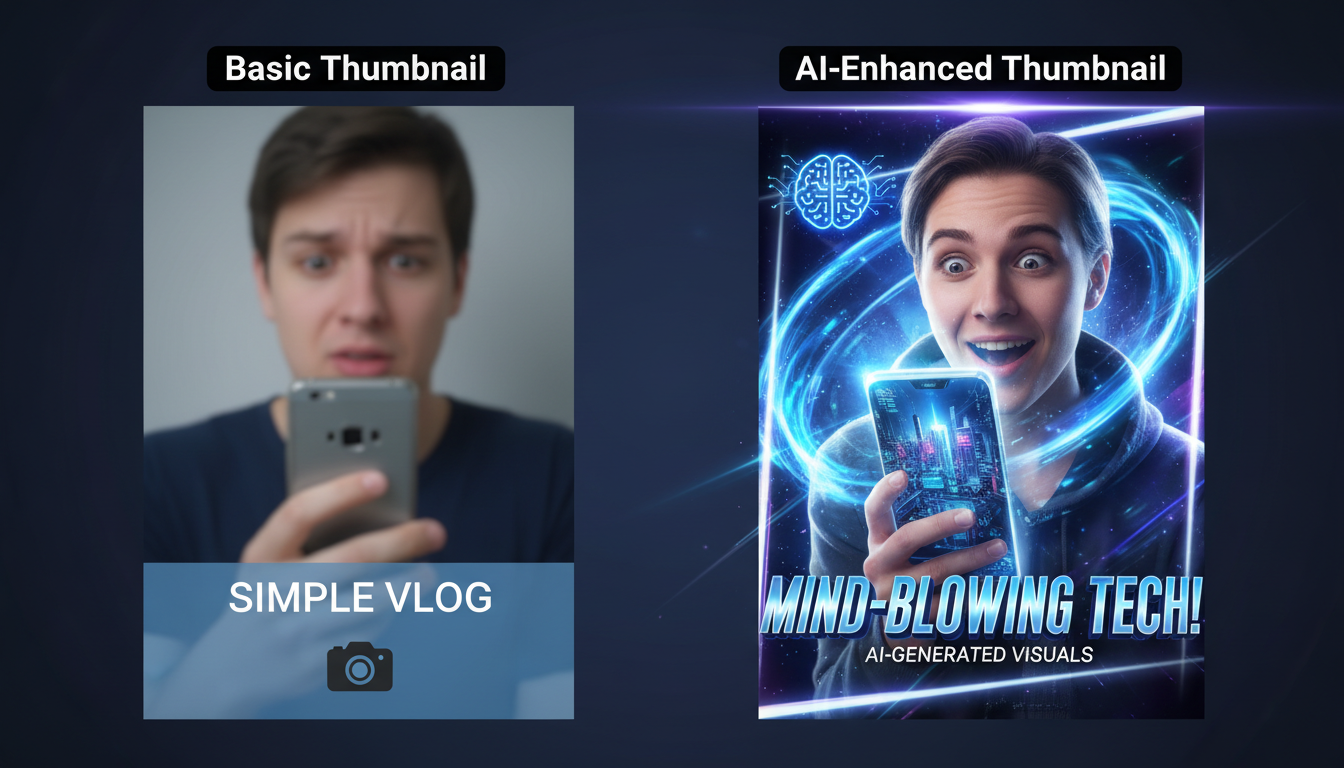 AI can transform basic concepts into professional, click-worthy thumbnail designs
The AI Thumbnail Workflow
Step 1: Plan Your Thumbnail
Before generating anything, answer:
- What's the video about? (One concept)
- What emotion drives clicks? (Curiosity, shock, excitement)
- What text will you use? (3-5 words max)
- Where will your face go? (If applicable)
Step 2: Generate the Background
This is where AI shines. Instead of stock photos or basic gradients, generate custom imagery.
Basic prompt structure:
[Style] [Subject] [Mood/Color] [Composition notes]
Example prompts by video type:
Tech Reviews:
Clean modern product photography, [product] centered on gradient background,
professional lighting, high contrast, space for text on left side
Gaming:
Dynamic action scene from [game genre], explosive lighting,
vibrant colors, dramatic angle, cinematic composition
Tutorials:
Minimal workspace with [topic elements], organized layout,
bright professional lighting, clean aesthetic, text space right
Vlogs:
[Location/activity] background, warm inviting colors,
lifestyle aesthetic, bokeh effect, portrait composition space
Step 3: Generate Multiple Variations
Never settle for one generation. Create 4-8 options:
- Different color schemes
- Different angles/compositions
- Different moods
- Different text placement spaces
On Apatero, this takes minutes and costs cents per image.
Step 4: Add Strategic Elements
After choosing your best AI background:
Add in editing software (Canva, Photoshop, etc.):
- Your face/reaction shot (cutout)
- Bold text (3-5 words)
- Arrows, circles, or callouts
- Brand elements (consistent colors/fonts)
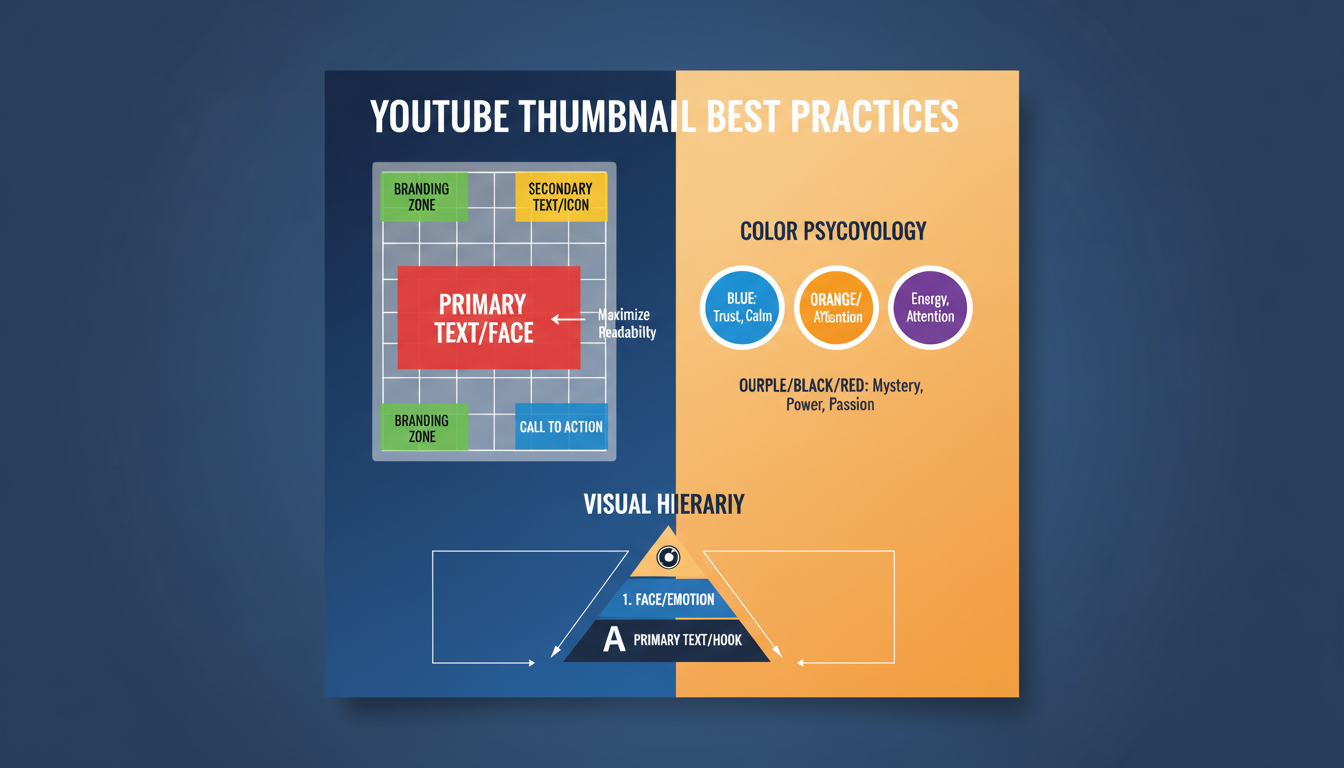 Follow these best practices for maximum click-through rates
AI Prompts for Every Video Type
Gaming Videos
Epic gaming scene, character action pose, neon lighting,
explosive particles, dark background with bright accents,
cinematic game screenshot style, space for text bottom left
Retro gaming aesthetic, pixel art style rendered in 3D,
nostalgic colors, CRT scan lines subtle, controller elements,
vibrant and playful mood
Tech & Reviews
Sleek product showcase, [device] floating on abstract gradient,
studio lighting, reflective surface, minimalist tech aesthetic,
Apple-style product photography
Comparison layout background, split design implied,
versus battle aesthetic, tech showdown mood,
dramatic lighting contrast left right
Educational & Tutorial
Clean organized workspace, educational elements subtle,
professional but approachable, bright natural lighting,
whiteboard/notebook aesthetic, knowledge sharing vibe
Step by step visual metaphor, ascending elements,
progress and learning symbolism, encouraging colors,
achievement unlocked aesthetic
Lifestyle & Vlogs
[Location] golden hour lighting, wanderlust aesthetic,
travel photography style, warm inviting colors,
aspirational lifestyle mood, authentic feeling
Cozy home setting, hygge aesthetic, warm lighting,
comfortable atmosphere, relatable lifestyle,
inviting and personal mood
Reaction & Commentary
Dramatic spotlight effect, dark vignette edges,
reaction video aesthetic, space for face on right,
bold contrasting colors, attention grabbing
Design Principles That Drive Clicks
The Rule of Thirds
Place key elements at intersection points:
- Face in left or right third
- Text in remaining space
- Main subject at focal point
Color Psychology
| Color | Emotion | Best For |
|---|---|---|
| Red | Urgency, excitement | Drama, important news |
| Blue | Trust, calm | Educational, professional |
| Yellow | Energy, optimism | Entertainment, positive |
| Green | Growth, money | Finance, health |
| Purple | Luxury, creativity | Premium content |
| Orange | Action, fun | Gaming, challenges |
Text Hierarchy
Do:
- Maximum 3-5 words
- Readable at mobile size
- Contrasting colors
- Bold, clean fonts
Don't:
- Full sentences
- Small or thin fonts
- Text that blends with background
- More than two font styles
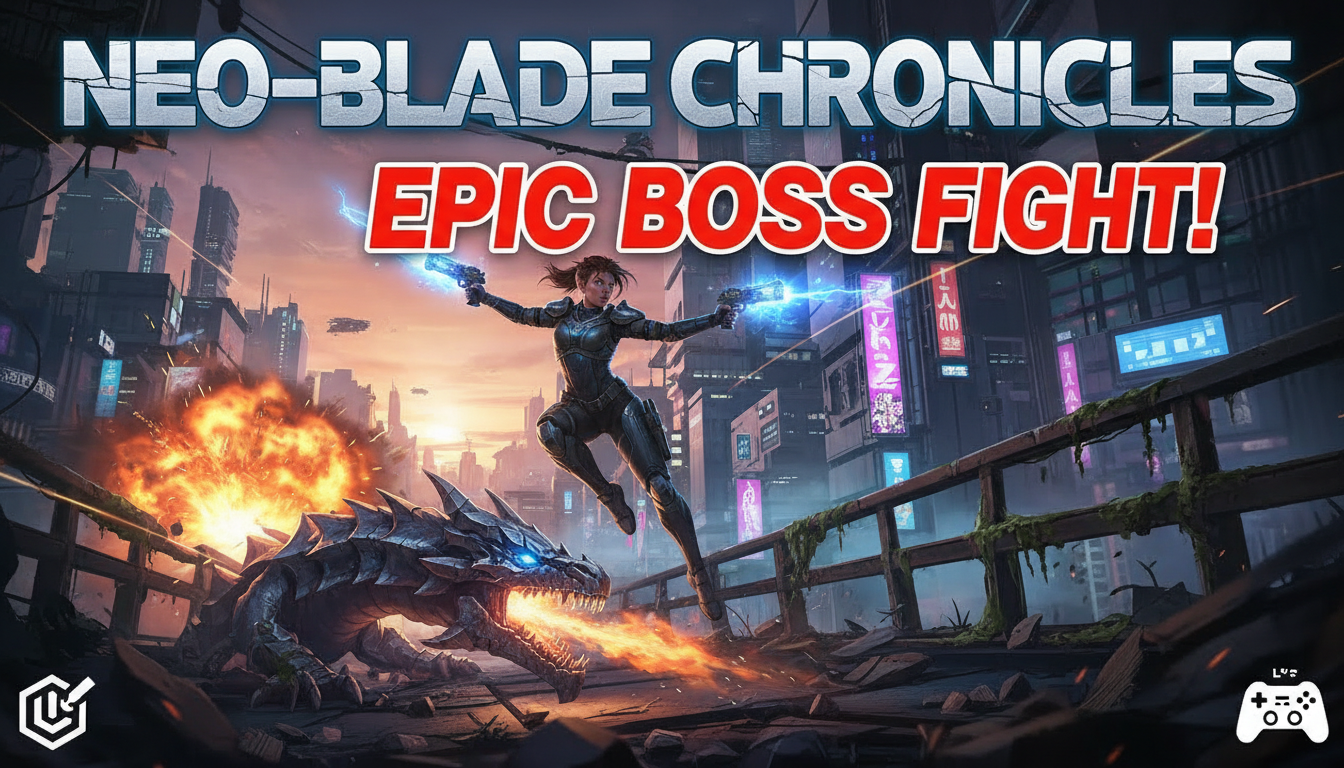 AI can generate professional thumbnails for any content niche
Tools You'll Need
AI Image Generation
Apatero (Recommended)
- Pay-per-use, no subscription waste
- Multiple models available
- Fast generation
- Professional quality
Editing Software
Canva (Beginner-friendly)
- Free tier available
- Template-based
- Easy text and element addition
Photoshop (Professional)
- Full control
- Better cutout tools
- Layer management
GIMP (Free alternative)
- Powerful and free
- Steeper learning curve
Face Cutout Tools
- Remove.bg - One-click background removal
- Photoshop - Manual precision
- Canva Pro - Built-in removal
Complete Workflow Example
Gaming Video: "I Beat Dark Souls Without Getting Hit"
1. Generate Background:
Dark Souls inspired dark fantasy scene, dramatic fire lighting,
gothic castle silhouette, ominous atmosphere, epic scale,
space for figure on right side, text space left
2. Generate 4-6 variations on Apatero
3. Select best option for:
- Color impact
- Text placement space
- Emotional fit
4. In Canva/Photoshop:
- Add cutout of your shocked face (right side)
- Add text: "NO HITS" in bold red/orange
- Add subtle arrow pointing to face
- Add game logo small in corner
5. Test at small size - Still readable? Still impactful?
6. Export at 1280x720 minimum (YouTube recommended)
A/B Testing Your Thumbnails
YouTube's Built-in Feature
YouTube now offers thumbnail A/B testing for some creators:
- Upload 3 thumbnail options
- YouTube tests with real viewers
- Data shows which performs best
Manual Testing
If you don't have access:
- Launch with first thumbnail
- Track CTR for 48 hours
- Change thumbnail if under 4%
- Re-test and compare
What CTR to Aim For
| Video Type | Good CTR | Great CTR |
|---|---|---|
| Highly searched | 2-4% | 5%+ |
| Suggested/browse | 4-6% | 8%+ |
| Subscriber-heavy | 6-8% | 10%+ |
Common Thumbnail Mistakes
1. Too Much Text
❌ "How I Made $10,000 in One Month Using This Simple Strategy" ✅ "$10K in 30 Days"
2. Low Contrast
❌ Light text on light background ✅ Dark text on light, light on dark, always with shadow/outline
3. Cluttered Composition
❌ Multiple subjects, busy background, scattered elements ✅ One focal point, clean background, intentional space
4. Generic Stock Imagery
❌ Obvious stock photo everyone uses ✅ AI-generated custom imagery unique to your brand
5. Inconsistent Branding
❌ Different style every video ✅ Recognizable color scheme and layout
Advanced Techniques
Creating a Thumbnail Template System
Define your style guide:
- 2-3 primary colors
- 1-2 fonts
- Standard face placement
- Text position zones
Generate matching AI backgrounds:
- Same color palette
- Similar composition style
- Consistent mood
Build templates in Canva/Photoshop:
- Pre-positioned text layers
- Face placeholder
- Brand elements in place
Swap background per video:
- Generate new AI background
- Drop into template
- Customize text
- Done in 5 minutes
Batch Generation Strategy
For consistent creators:
- Monthly session: Generate 20-30 backgrounds
- Categorize: Gaming, tutorial, reaction, etc.
- Bank them: Ready when you need them
- Save prompts: Reuse what works
On Apatero, batch generation is cost-effective without subscription waste.
Frequently Asked Questions
Can AI generate the full thumbnail with text?
AI can generate text, but results are often imperfect. Better workflow: AI generates background, you add text in editing software.
What resolution should I generate?
Generate at 1280x720 or larger. Upscale if needed. YouTube compresses, so start high.
How long should thumbnail creation take?
With practice: 10-15 minutes total. 5 minutes AI generation, 5-10 minutes editing.
Should every video have a face in the thumbnail?
Not required, but faces typically perform 30-40% better for CTR. Test for your niche.
Can I use AI thumbnails on any platform?
Yes. Same principles apply to Instagram, TikTok, Twitter, and other video platforms.
How often should I update old thumbnails?
Test updating thumbnails on underperforming videos. Sometimes a new thumbnail revives old content.
The Bottom Line
YouTube thumbnails are half the battle for views. AI makes professional quality accessible:
- Plan before generating
- Generate multiple AI backgrounds on Apatero
- Select the most impactful option
- Add text, face, and brand elements
- Test and iterate based on CTR
Your content deserves to be seen. Give it thumbnails that demand clicks.
Make the thumbnail while the idea is fresh
Type your video title, upload your face, get thumbnail options to review. Check your welcome allowance and the displayed cost before generating.
Related Articles
AI Art for Game Developers: Complete Guide to Asset Creation
Learn how indie game developers use AI for concept art, sprites, backgrounds, and UI. Practical workflows for integrating AI into game asset pipelines.
How to Create Professional Book Covers with AI for Self-Publishing
Design stunning book covers using AI image generators. Complete guide for self-published authors covering every genre from fantasy to romance to thriller.
AI Consistent Character Generator: How to Keep the Same Character Across Multiple Images
Learn how to generate the same AI character across multiple scenes using LoRA training, IPAdapter, Midjourney cref, and reference image techniques. Complete 2026 guide.