Qwen Local Installation: Complete Setup Guide for Running Qwen AI Locally
Install and run Qwen AI models locally on your computer. Complete setup guide covering hardware requirements, installation steps, and optimization for local inference.
Running Qwen locally gives you complete control over your AI assistant, with privacy, no usage costs after initial setup, and the ability to customize behavior without cloud restrictions. Alibaba's Qwen models offer competitive performance with models from OpenAI and Anthropic, and their open-weight release means anyone can run them on capable hardware.
Local Qwen installation requires understanding hardware requirements, choosing the right model size, and selecting appropriate inference software. This guide covers everything from first download to production-ready local deployment.
Quick Answer: Run Qwen locally using Ollama (easiest), llama.cpp (most efficient), or vLLM (best for serving). Qwen 2.5 7B requires 8GB RAM minimum, 14B needs 16GB, and 72B needs 48GB+ or GPU acceleration. Start with Ollama for simplicity, graduate to other tools as needs grow.
:::tip[Key Takeaways]
- Follow the step-by-step process for best results with qwen local installation: complete setup guide for running qwen ai locally
- Start with the basics before attempting advanced techniques
- Common mistakes are easy to avoid with proper setup
- Practice improves results significantly over time :::
- Hardware requirements for different Qwen models
- Installation methods comparison
- Step-by-step setup process
- Optimization for your hardware
- Troubleshooting common issues
Hardware Requirements
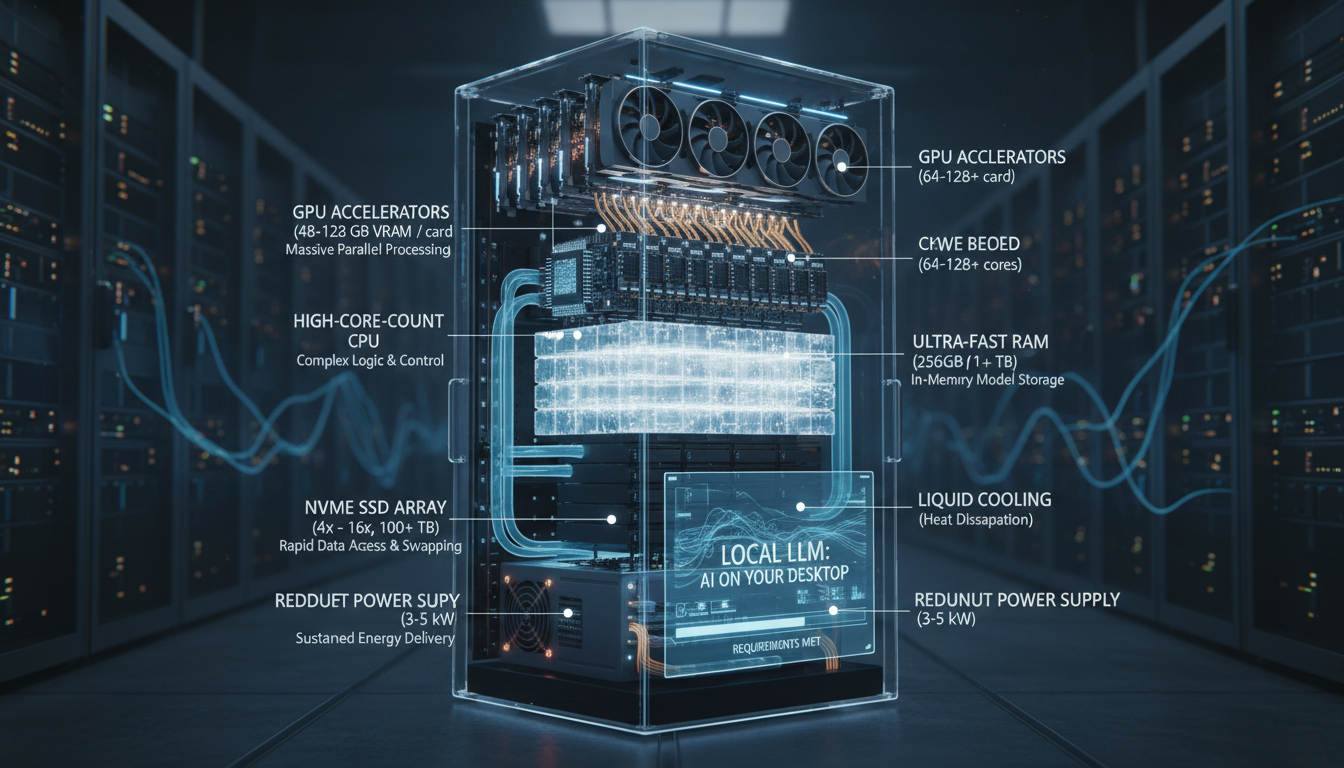
Before installing, ensure your system can handle Qwen models. Requirements scale with model size.
Model Size Reference
Qwen 2.5 comes in multiple sizes:
0.5B / 1.5B / 3B: Ultra-lightweight, runs on anything 7B: Most popular balance of quality and efficiency 14B: Improved quality, moderate requirements 32B: High quality, significant requirements 72B: Maximum quality, demanding hardware
Each size offers quality-to-resource trade-offs.
RAM Requirements
For CPU-only inference:
| Model Size | Minimum RAM | Recommended RAM |
|---|---|---|
| 0.5B-3B | 4GB | 8GB |
| 7B | 8GB | 16GB |
| 14B | 16GB | 32GB |
| 32B | 32GB | 64GB |
| 72B | 64GB | 128GB |
More RAM improves performance and enables larger context windows.
GPU Requirements
For GPU-accelerated inference:
7B: 8GB VRAM (RTX 3070, 4060 Ti) 14B: 12GB VRAM (RTX 3080, 4070) 32B: 24GB VRAM (RTX 3090, 4090) 72B: 48GB+ VRAM (A100, dual GPU setup)
GPU inference is significantly faster than CPU.
Storage Requirements
Model file sizes (quantized):
7B Q4: ~4GB 14B Q4: ~8GB 32B Q4: ~18GB 72B Q4: ~40GB
Full-precision models are 4x larger. Ensure adequate SSD space.
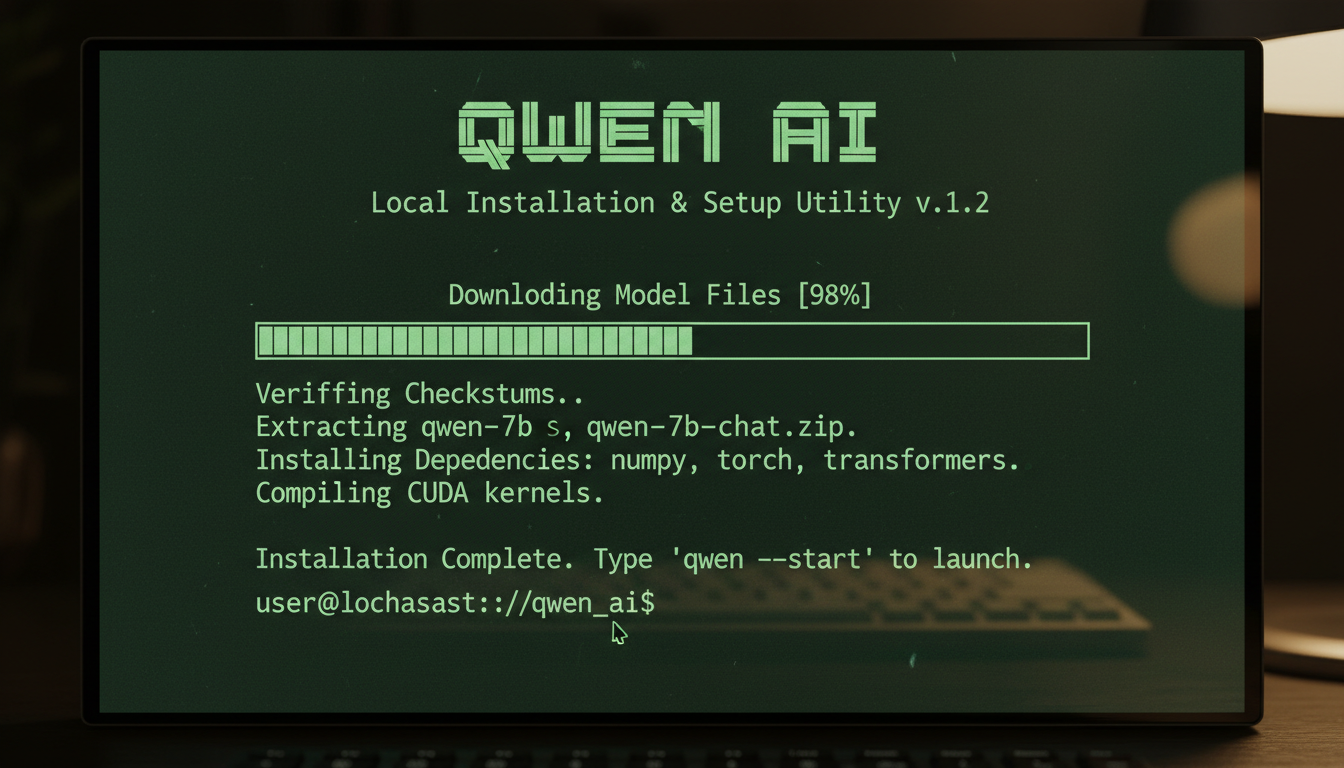
Installation Methods
Ollama (Recommended for Beginners)
The simplest way to run Qwen locally:
Advantages:
- One-command installation
- Automatic model management
- Simple API
- Cross-platform support
- Active community
Installation steps:
macOS/Linux:
curl -fsSL https://ollama.com/install.sh | sh
Windows: Download installer from ollama.com
Running Qwen:
ollama run qwen2.5:7b
Ollama downloads models automatically on first run.
llama.cpp (Most Efficient)
Optimized C++ implementation for maximum efficiency:
Advantages:
- Best performance per resource
- Extensive quantization options
- Supports all hardware types
- Highly configurable
Installation:
git clone https://github.com/ggerganov/llama.cpp
cd llama.cpp
make
GPU acceleration (CUDA):
make LLAMA_CUDA=1
Running Qwen: Download GGUF format model, then:
./main -m qwen2.5-7b-q4_k_m.gguf -p "Hello, how are you?"
LM Studio (GUI Option)
Desktop application with graphical interface:
Advantages:
- No command line needed
- Built-in model browser
- Visual configuration
- Chat interface included
Installation: Download from lmstudio.ai, install like any application.
Usage:
- Browse and download models from interface
- Search for "Qwen 2.5"
- Click to download and run
- Chat through built-in interface
vLLM (Production Serving)
High-performance serving for applications:
Advantages:
- High throughput
- Continuous batching
- OpenAI-compatible API
- Production-ready
Installation:
pip install vllm
Serving Qwen:
python -m vllm.entrypoints.openai.api_server \
  --model Qwen/Qwen2.5-7B-Instruct
Best for applications needing API access.
Step-by-Step Setup
Ollama Setup (Easiest Path)
Complete walkthrough for Ollama installation:
Step 1: Install Ollama
On macOS or Linux:
curl -fsSL https://ollama.com/install.sh | sh
On Windows, download from ollama.com and run installer.
Step 2: Verify Installation
ollama --version
Should show version number.
Step 3: Run Qwen
ollama run qwen2.5:7b
First run downloads the model (several GB). Wait for completion.
Step 4: Start Chatting
After download, you're in interactive mode. Type messages, get responses.
Step 5: Configure (Optional)
Create custom model with system prompt:
ollama create my-qwen -f Modelfile
Modelfile contents:
FROM qwen2.5:7b
SYSTEM You are a helpful assistant focused on coding tasks.
llama.cpp Setup (Performance Path)
For maximum efficiency:
Step 1: Clone Repository
git clone https://github.com/ggerganov/llama.cpp
cd llama.cpp
Step 2: Build
CPU only:
make
With CUDA:
make LLAMA_CUDA=1
With Metal (Mac):
make LLAMA_METAL=1
Step 3: Download Model
Get GGUF format from Hugging Face. Search for "Qwen2.5 GGUF".
Download to llama.cpp/models/ directory.
Step 4: Run Interactive
./main -m models/qwen2.5-7b-q4_k_m.gguf \
  -n 512 \
  --interactive-first \
  -c 4096
Step 5: API Server (Optional)
./server -m models/qwen2.5-7b-q4_k_m.gguf \
  -c 4096 \
  --host 0.0.0.0 \
  --port 8080
LM Studio Setup (GUI Path)
Visual setup process:
Step 1: Download from lmstudio.ai
Step 2: Install application
Step 3: Launch and navigate to Models tab
Step 4: Search "Qwen 2.5"
Step 5: Select appropriate size for your hardware
Step 6: Click Download
Step 7: Once downloaded, click Load
Step 8: Switch to Chat tab and start conversing
Configuration and Optimization
Quantization Options
Trade quality for speed/memory:
Q8_0: Highest quality quantized (~8 bits per weight) Q6_K: Very good quality, moderate savings Q5_K_M: Good balance (recommended) Q4_K_M: Popular choice, good quality Q4_0: Smaller, some quality loss Q2_K: Smallest, noticeable quality loss
Start with Q4_K_M, adjust based on results.
Context Length
Configure how much conversation history to maintain:
Default: Usually 4096 tokens Extended: Some models support 32K+ tokens Trade-off: Longer context uses more memory
Adjust based on your use case and available RAM.
GPU Offloading
Partial GPU acceleration:
Full offload: Entire model on GPU (fastest) Partial offload: Some layers on GPU CPU only: Everything on CPU (slowest)
With llama.cpp, use -ngl flag:
./main -m model.gguf -ngl 35
Number indicates GPU layers. Experiment to find maximum stable value.
Batch Size
Processing efficiency:
Higher batch: More efficient but more memory Lower batch: Less memory, slightly slower Default: Usually 512
Adjust if you hit memory limits.
Using Qwen Locally
Interactive Chat
Basic conversation:
ollama run qwen2.5:7b
>>> What is machine learning?
API Access
Program integration with Ollama:
import requests

response = requests.post('http://localhost:11434/api/generate',
    json={
        'model': 'qwen2.5:7b',
        'prompt': 'Explain quantum computing'
    })
Integration with Applications
Connect to local AI:
Continue.dev: Configure local Qwen for coding Open WebUI: Web interface for local models LM Studio: Desktop client for local model inference Custom apps: Use API endpoints
Troubleshooting
Out of Memory
Symptoms: Process crashes, memory errors
Solutions:
- Use smaller model
- Increase quantization (Q4 instead of Q8)
- Reduce context length
- Enable memory mapping
- Close other applications
Slow Performance
Symptoms: Very slow token generation
Solutions:
- Enable GPU acceleration
- Check GPU is being used (monitor GPU usage)
- Reduce context length
- Use more aggressive quantization
- Ensure thermal throttling isn't occurring
Model Download Failures
Symptoms: Download interrupts, corruption
Solutions:
- Check internet connection
- Clear partial downloads
- Try alternative download source
- Verify disk space
GPU Not Detected
Symptoms: CPU-only despite GPU present
Solutions:
- Verify CUDA/ROCm installation
- Check driver version
- Rebuild with GPU support enabled
- Verify environment variables
Frequently Asked Questions
Which Qwen model size should I start with?
7B for most users. 3B if limited hardware. 14B+ if you have good GPU.
Can I run Qwen on Mac?
Yes. Metal acceleration works well. Apple Silicon Macs run Qwen efficiently.
How does local Qwen compare to ChatGPT?
Qwen 2.5 72B approaches GPT-4 quality. Smaller models are good for many tasks but not quite ChatGPT level.
Is GPU required?
No, CPU works but is slower. GPU significantly improves speed.
How much does local Qwen cost?
Free after hardware. No API fees, no subscriptions, unlimited use.
Can I fine-tune local Qwen?
Yes, with additional tools like Axolotl or Unsloth. Requires significant resources.
What's the difference between Qwen and Qwen-Chat?
Base models complete text; Chat/Instruct models are optimized for conversation.
Can I run multiple models simultaneously?
With enough RAM/VRAM, yes. Each model needs its own resources.
Conclusion
Local Qwen installation provides private, unlimited AI assistance after initial setup. Start with Ollama for the simplest experience, graduate to llama.cpp for optimization, or use vLLM for production serving. Choose model size based on your hardware and quality needs.
The open nature of Qwen enables experimentation and customization impossible with cloud APIs. Once running locally, you have complete control over your AI assistant.
For comparing Qwen to alternatives, see our Qwen vs ChatGPT analysis. For coding-specific use, check our Qwen coding assistant guide.
Some models you cannot download at any VRAM
Veo, Kling and Nano Banana have closed weights. There is no local build, no quantization, no 24GB workaround. Run them in the browser instead. Check current model access and generation costs in the app.
Related Articles
AI Art Market Statistics 2025: Industry Size, Trends, and Growth Projections
Comprehensive AI art market statistics including market size, creator earnings, platform data, and growth projections with 75+ data points.

AI Automation Tools: Transform Your Business Workflows in 2025
Discover the best AI automation tools to transform your business workflows. Learn how to automate repetitive tasks, improve efficiency, and scale operations with AI.
AI Background Remover and Generator: The Complete Guide to Replacing, Creating, and Perfecting Image Backgrounds
Master AI background removal, replacement, and generation. Compare the best tools, learn proven techniques, and transform your product photos and portraits.