ComfyUI Batch Processing: Automate Large-Scale Image Generation Workflows
Master batch processing in ComfyUI for efficient large-scale image generation. Learn queue management, prompt batching, and workflow automation techniques.
When you need to generate dozens or hundreds of images with variations, manually queuing each generation becomes impractical. ComfyUI's batch processing capabilities transform the workflow from tedious repetition into efficient automation, letting you queue complex operations and walk away while your GPU works.
Understanding batch processing in ComfyUI requires grasping several interconnected concepts: batch sizes within single generations, queue management for sequential processing, and workflow automation for parameter variation. Each approach suits different production needs.
Quick Answer: ComfyUI batch processing works through multiple methods: increasing batch size for parallel generation, queue management for sequential jobs, prompt scheduling for automated variation, and custom nodes for advanced automation. Most users combine these approaches, using batch size for speed and queuing for variety.
:::tip[Key Takeaways]
- ComfyUI Batch Processing: Automate Large-Scale Image Generation Workflows represents an important development in its field
- Multiple approaches exist depending on your goals
- Staying informed helps you make better decisions
- Hands-on experience is the best way to learn :::
- Batch size configuration
- Queue management techniques
- Prompt batching methods
- Parameter automation
- Memory optimization for batches
Understanding Batch Methods
ComfyUI offers several approaches to batch generation, each with distinct advantages and use cases. Understanding the differences helps you choose the right method for your production needs.
Batch Size vs Queue
These two concepts often confuse newcomers, but they serve different purposes:
Batch Size: Multiple images generated simultaneously in a single operation. Uses more VRAM but generates faster per image. All images share identical settings except for random seeds.
Queue: Multiple operations processed sequentially. Each queued job can have completely different settings. Uses consistent VRAM but takes longer overall.
Most production workflows combine both: reasonable batch sizes within queued jobs that vary parameters.
When to Use Each Approach
Use larger batch sizes when:
- VRAM allows (12GB+ recommended for batches)
- All images share settings except seeds
- Speed matters more than variety
- You need multiple variations of identical prompts
Use queue management when:
- Different prompts per generation
- Varying settings between jobs
- Limited VRAM restricts batch size
- Complex parameter sweeps needed
Batch Size Configuration
Setting Batch Size
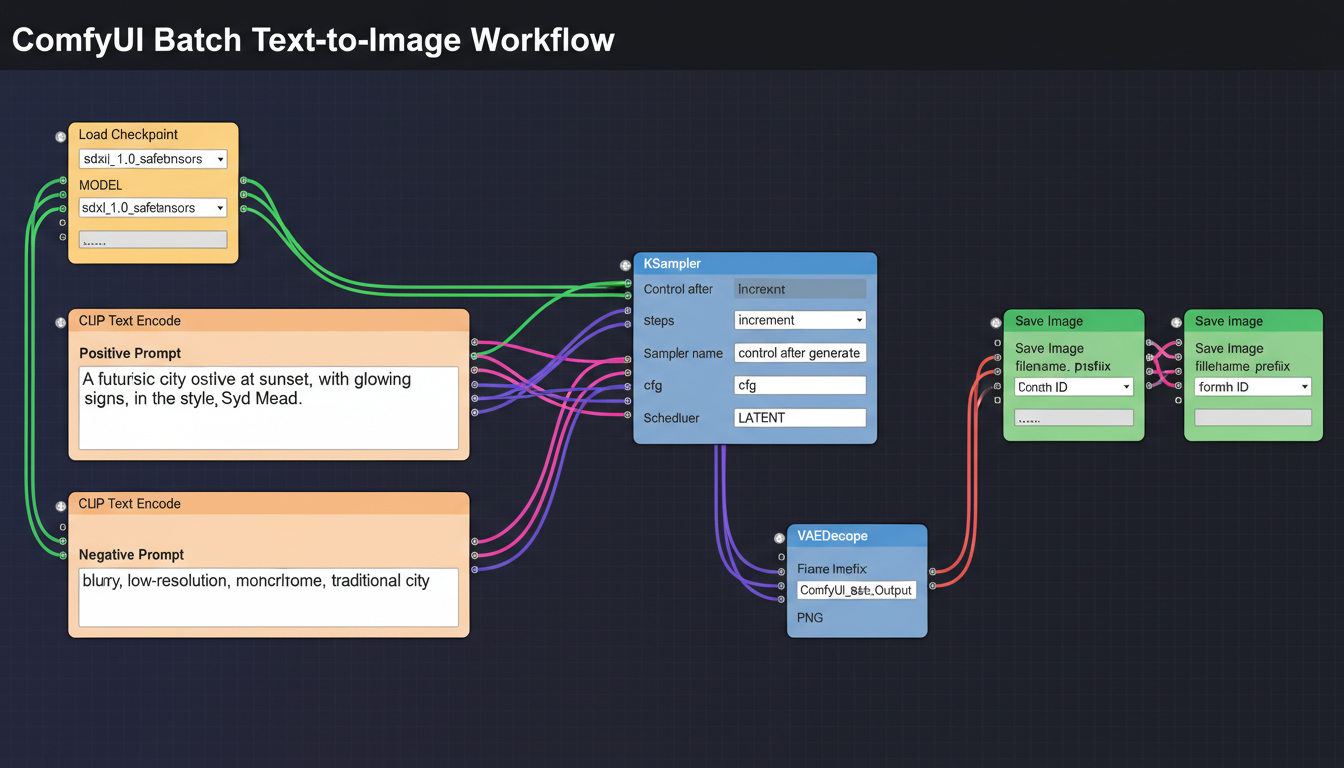
In ComfyUI, batch size is controlled through the Empty Latent Image node:
Batch size parameter: Set how many latent images generate simultaneously Memory scaling: VRAM usage increases approximately linearly with batch size Time efficiency: Larger batches have better time-per-image ratios
Start with batch size 1, then increase until you approach VRAM limits.
Memory Considerations
Batch processing multiplies VRAM requirements:
SD 1.5 at 512x512:
- Batch 1: ~4GB VRAM
- Batch 4: ~6GB VRAM
- Batch 8: ~8GB VRAM
SDXL at 1024x1024:
- Batch 1: ~8GB VRAM
- Batch 2: ~12GB VRAM
- Batch 4: ~16GB+ VRAM
Always leave headroom for model loading and system requirements.
Optimal Batch Sizes
Finding your optimal batch size requires testing:
Start conservative: Begin with batch size 2 Monitor VRAM: Use GPU monitoring tools Increase gradually: Add 1-2 to batch size Find the limit: Stop before out-of-memory errors Back off slightly: Use 80-90% of maximum for stability
Queue Management
Basic Queue Usage
ComfyUI's queue allows sequential job processing:
Queue Prompt button: Adds current workflow to queue Auto Queue option: Automatically re-queues after completion Queue multiple: Ctrl+Enter repeatedly queues jobs Queue view: See pending and completed jobs
Queue Strategies
Different approaches to queue utilization:
Manual queuing: Change settings, queue, repeat Auto queue loops: Set up and let run Pre-planned batches: Plan all variations, queue all at once
Queue with Parameter Changes
For systematic variation:
- Set initial parameters
- Queue the job
- Modify parameters (prompt, seed, etc.)
- Queue next job
- Repeat until all variations queued
- Let queue process
This approach works for any parameter changes between jobs.
Prompt Batching Techniques
Prompt Scheduling
ComfyUI supports prompt scheduling syntax for varying prompts within single generations:
Format: [prompt1:prompt2:0.5] switches at 50% of steps
Use case: Blend concepts within generation
Limitation: Not true prompt batching, but useful for variations
Wildcard Systems
Custom nodes enable wildcard-based prompt variation:
Wildcards: __color__ replaces with random color from list
Lists: Define replacement options in text files
Automatic variation: Each generation picks different combinations
Example workflow:
- Prompt: "a color animal in a setting"
- Lists define: colors, animals, settings
- Each generation creates unique combinations
Dynamic Prompts
More advanced than wildcards:
Syntax options: Combinatorial, random selection, weighted choices Nested structures: Complex variation hierarchies Massive output variety: Single workflow produces diverse results
Parameter Automation
Seed Management
Controlling seeds in batch workflows:
Fixed seed: Same seed across queue for reproducibility Random seeds: Different results each generation Seed increment: Sequential seeds for systematic exploration Seed lists: Specific seeds for recreating favorites
CFG and Step Sweeps
Systematically test parameters:
CFG sweep: Queue same prompt with CFG 5, 6, 7, 8, etc. Step sweep: Test 20, 25, 30, 35 steps Combined sweeps: Matrix of parameter combinations
Useful for finding optimal settings for specific prompts or styles.
Sampler Comparison
Batch test samplers:
Queue with different samplers: Same seed, prompt, steps Compare results: Find best sampler for your needs Document findings: Build knowledge of sampler behavior
Advanced Automation
Custom Nodes for Batching
Several custom nodes enhance batch capabilities:
Efficiency Nodes: Batch processing optimizations XY Plot nodes: Automatic parameter sweeps with visual comparison Loop nodes: Repeat workflows with variations Queue management nodes: Programmatic queue control
XY Plot Generation
Create comparison grids automatically:
X axis: One parameter (e.g., CFG values) Y axis: Another parameter (e.g., samplers) Output: Grid showing all combinations Use case: Visual parameter comparison
API and External Control
For large-scale automation:
ComfyUI API: HTTP endpoints for workflow control Python scripts: Programmatic workflow modification and queuing External tools: Integration with production pipelines Batch scripts: Queue hundreds of variations automatically

Workflow Optimization
Output Organization
Managing large batch outputs:
Naming conventions: Include parameters in filenames Folder structure: Organize by date, project, or parameter set Metadata preservation: Save generation parameters with images Batch logging: Record what was generated when
Error Handling
Dealing with batch failures:
Queue resilience: Failed jobs don't stop queue Error logging: Track which generations failed Retry logic: Re-queue failed jobs Resource monitoring: Prevent failures from resource exhaustion
Throughput Optimization
Maximizing generation speed:
Model loading: Load once, generate many VAE batching: Decode multiple latents together Disk I/O: Fast storage for output writing Queue management: Keep GPU continuously working
Production Workflows
Character Generation Pipeline
Batch generating character variations:
Base prompt: Core character description Variation elements: Poses, expressions, outfits Consistent elements: Face, body type, style Output: Character sheet-style variety
Dataset Generation
Creating training data:
Systematic prompts: Cover required categories Consistent quality: Same settings across batch Metadata tracking: Record prompts and parameters Volume focus: Efficiency at scale
Product Photography
Batch product images:
Product consistency: Same subject across variations Background variation: Different settings, lighting Angle coverage: Multiple perspectives Quick iteration: Rapid prototype testing
Troubleshooting Batch Issues
Out of Memory
Symptoms: Crashes during batch, incomplete generations
Solutions:
- Reduce batch size
- Enable attention optimization
- Lower resolution
- Close other GPU applications
Slow Queue Processing
Symptoms: Queue moves slowly, GPU not fully utilized
Solutions:
- Check model loading between jobs
- Increase batch size if possible
- Optimize workflow connections
- Reduce unnecessary nodes
Inconsistent Results
Symptoms: Quality varies across batch
Solutions:
- Lock down all random elements
- Use consistent seeds where intended
- Check for dynamic prompts causing variation
- Verify settings aren't changing unintentionally
Frequently Asked Questions
What's the maximum batch size I can use?
Depends on VRAM and resolution. Test incrementally until you find your hardware's limit.
Does larger batch size improve quality?
No, quality is the same. Larger batches just improve generation efficiency.
Can I pause and resume a queue?
Yes, ComfyUI maintains queue state. You can interrupt and restart.
How do I batch different prompts?
Use queue with different prompts, or implement wildcard/dynamic prompt systems.
What's the best way to compare parameters?
XY Plot nodes create visual comparison grids automatically.
Can I run batches overnight?
Yes. Set up your queue and let it process. Use Auto Queue for continuous generation.
How do I batch with ControlNet?
ControlNet works with batches. Ensure control images match batch expectations.
What about batching different models?
Each queued job can use different models. Model switching adds time between jobs.
Conclusion
Batch processing transforms ComfyUI from an interactive tool into a production workhorse. Whether you're generating character variations, testing parameters, or creating training datasets, understanding batch size, queue management, and automation techniques multiplies your output capacity.
Start with simple queue-based batching, then add wildcards and automation as your production needs grow. The efficiency gains compound quickly as workflows become more sophisticated.
For SDXL-specific optimization, see our SDXL workflow guide. For LoRA integration in batches, check our LoRA training guide.
Some models you cannot download at any VRAM
Veo, Kling and Nano Banana have closed weights. There is no local build, no quantization, no 24GB workaround. Run them in the browser instead. Check current model access and generation costs in the app.
Related Articles

25 ComfyUI Workflow Tips: Settings and Review
Explore ComfyUI workflow organization, settings and output review, with a blank worksheet for comparing performance on your own setup.

7 ComfyUI Custom Nodes That Should Be Built-In (And How to Get Them)
Essential ComfyUI custom nodes every user needs in 2025. Complete installation guide for WAS Node Suite, Impact Pack, IPAdapter Plus, and more...

ADetailer Single Character Focus - How to Target Specific Faces in Multi-Character Images 2025
Master ADetailer and FaceDetailer to focus on single characters in multi-person images. Complete guide to targeting specific faces with different prompts in ComfyUI.