ComfyUI Animation Workflow: Creating AI-Generated Videos and Motion
Create animations and videos in ComfyUI using AnimateDiff, SVD, and frame interpolation. Complete guide to AI video generation workflows and techniques.
Static images are just the beginning. ComfyUI's animation capabilities transform single frames into motion, enabling everything from subtle movements to full video generation. Whether you're creating animated characters, motion graphics, or experimental video art, ComfyUI's node-based approach offers precise control over every aspect of the animation pipeline.
This guide covers the primary animation methods available in ComfyUI, from AnimateDiff for stylized motion to Stable Video Diffusion for realistic video generation, with practical workflows for each approach.
Quick Answer: ComfyUI animation primarily uses AnimateDiff for 2-16 second animated clips, SVD (Stable Video Diffusion) for image-to-video transformation, or frame-by-frame generation with interpolation. AnimateDiff requires motion models and generates directly from prompts, while SVD converts static images into short videos. Expect 12GB+ VRAM for comfortable animation work.
:::tip[Key Takeaways]
- ComfyUI Animation Workflow: Creating AI-Generated Videos and Motion represents an important development in its field
- Multiple approaches exist depending on your goals
- Staying informed helps you make better decisions
- Hands-on experience is the best way to learn :::
- AnimateDiff setup and usage
- Stable Video Diffusion workflows
- Frame interpolation techniques
- Animation control methods
- Output optimization
Animation Methods Overview
AnimateDiff
Text-to-animation generation:
What it does:
- Generates animated sequences from prompts
- Maintains subject consistency across frames
- Creates 16-32 frame sequences typically
- Works with existing SD models
Best for:
- Anime-style animation
- Character motion
- Stylized movement
- Creative experimentation
Stable Video Diffusion (SVD)
Image-to-video transformation:
What it does:
- Converts static images into video
- Adds realistic motion to scenes
- Generates 14-25 frames typically
- Maintains source image fidelity
Best for:
- Realistic video generation
- Bringing photos to life
- Product animation
- Natural movement
Frame-by-Frame with Interpolation
Manual control with AI assist:
What it does:
- Generate key frames separately
- Use interpolation for in-betweens
- Maximum creative control
- Combine with ControlNet
Best for:
- Precise animation control
- Long-form content
- Complex scenes
- Professional production
AnimateDiff Setup
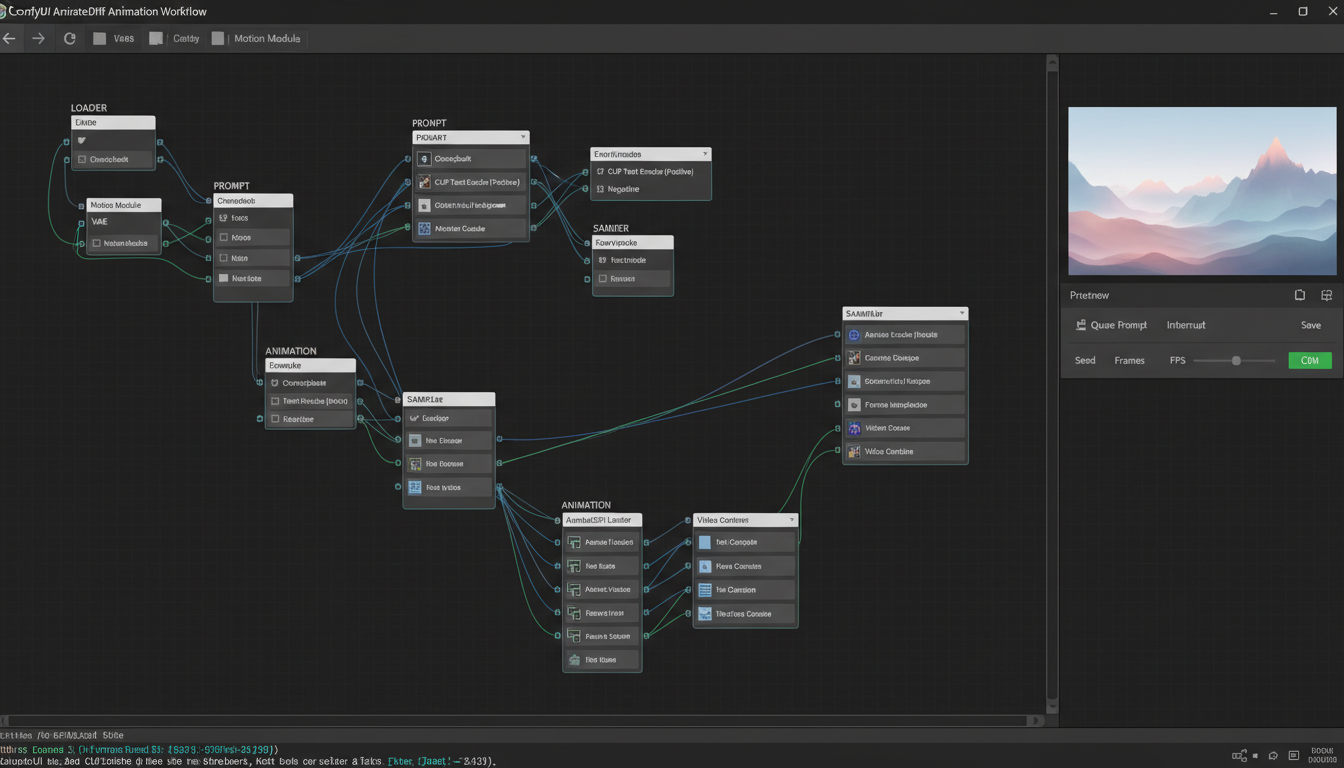
Installation
Getting AnimateDiff working:
Required components:
- ComfyUI AnimateDiff Evolved node pack
- Motion model files
- Compatible base model
Install nodes: Use ComfyUI Manager to install "AnimateDiff Evolved"
Download motion models:
- mm_sd_v15_v2.safetensors (SD 1.5)
- mm_sdxl_v10.safetensors (SDXL version)
Place in: ComfyUI/custom_nodes/ComfyUI-AnimateDiff-Evolved/models/
Basic AnimateDiff Workflow
Simple animation generation:
Core nodes needed:
- Load Checkpoint (SD 1.5 model)
- AnimateDiff Loader
- AnimateDiff Settings
- Empty Latent Image (with frame count)
- CLIP Text Encode (prompt)
- KSampler
- VAE Decode
- Video Combine
Configuration:
- Frame count: 16-32 frames
- Context length: 16 typically
- Motion scale: 1.0 default
- Closed loop: Optional for looping
Motion Models Comparison
Different motion models produce different results:
mm_sd_v15_v2:
- Most stable general use
- Good for various motion types
- Recommended starting point
mm_sd_v15_v2_temporal:
- Better temporal consistency
- Smoother motion
- Slightly slower
SDXL motion models:
- Higher resolution output
- More detail
- Require more VRAM
Stable Video Diffusion
SVD Setup
Installing and configuring SVD:
Required:
- SVD model files (svd_xt.safetensors or similar)
- SVD custom nodes
- Significant VRAM (16GB+ recommended)
Model placement:
ComfyUI/models/checkpoints/ or dedicated SVD folder
Image-to-Video Workflow
Converting images to video:
Core workflow:
- Load Image (source image)
- SVD Encode
- SVD Settings
- KSampler variant for SVD
- VAE Decode
- Video Combine
Key settings:
- Motion bucket ID: Controls motion amount
- FPS: Frames per second
- Augmentation: Image preprocessing
SVD Optimization
Handling SVD resource demands:
Memory management:
- Use tile processing if needed
- Lower resolution initially
- Reduce frame count
Quality vs speed:
- More steps = better quality, slower
- Adjust based on final use
- Preview at lower quality
Frame Interpolation
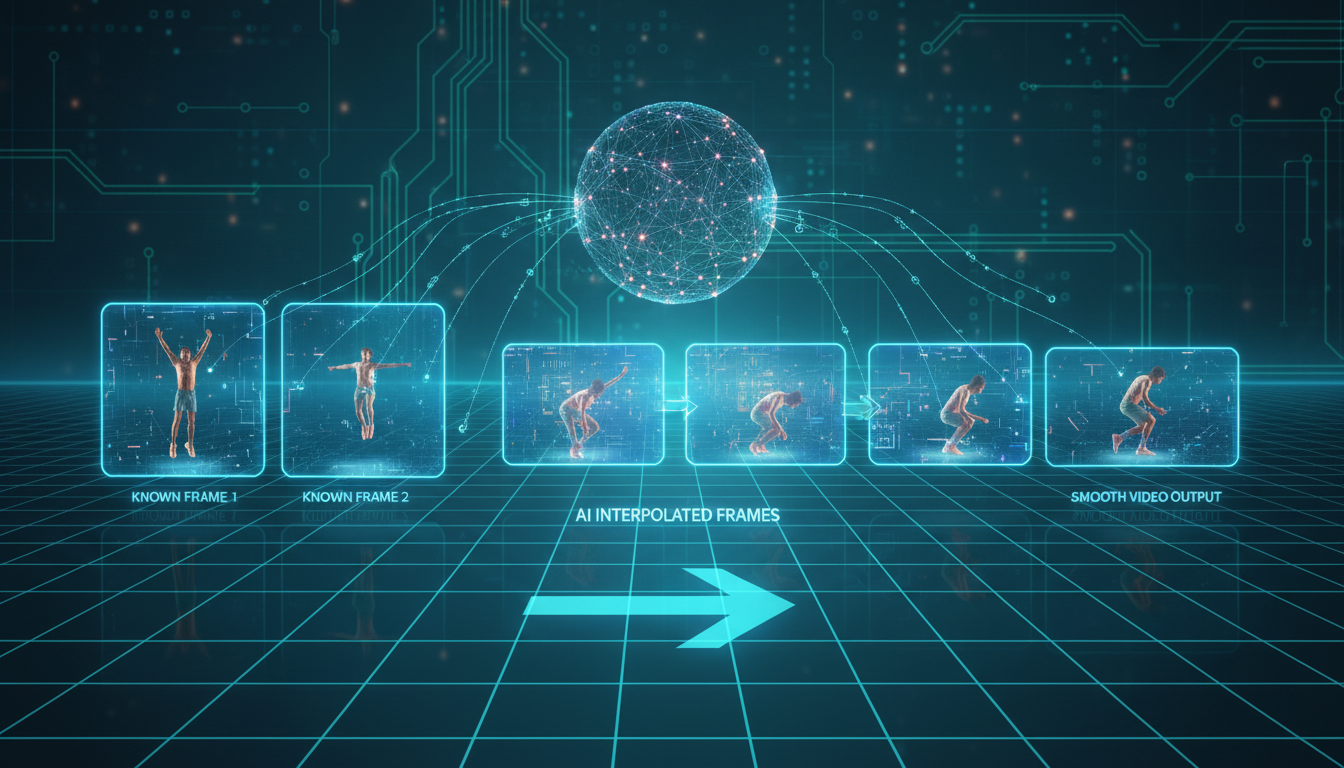
FILM Interpolation
Smooth frame increases:
What it does:
- Adds intermediate frames between key frames
- Creates smoother motion
- Increases video length
Setup:
- FILM model in ComfyUI
- Input keyframes
- Output smoothed video
RIFE Interpolation
Alternative interpolation method:
Characteristics:
- Very fast
- Good quality
- Less memory intensive
Use case:
- Convert 12 FPS to 24/30 FPS
- Smooth choppy animations
- Extend short clips
When to Use Each
Choosing interpolation method:
FILM:
- Highest quality
- Slower processing
- Best for final output
RIFE:
- Faster processing
- Good enough quality
- Better for iteration
Animation Control
ControlNet for Animation
Guided animation generation:
Compatible controls:
- OpenPose for character movement
- Canny for structure maintenance
- Depth for 3D consistency
- Temporal ControlNet variants
Workflow:
- Extract control sequences from video
- Apply to AnimateDiff generation
- Match movement to reference
Motion LoRAs
Specific motion styles:
Available types:
- Camera movement LoRAs
- Character action LoRAs
- Specific gesture LoRAs
- Loop motion LoRAs
Application:
- Add to AnimateDiff workflow
- Stack with base motion model
- Adjust strength as needed
Prompt Travel
Changing prompts over time:
Technique:
- Different prompts for different frames
- Smooth transitions between concepts
- Scene changes within animation
Implementation:
- Prompt scheduling nodes
- Weight transitions
- Frame-specific prompts
Output and Export
Video Formats
Exporting your animations:
GIF:
- Universal compatibility
- Larger file size
- No audio support
- Good for short loops
MP4:
- Efficient compression
- Audio support possible
- Wide compatibility
- Recommended for most uses
WebM:
- Excellent compression
- Web-optimized
- Modern browser support
Quality Settings
Optimization for different uses:
Social media:
- 720p-1080p resolution
- 15-30 seconds typical
- H.264 codec
Portfolio/presentation:
- Full resolution
- Higher bitrate
- Quality priority
Draft/preview:
- Lower resolution
- Faster export
- Iteration focused
Frame Rate Considerations
FPS choices and impacts:
12 FPS:
- Anime-style look
- Lower resource use
- Stylized feel
24 FPS:
- Film standard
- Natural motion
- Balanced approach
30 FPS:
- Smooth motion
- Modern standard
- Higher resource needs
Practical Workflows
Character Animation Workflow
Animate a character:
Process:
- Generate character key pose
- Use AnimateDiff with pose description
- Add motion LoRA if needed
- Interpolate if needed
- Export as video
Product Showcase
Animate product imagery:
Process:
- Generate or load product image
- Use SVD for subtle motion
- Control camera movement
- Add interpolation for smoothness
- Export for marketing use
Loop Creation
Perfect loops for backgrounds:
Technique:
- Enable closed loop in AnimateDiff
- Match first and last frame
- Test loop seamlessness
- Adjust and regenerate if needed
Troubleshooting
VRAM Issues
When running out of memory:
Solutions:
- Reduce frame count
- Lower resolution
- Use model offloading
- Close other applications
- Use FP16 precision
Flickering
When frames don't match:
Causes:
- Too low CFG
- Inconsistent sampling
- Motion model issues
Fixes:
- Increase temporal consistency settings
- Use appropriate motion model
- Adjust sampling parameters
Choppy Motion
When animation isn't smooth:
Solutions:
- Add frame interpolation
- Increase generation frames
- Adjust motion scale
- Use temporal smoothing
Frequently Asked Questions
How long can AnimateDiff videos be?
Typically 2-16 seconds natively. Longer requires stitching or specialized techniques.
Can I animate SDXL images?
Yes, with SDXL motion models. Requires more VRAM than SD 1.5.
What VRAM do I need for animation?
12GB minimum comfortable, 16GB+ recommended for SDXL animation or SVD.
How do I make perfect loops?
Use closed loop setting in AnimateDiff. Match first and last frame content.
Can I control specific movements?
Yes, using ControlNet with video reference or motion LoRAs for specific actions.
What's better, AnimateDiff or SVD?
Different purposes. AnimateDiff for text-to-video, SVD for image-to-video transformation.
How do I add audio to animations?
Export video then add audio in video editing software. ComfyUI doesn't handle audio.
Can I upscale animations?
Yes, frame by frame with upscaling then recombine. Resource intensive but works.
Conclusion
ComfyUI animation opens creative possibilities beyond static images, from subtle image movements to full character animation. AnimateDiff handles text-to-animation, SVD transforms images into video, and frame interpolation smooths everything together.
Start with basic AnimateDiff workflows, experiment with motion models and LoRAs, then progress to more complex techniques as you understand the medium.
For image generation fundamentals, see our SD 1.5 vs SDXL comparison. For batch processing animations, check our batch workflow guide.
Some models you cannot download at any VRAM
Veo, Kling and Nano Banana have closed weights. There is no local build, no quantization, no 24GB workaround. Run them in the browser instead. Check current model access and generation costs in the app.
Related Articles

25 ComfyUI Workflow Tips: Settings and Review
Explore ComfyUI workflow organization, settings and output review, with a blank worksheet for comparing performance on your own setup.

7 ComfyUI Custom Nodes That Should Be Built-In (And How to Get Them)
Essential ComfyUI custom nodes every user needs in 2025. Complete installation guide for WAS Node Suite, Impact Pack, IPAdapter Plus, and more...

ADetailer Single Character Focus - How to Target Specific Faces in Multi-Character Images 2025
Master ADetailer and FaceDetailer to focus on single characters in multi-person images. Complete guide to targeting specific faces with different prompts in ComfyUI.