Best Way to Caption a Large Number of UI Images: Batch Processing Guide 2025
Batch caption UI screenshots efficiently. Compare WD14, BLIP, LLaVA, and GPT-4 Vision with automated workflows and quality control strategies.
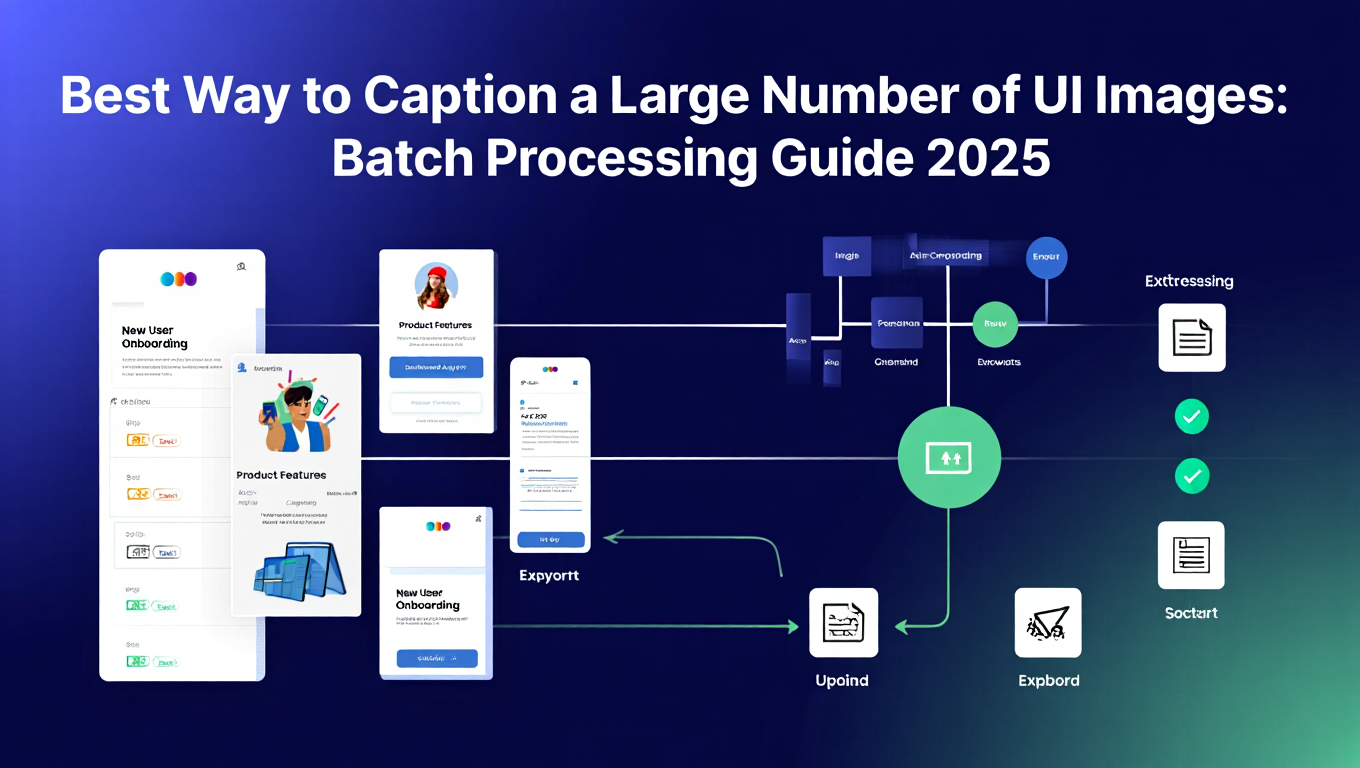
Quick Answer: For batch image captioning of large UI image collections, use WD14 Tagger (best for anime/illustration UI), BLIP/BLIP-2 (best for photorealistic/general UI), or LLaVA/Qwen-VL (best for detailed descriptions). Process 1000+ images in minutes with batch image captioning tools like ComfyUI Impact Pack, Python scripts, or cloud services. Quality control through sampling and spot-checking essential for training dataset preparation. Batch image captioning transforms hours of manual work into automated workflows.
- WD14 Tagger: Best for anime/manga UI, 50-100 images/minute, tag-based output
- BLIP-2: Best for photorealistic UI, 20-40 images/minute, natural language
- LLaVA/Qwen-VL: Most detailed, 5-15 images/minute, comprehensive descriptions
- Claude/GPT-4 Vision: Highest quality, $0.01/image, best accuracy
- Hybrid approach: Auto-caption + manual review = optimal balance
Client sent me 3,200 UI screenshots that needed captions for a training dataset. Started captioning manually. Got through 50 in 2 hours and did the math... at that pace I'd need 128 hours. Over three weeks of full-time work just describing images. Batch image captioning was clearly the solution.
Found BLIP-2, set up batch image captioning, walked away. Came back 90 minutes later to 3,200 captioned images. Were they all perfect? No. But the batch image captioning results were 85-90% accurate, and I could manually fix the problematic ones in a few hours instead of spending three weeks doing everything from scratch.
Batch image captioning doesn't have to be perfect. It just has to be way better than doing everything manually. For AI image generation fundamentals, see our complete beginner's guide.
:::tip[Key Takeaways]
- Follow the step-by-step process for best results with way to caption a large number of ui images: batch processing guide 2025
- Start with the basics before attempting advanced techniques
- Common mistakes are easy to avoid with proper setup
- Practice improves results significantly over time :::
- Comparison of major batch captioning tools and their strengths
- Setup instructions for automated captioning workflows
- Quality control strategies for large-scale captioning
- Cost analysis across different approaches
- Custom workflow design for specific UI types
- Integration with training pipelines and documentation systems
Why UI Screenshots Need Different Captioning Approaches
UI images have unique characteristics requiring tailored captioning strategies.
UI Image Characteristics
Text-Heavy Content: Screenshots contain interface text, labels, buttons, menus. Accurate OCR and text identification critical.
Structured Layouts: Grids, navigation bars, forms, dialogs follow predictable patterns. Captioning can use this structure.
Functional Elements: Buttons, inputs, dropdowns serve specific purposes. Captions should identify functional elements, not just visual appearance.
Context Dependency: Understanding "settings menu" more valuable than "gray rectangles with text". Semantic understanding matters.
Captioning Goals for UI Images
Training Data Preparation: LoRA or fine-tune training on UI styles needs detailed, accurate captions describing layout, elements, style, colors.
Documentation Generation: Auto-generating documentation from screenshots requires natural language descriptions of functionality and user flow.
Accessibility: Alt text for screen readers needs functional descriptions, not just visual appearance.
Organization and Search: Tagging for asset management or content discovery benefits from standardized, searchable terms.
Different goals require different captioning approaches. Training data needs tags and technical detail. Documentation needs natural language. Choose tools matching your use case.
Batch Image Captioning Tools Comparison
Multiple batch image captioning tools available with different strengths for UI screenshots. Choosing the right batch image captioning tool significantly impacts your results.
WD14 Tagger (Waifu Diffusion Tagger)
Best For: Anime UI, manga interfaces, stylized game UI
How It Works: Trained on anime/manga images with tags. Outputs danbooru-style tags describing visual elements.
Setup:
- ComfyUI: Install WD14 Tagger nodes via Manager
- Standalone: Python script or web interface
- Batch processing: Built-in support for folders
Output Example: Sample output: "1girl, user interface, settings menu, purple theme, modern design, menu buttons, clean layout"
Pros:
- Very fast (50-100 images/minute on good GPU)
- Consistent tag format
- Excellent for anime/stylized UI
- Low VRAM requirements (4GB)
Cons:
- Poor for photorealistic UI
- Tag-based output, not natural language
- Limited understanding of UI functionality
- Trained primarily on artwork, not screenshots
Cost: Free, runs locally
BLIP / BLIP-2 (Bootstrapping Language-Image Pre-training)
Best For: General UI screenshots, web interfaces, application UI
How It Works: Vision-language model generates natural language descriptions from images.
Setup:
- Python: Hugging Face transformers library
- ComfyUI: BLIP nodes available
- Batch processing: Custom Python script needed
Output Example: Sample output: "A settings menu interface with navigation sidebar on left, main content area showing user preferences with toggle switches and dropdown menus. Modern dark theme with blue accent colors."
Pros:
- Natural language descriptions
- Good general understanding
- Works across UI styles
- Open source and free
Cons:
- Slower than taggers (20-40 images/minute)
- Less detail than human captions
- May miss functional elements
- Moderate VRAM needed (8GB+)
Cost: Free, runs locally
LLaVA / Qwen-VL (Large Language and Vision Assistant)
Best For: Detailed UI analysis, complex interfaces, documentation
How It Works: Large vision-language models capable of detailed scene understanding and reasoning.
Setup:
- Ollama: Simple installation (ollama pull llava)
- Python: Hugging Face or official repos
- API: Programmable for batch processing
Output Example: Sample output: "This screenshot shows the user settings page of a mobile app with organized sections for Account, Notifications, and Privacy. The card-based layout uses subtle shadows and a light color scheme."
Pros:
- Most detailed descriptions
- Understands context and functionality
- Can answer specific questions about UI
- Excellent for documentation
Cons:
- Slowest (5-15 images/minute)
- Highest VRAM requirement (16GB+)
- May over-describe for simple tagging
- Resource intensive
Cost: Free locally, API usage costs if cloud-based
GPT-4 Vision / Claude 3 Vision
Best For: Highest quality needed, budget available, complex UI requiring subtle understanding
How It Works: Commercial vision-language APIs with state-of-the-art capabilities.
Setup:
- API key from OpenAI or Anthropic
- Python script for batch processing
- Simple HTTP requests
Output Quality: Highest available. Understands complex UI patterns, infers functionality accurately, provides context-aware descriptions.
Pros:
- Best accuracy and detail
- Handles any UI type excellently
- No local setup needed
- Scalable to any volume
Cons:
- Costly at scale ($0.01/image GPT-4, $0.008/image Claude)
- Requires internet connection
- Slower than local (API latency)
- Privacy concerns for sensitive UI
Cost: $0.008-0.01 per image = $80-100 per 10,000 images
Hybrid Approach (Recommended)
Strategy:
- Auto-caption all images with fast local tool (BLIP or WD14)
- Review and refine random 5-10% sample
- Use refined samples to calibrate quality expectations
- Manually fix obvious errors in full dataset
- For critical images, use premium tools (GPT-4 Vision)
Balance: 90% automation, 10% human oversight, 1% premium tools for hard cases.
Setting Up Batch Image Captioning Workflows
Practical batch image captioning implementation for different scenarios. Once you understand the tools, setting up batch image captioning workflows is straightforward.
ComfyUI Batch Captioning
Best For: Users already using ComfyUI, visual workflow preference
Setup:
- Install ComfyUI Impact Pack (includes batch processing tools)
- Install BLIP or WD14 Tagger nodes via Manager
- Create workflow:
- Image Batch Loader node (point to folder)
- Captioning node (BLIP/WD14)
- Text Save node (save captions to files)
- Queue and process entire folder
Workflow Tips:
- Use consistent naming: image001.jpg → image001.txt
- Process in batches of 100-500 to prevent memory issues
- Monitor VRAM usage and adjust batch size
Output: Text files next to each image with captions.
Python Script Batch Processing
Best For: Developers, automation needs, integration with existing pipelines
BLIP Script Workflow:
A Python script loads the BLIP model from Hugging Face transformers, then iterates through your image folder. For each image file, it generates a caption and saves it to a text file with the same name. The script processes images with common extensions (PNG, JPG, JPEG) and outputs progress to the console. You can customize the model, input folder path, and output format based on your needs.
Cloud Service Batch Processing
Best For: No local GPU, high quality needs, willing to pay for convenience
Replicate.com Approach:
- Create Replicate account
- Use BLIP or LLaVA models via API
- Upload images to cloud storage
- Batch process via API calls
- Download captions
Cost: ~$0.001-0.01 per image depending on model
Managed Platforms:
Platforms like Apatero.com offer batch captioning services with quality guarantees, handling infrastructure and optimization automatically.
Quality Control Strategies
Automation speeds captioning but quality control prevents garbage data.
Sampling and Spot Checking
Strategy: Don't review every caption. Use statistical sampling.
Method:
- Randomly select 5% of captions (50 from 1000)
- Manually review selected captions
- Calculate error rate
- If under 10% errors, accept batch
- If over 10% errors, investigate and adjust
Common Error Patterns:
- Consistently missing certain UI elements
- Wrong terminology for specific elements
- Poor handling of specific UI types (modals, dropdowns, etc.)
Automated Quality Checks
Simple Validation Rules:
Length Check: Captions under 10 characters likely errors. Flag for review.
Keyword Presence: UI captions should contain certain words ("button", "menu", "interface", etc.). Missing keywords flag as suspicious.
Duplicate Detection: Identical captions for different images suggests overgeneralization. Check manually.
OCR Verification: If image contains visible text, verify caption mentions key text elements.
Human-in-the-Loop Refinement
Efficient Review Process:
- Auto-caption all images
- Use tool (custom UI or spreadsheet) showing image + caption side-by-side
- Human reviews and fixes errors quickly
- Log common error patterns
- Retrain or adjust automation based on patterns
Time Investment: Auto-caption: 1000 images in 30 minutes Human review: 5% = 50 images at 10 seconds each = 8 minutes Total: 38 minutes vs 50+ hours fully manual
Iterative Improvement
Process:
- Caption batch 1 (1000 images) with auto tool
- Review sample, note common issues
- Adjust captioning prompts or settings
- Caption batch 2 with improvements
- Review, iterate
Learning Curve: First batch may have 15% error rate. By third batch, error rate often under 5%.
Use Case Specific Workflows
Different UI captioning scenarios require tailored approaches.
Training Data for UI LoRA
Requirements:
- Detailed technical captions
- Consistent terminology
- Tags for visual elements and styles
Recommended Approach: WD14 Tagger (fast, consistent tags) + manual refinement for critical elements.
Caption Template: Format: "ui screenshot, mobile app, settings screen, [specific elements], [color scheme], [layout style], [interactive elements]"
Example: "ui screenshot, mobile app, settings screen, toggle switches, list layout, purple accent color, modern flat design, dark mode"
Documentation Generation
Requirements:
- Natural language descriptions
- Functional understanding
- User-facing language
Recommended Approach: BLIP-2 or LLaVA for natural descriptions, GPT-4 Vision for high-value documentation.
Caption Template: Use this format: [Screen/feature name]: [Primary functionality]. [Key elements and their purpose]. [Notable design characteristics].
Example: "Settings Screen: Allows users to configure app preferences and account settings. Features toggle switches for notifications, text inputs for personal information, and dropdown menus for language selection. Uses card-based layout with clear section headers."
Asset Management and Organization
Requirements:
- Searchable keywords
- Consistent categorization
- Brief, scannable descriptions
Recommended Approach: Hybrid: Auto-tagger for keywords + short BLIP caption for description.
Caption Format: Use this format - Tags: [tag1, tag2, tag3] followed by Description: [Brief description]
Example: "Tags: settings, mobile, dark-theme, profile-section | Description: User profile settings page with avatar, name, email fields"
Accessibility (Alt Text)
Requirements:
- Functional descriptions for screen readers
- Describes purpose, not just appearance
- Concise but informative
Recommended Approach: LLaVA or GPT-4 Vision with specific alt text prompting.
Prompt Template: "Generate alt text for screen reader describing the functional purpose and key interactive elements of this UI screenshot."
Example: "Settings menu with sections for Account, Privacy, and Notifications. Each section contains interactive elements like toggle switches and text input fields allowing users to modify their preferences."
Cost and Performance Analysis
Understanding real costs helps budget and plan.
Local Processing Costs
Equipment Amortization: RTX 4070 ($600) / 1000 hours use = $0.60/hour
Processing Rates:
- WD14: 100 images/minute = 600 images/hour
- BLIP: 30 images/minute = 180 images/hour
- LLaVA: 10 images/minute = 60 images/hour
Cost Per 10,000 Images:
- WD14: 17 hours × $0.60 = $10.20
- BLIP: 56 hours × $0.60 = $33.60
- LLaVA: 167 hours × $0.60 = $100.20
Plus electricity (~$2-5 per 1000 images)
Cloud API Costs
GPT-4 Vision: $0.01/image × 10,000 = $100 Claude 3 Vision: $0.008/image × 10,000 = $80 Replicate BLIP: $0.001/image × 10,000 = $10
Hybrid Approach Economics
Strategy:
- 95% local auto-caption (BLIP): $32
- 5% GPT-4 Vision for complex cases: $5
- Total: $37 for 10,000 images
Quality: Near-GPT-4 quality for critical images, acceptable quality for bulk.
Time Investment
Fully Manual: 10,000 images × 30 sec/image = 83 hours Auto + 5% Review: 55 hours compute + 4 hours review = 4 hours your time Auto + 10% Review: 55 hours compute + 8 hours review = 8 hours your time
Time Savings: 75-79 hours (90-95% reduction)
Tools and Resources
Practical links and resources for implementation.
Captioning Models:
- BLIP on Hugging Face
- WD14 Tagger (multiple implementations)
- LLaVA official repository
- Qwen-VL Hugging Face
ComfyUI Extensions:
- ComfyUI Impact Pack (batch processing)
- WAS Node Suite (utilities)
- ComfyUI-Manager (easy installation)
Python Libraries:
- Transformers (Hugging Face)
- PIL/Pillow (image processing)
- PyTorch (model inference)
Cloud Services:
- Replicate.com (various models)
- Hugging Face Inference API
- OpenAI Vision API
- Anthropic Claude Vision
For users wanting turnkey solutions, Apatero.com offers managed batch captioning with quality guarantees and no technical setup required.
What's Next After Captioning Your Dataset?
Training Data Preparation: Check our LoRA training guide for using captioned datasets effectively.
Documentation Integration: Learn about automated documentation pipelines integrating screenshot captioning.
Quality Improvement: Fine-tune captioning models on your specific UI types for better accuracy.
Recommended Next Steps:
- Test 2-3 captioning approaches on 100-image sample
- Evaluate quality vs speed trade-offs for your use case
- Set up automated workflow for chosen approach
- Implement quality control sampling
- Process full dataset with monitoring
Additional Resources:
- BLIP Official Paper and Code
- WD14 Tagger Implementations
- LLaVA Project Page
- Batch Processing Best Practices
- Use WD14 if: Anime/stylized UI, need speed, tag-based output acceptable
- Use BLIP if: General UI, want natural language, balanced speed/quality
- Use LLaVA if: Detailed descriptions needed, have GPU resources, documentation use case
- Use Cloud APIs if: Maximum quality critical, no local GPU, budget available
- Use Apatero if: Want managed solution without technical setup or infrastructure
Batch image captioning for UI images has evolved from tedious manual work to efficient automated process. The right batch image captioning tool selection based on your specific needs - UI type, quality requirements, budget, and volume - enables processing thousands of images with minimal manual effort while maintaining acceptable quality for training data, documentation, or organization purposes. Batch image captioning transforms what was once weeks of work into hours.
As vision-language models continue improving, expect captioning quality to approach human level while processing speeds increase. The workflow you build today will only get better with model upgrades, making automation investment increasingly valuable over time.
Advanced Captioning Techniques
Beyond basic batch processing, advanced techniques improve caption quality and workflow efficiency for specialized needs.
Multi-Model Ensemble Captioning
Combine outputs from multiple models for improved quality.
Consensus filtering runs multiple captioners and keeps only elements appearing in all outputs. This filters out hallucinations specific to individual models while preserving accurate descriptions.
Complementary combination uses different models for different strengths. WD14 for technical tags, BLIP for natural descriptions, GPT-4 for functional understanding. Combine outputs into comprehensive captions.
Quality scoring ranks different model outputs and selects the best. Use a simple scoring model or heuristics (length, keyword presence, coherence) to choose optimal caption per image.
Context-Aware Captioning
Provide context to improve caption accuracy for specialized domains.
Domain prefixes tell captioners what they're looking at. "This is a mobile banking app settings screen:" helps models generate more accurate functional descriptions.
Reference examples show captioners what good captions look like. Few-shot prompting with 2-3 examples dramatically improves output quality on domain-specific content.
Terminology dictionaries define domain-specific terms. Provide definitions for UI elements specific to your application so captioners use correct terminology.
Progressive Refinement Workflows
Iteratively improve captions through multiple passes.
Coarse-to-fine captioning starts with basic auto-captioning, then uses higher-quality models to refine specific aspects like functional descriptions or technical details.
Human-in-the-loop refinement has humans correct the worst captions, then uses corrections to improve the model or prompts for better results on remaining images.
Confidence-based routing sends low-confidence captions to better models while accepting high-confidence results. Maximizes quality while minimizing expensive processing.
Integration with Training Pipelines
Captions serve training processes, so tight integration improves overall efficiency.
Training-Optimized Caption Formats
Structure captions for optimal training results.
Token efficiency keeps captions within model token limits while maximizing information. Remove redundant words, use efficient terminology.
Consistent ordering puts elements in predictable sequence: subject, attributes, actions, context. Consistent structure helps training.
Vocabulary control limits terminology to what the base model understands. Novel terms need training to associate; common terms work immediately.
For comprehensive training guidance, see our ComfyUI essential nodes guide.
Automatic Caption Validation
Verify captions meet training requirements automatically.
Length checks ensure captions aren't too short (insufficient description) or too long (exceeding token limits).
Required element verification confirms essential components are present (subject identification, key features, etc.).
Consistency validation checks that similar images have similar caption structures.
Caption-Image Pairing
Manage the relationship between images and captions throughout the pipeline.
Naming conventions keep images and captions synchronized. Use identical filenames with different extensions (image.png / image.txt).
Metadata embedding stores captions in image metadata for self-contained assets.
Database tracking maintains caption status, quality scores, and processing history for large datasets.
Optimization for Scale
Processing tens of thousands of images requires optimization beyond basic workflows.
GPU use Optimization
Maximize hardware efficiency during batch processing.
Batch size tuning finds the optimal tradeoff between throughput and latency. Larger batches improve GPU use but increase memory requirements.
Model caching keeps models loaded between batches. Reloading for each batch wastes significant time.
Memory monitoring tracks VRAM usage to identify optimization opportunities or prevent crashes.
For memory optimization strategies, see our VRAM optimization guide.
Parallel Processing Architectures
Distribute work for faster processing.
Multi-GPU parallelism processes different image batches on different GPUs simultaneously.
Cluster distribution spreads work across multiple machines for massive scale.
Cloud burst uses cloud GPUs for peak load while relying on local hardware for steady-state processing.
Storage and I/O Optimization
Prevent storage from bottlenecking processing.
Fast storage (NVMe SSD) for image input prevents GPU idle time waiting for data.
Async I/O loads next batch while processing current batch.
Output buffering batches writes to reduce filesystem overhead.
Specialized Use Cases
Different applications require specialized captioning approaches.
Design System Documentation
Caption UI components for design system documentation.
Component identification accurately names buttons, inputs, cards, modals.
Variant description captures different states (hover, active, disabled).
Token and style extraction identifies design tokens like colors, typography, spacing.
Accessibility Testing
Caption images to evaluate accessibility compliance.
Contrast and readability description helps identify potential accessibility issues.
Functional description quality evaluation ensures alt text communicates purpose.
Missing label detection identifies UI elements lacking proper labels.
Competitive Analysis
Caption competitor UI for systematic analysis.
Feature identification catalogs what functionality competitors offer.
Pattern recognition identifies common interaction patterns.
Design trend tracking monitors visual style evolution over time.
Future Developments
The captioning space continues evolving rapidly.
Model Improvements
Expect significant quality advances in coming years.
Specialized UI models trained specifically on interface screenshots will dramatically improve accuracy for UI captioning.
Real-time captioning will enable interactive workflows where captions update as images change.
Multi-modal understanding will combine visual analysis with code/markup analysis for complete understanding.
Workflow Evolution
Captioning workflows will become more sophisticated.
End-to-end automation will reduce human involvement to exception handling only.
Integrated pipelines will embed captioning into broader workflows automatically.
Quality guarantees from services will eliminate need for manual quality control.
For users wanting to build solid foundational skills in AI image generation, our complete beginner guide provides essential knowledge that helps contextualize these captioning techniques within broader AI workflows.
Frequently Asked Questions
How accurate are automated captions compared to human captions?
Current best models (GPT-4 Vision, Claude) achieve 85-95% of human quality. Open source models (BLIP, LLaVA) reach 70-85%. Accuracy varies by UI complexity - simple UIs caption better than complex specialized interfaces.
Can I train a custom captioning model for my specific UI style?
Yes, but requires ML expertise and significant computational resources. Fine-tuning existing models on your captioned examples (100-1000 images) improves accuracy significantly. Consider if improvement justifies effort and cost.
What's the minimum number of captions needed for LoRA training?
20-30 images absolute minimum. 50-100 recommended for good quality. Caption quality matters more than quantity - 30 excellent captions beat 100 mediocre ones.
How do I handle text-heavy UI screenshots?
Use OCR first (EasyOCR, Tesseract) to extract text, then combine with visual captioning. Or use vision-language models like Qwen-VL specifically strong at text-in-image understanding.
Should captions describe visual appearance or functionality?
Depends on use case. Training data benefits from visual descriptions. Documentation needs functional descriptions. Hybrid approach: "[Visual description], allowing users to [functionality]" covers both.
Can I use these tools for non-UI images?
Yes, all mentioned tools work for any image type. WD14 optimized for anime/manga. BLIP and others work universally. Consider tool strengths match your image types.
How do I caption images with sensitive or proprietary information?
Use local processing only. Never send proprietary screenshots to cloud APIs without permission. Scrub sensitive information before captioning if using cloud services.
What caption format works best for training?
Natural language sentences work well for most training. Some prefer danbooru-style tags. Test both with your specific model and use case. Consistency matters more than format.
How do I batch process 100,000+ images efficiently?
Use local GPU processing to avoid cloud API costs. Process in batches of 1000-5000. Distribute across multiple GPUs if available. Consider cloud GPUs (RunPod, Vast.ai) for burst processing.
Can automated captions replace manual work entirely?
For non-critical uses (organization, basic training data), yes with quality sampling. For critical applications (accessibility, legal documentation), human review remains essential. Hybrid approach recommended for most cases.
Make AI images and video in your browser
Characters, video, photo packs. No GPU, no setup. Check your welcome allowance and the displayed cost before generating.
Related Articles

5 Proven AI Influencer Niches That Actually Make Money in 2025
Discover the most profitable niches for AI influencers in 2025. Real data on monetization potential, audience engagement, and growth strategies for virtual content creators.

AI Background Replacement: Professional Guide 2025
Master AI background replacement for professional results. Learn rembg, BiRefNet, and ComfyUI workflows for smooth background removal and replacement.
AI Character Consistency: How to Maintain Virtual Persona Identity Across Content
Learn techniques for maintaining AI character consistency across hundreds of images. Master the art of creating recognizable virtual personas with consistent visual identity.