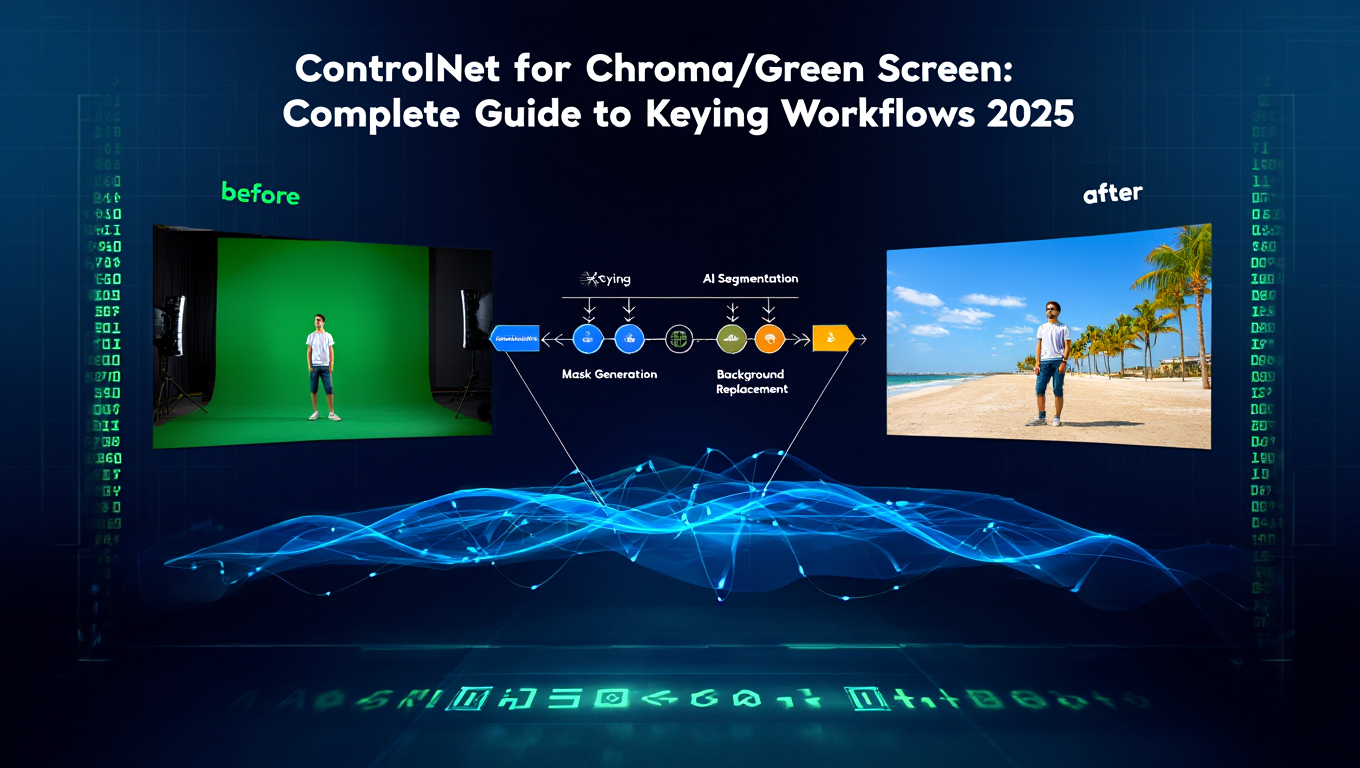
ControlNet for Chroma/Green Screen: Complete Guide to Keying Workflows 2025
Use ControlNet for green screen keying in ComfyUI. Complete guide to chroma key workflows, background replacement, and professional compositing.
Make AI images and video in your browser
Characters, video, photo packs. No GPU, no setup. Your first generation is free.
Quick Answer: ControlNet enables intelligent chroma keying and green screen compositing in ComfyUI by providing structural guidance for background replacement while preserving subject details. Use ControlNet depth, normal, or lineart preprocessing to maintain subject boundaries during background substitution, producing cleaner composites than traditional keying alone.
- Setup: ComfyUI + ControlNet models + Chroma key nodes
- Best ControlNet types: Depth, Normal, Lineart for chroma work
- Key advantage: Maintains subject structure during background replacement
- Use cases: Clean green screen removal, background replacement, video compositing
- Quality: Professional results with proper preprocessing
I tried doing a simple green screen background replacement. Traditional chroma keying removed the green perfectly... and also removed half the subject's hair, created weird halos around edges, and made transparent objects look wrong.
Spent hours tweaking spill suppression, edge feathering, all the traditional keying controls. Better, but still not great. Then I tried adding Control Net depth guidance to maintain the subject's structure while replacing the background.
Suddenly the hair stayed intact, edges looked clean, transparent objects maintained their properties. ControlNet doesn't replace chroma keying... it makes it actually work properly.
:::tip[Key Takeaways]
- Key options include Input Node: and Chroma Key Node:
- Start with the basics before attempting advanced techniques
- Common mistakes are easy to avoid with proper setup
- Practice improves results significantly over time :::
- How ControlNet enhances traditional chroma keying workflows
- Complete setup for chroma + ControlNet in ComfyUI
- Best ControlNet types for different keying scenarios
- Professional compositing techniques and quality tips
- Troubleshooting common chroma and ControlNet issues
- Real-world applications and workflow examples
Why Combine ControlNet with Chroma Keying?
Understanding the combination between these techniques reveals their combined power.
Traditional Chroma Keying Limitations
Color Spill: Green screen reflects green light onto subjects, creating green edges and color contamination difficult to remove cleanly.
Edge Detail Loss: Fine details like hair, fur, or transparent objects lose definition during aggressive keying needed to remove background completely.
Motion Blur Issues: Moving subjects create motion blur mixing foreground and background colors. Traditional keying can't separate cleanly.
Lighting Inconsistencies: Uneven green screen lighting creates hotspots and shadows making consistent keying nearly impossible.
How ControlNet Solves These Problems
Structural Guidance: ControlNet depth or normal maps provide subject boundary information independent of color. Preserves structure even when color keying struggles.
Edge Preservation: Depth and normal maps capture fine edge detail that survives the compositing process, recovering detail traditional keying loses.
Semantic Understanding: ControlNet understands subject vs background structurally, not just by color. Handles mixed colors and spill better.
Consistent Quality: Structural guidance from ControlNet produces more consistent results across frames despite lighting or keying variations.
Setting Up ControlNet for Chroma Workflows
Complete technical setup for ComfyUI chroma + ControlNet workflows.
Prerequisites
Required Components:
- ComfyUI 0.3.0+
- ControlNet custom nodes installed
- ControlNet model files (depth, normal, lineart)
- Chroma key nodes (native or custom)
- 8GB+ VRAM recommended
Installation Steps:
- Install ComfyUI ControlNet nodes via Manager
- Download ControlNet models from Hugging Face
- Place models in ComfyUI/models/controlnet/
- Verify chroma key nodes available (often included with standard ComfyUI)
- Restart ComfyUI and verify nodes appear
Essential ControlNet Models for Chroma Work
Depth ControlNet: Best for maintaining subject-background separation. Works excellently with people, objects, products against green screen.
Normal Map ControlNet: Captures surface orientation. Excellent for complex surfaces and fine detail preservation.
Lineart ControlNet: Emphasizes edges and boundaries. Works well when subject has clear, defined edges.
Download Priority: Start with depth ControlNet (most versatile for chroma work), add normal and lineart as needed.
Basic Workflow Structure
Node Flow:
- Input Node: Load green screen image or video frame
- Chroma Key Node: Remove green screen color
- ControlNet Preprocessor: Generate depth/normal/lineart map from original
- ControlNet Apply: Use structural guidance
- Background Node: Load or generate replacement background
- Composite Node: Combine subject with new background
- Output: Final composited image
Key Concept: ControlNet preprocessing happens on ORIGINAL image before chroma key, preserving subject structure.
ControlNet Types for Different Chroma Scenarios
Choosing the right ControlNet type dramatically affects results.
Depth ControlNet for Studio Shots
Best For:
- Professional studio green screen footage
- Clear subject-background separation
- People and product photography
- Standard talking head videos
How It Works: Depth map identifies distance from camera. Subject (closer) separates from background (further) structurally, independent of color keying success.
Workflow:
- Run depth preprocessor on original green screen image
- Chroma key removes green
- Apply ControlNet depth guidance
- Composite with new background
- Depth map ensures subject boundaries remain crisp
Quality Tip: Use high-quality depth preprocessor (MiDaS or ZoeDepth) for best separation accuracy.
Normal Map ControlNet for Fine Detail
Best For:
- Hair and fur detail preservation
- Fabric texture and folds
- Surface detail on products
- Complex subject surfaces
How It Works: Normal maps encode surface orientation at every pixel. Preserves fine surface detail even when color keying fails at edges.
Workflow:
- Generate normal map from original image
- Apply chroma key
- Use normal map ControlNet for guidance
- Composite preserving surface detail
- Fine edge details survive compositing
When to Use: When traditional keying loses hair detail, fabric texture, or other fine surface characteristics.
Lineart ControlNet for Clean Edges
Best For:
- Animated content with defined edges
- Products with clear boundaries
- Graphic or stylized subjects
- When crisp edge definition critical
How It Works: Extracts edge lines from original. These edges guide compositing, ensuring clean subject boundaries.
Workflow:
- Extract lineart from original green screen
- Chroma key removes background
- Lineart ControlNet maintains edge precision
- Composite with sharp, defined subject boundaries
Limitation: Works best with subjects having clear edges. Struggles with soft, gradual boundaries like smoke or translucent materials.
Multi-ControlNet Approach (Advanced)
Strategy: Combine multiple ControlNet types for maximum quality.
Example Workflow:
- Depth ControlNet: Overall subject-background separation (strength 0.7)
- Normal ControlNet: Fine detail preservation (strength 0.5)
- Lineart ControlNet: Edge crispness (strength 0.4)
Benefits: Each ControlNet type contributes its strength. Depth handles separation, normal preserves detail, lineart sharpens edges.
Complexity: Balancing multiple ControlNet strengths requires experimentation. Start with single ControlNet, add others only if needed.
Professional Chroma + ControlNet Techniques
Advanced techniques for production-quality results.
Lighting and Color Matching
Challenge: Subject and new background must appear lit by same environment for believable composite.
ControlNet Solution: Use depth map to identify subject. Apply lighting adjustments only to subject layer, matching background lighting direction and color temperature.
Technique:
- Separate subject using ControlNet depth guidance
- Analyze background lighting (direction, color, intensity)
- Apply corresponding lighting adjustments to subject
- Edge feathering for smooth integration
Spill Suppression with ControlNet
Problem: Green spill on subject edges contaminates composite.
Traditional Fix: Color correction and spill suppression filters (often too aggressive, lose detail).
ControlNet Enhancement:
- Use ControlNet to precisely identify subject edges
- Apply spill suppression ONLY to edge pixels
- Preserve subject interior colors
- Maintain fine edge detail from ControlNet guidance
Result: Clean edges without overcorrecting subject colors or losing detail.
Motion Blur Recovery
Challenge: Motion blur mixes foreground and background colors, making clean keying impossible.
ControlNet Approach:
- Generate depth map showing subject position
- Identify blur regions via depth discontinuities
- Use ControlNet to guide blur region reconstruction
- Composite with appropriate motion blur matching new background
Advanced: Combine with frame interpolation for smoother motion blur in final composite.
Multi-Frame Consistency
Video Challenge: Frame-to-frame keying variations create flickering and inconsistency.
ControlNet Stabilization:
- Process entire video extracting ControlNet guidance per frame
- Temporal smoothing on ControlNet maps across frames
- Apply consistent chroma keying guided by smoothed ControlNet
- Result: Temporally stable composites without flicker
Tools: Custom ComfyUI workflows with frame batching and temporal filtering nodes.
Practical Workflow Examples
Real-world scenarios with complete workflows.
Product Photography Background Replacement
Scenario: 100 product photos on green screen need white background for e-commerce.
Workflow:
- Batch load product images
- Depth ControlNet preprocessing (identifies product boundaries)
- Chroma key removes green
- Apply depth guidance ensuring product edges crisp
- Composite on white background
- Batch export
Efficiency: Process 100 images in 30-60 minutes with consistent quality.
Quality Factors: Depth ControlNet preserves product detail and sharp edges. Uniform white background removes manual editing needs.
Interview Video Compositing
Scenario: Interview footage on green screen, need custom backgrounds per topic.
Workflow:
- Extract frames from video
- Run depth preprocessing on all frames
- Apply chroma key
- Depth ControlNet guides subject extraction
- Composite with topic-appropriate backgrounds
- Reassemble video
Variation: Change backgrounds at scene transitions. ControlNet ensures consistent subject quality across all backgrounds.
Virtual Production Background Extension
Scenario: Tight green screen doesn't cover entire frame. Need to extend background smoothly.
Workflow:
- Chroma key removes visible green screen
- Depth ControlNet identifies subject and green screen boundaries
- Inpaint/extend background into uncovered areas using structural guidance
- Composite ensuring depth consistency
- Result: Smooth extension beyond physical green screen
Advanced: Use multiple ControlNet types (depth + normal) for maximum edge quality at extension boundaries.
Transparent Object Compositing
Challenge: Glass, water, smoke are partially transparent. Traditional keying destroys transparency.
ControlNet Solution:
Free ComfyUI Workflows
Find free, open-source ComfyUI workflows for techniques in this article. Open source is strong.
- Normal map ControlNet captures surface properties
- Chroma key handles opaque regions
- Normal guidance reconstructs transparency gradients
- Composite preserving partial transparency
- Manual refinement only for extreme cases
Quality: Near-photographic transparency reproduction impossible with chroma alone.
Troubleshooting Common Issues
Professional solutions to frequent problems.
Green Spill Not Fully Removed
Symptoms: Green edges around subject even after spill suppression.
Solutions:
Increase chroma key range. Expand color tolerance to capture more green values.
Targeted spill suppression. Use ControlNet to identify edge pixels, apply aggressive correction only there.
Edge matting. Generate soft edge matte from ControlNet depth, use for feathered composite.
Color grading. Shift problem edge colors away from green in post-processing.
Soft or Blurry Subject Edges
Symptoms: Subject edges lack definition, appear soft or blurry in composite.
Solutions:
Use lineart ControlNet. Emphasizes edge definition explicitly.
Increase ControlNet strength. Stronger structural guidance preserves edges better.
Sharpen subject layer. Apply targeted sharpening guided by ControlNet edge map.
Better source footage. Properly lit, in-focus green screen footage keyables better.
Artifacts at Complex Edges (Hair, Fur)
Symptoms: Hair strands lost or artifacts visible at fine detail areas.
Solutions:
Normal map ControlNet. Captures fine surface detail better than depth alone.
Multi-ControlNet approach. Combine depth (separation) + normal (detail) + lineart (edges).
Reduce chroma key aggression. Less aggressive key preserves more detail. Let ControlNet handle ambiguous regions.
Matting refinement. Generate high-quality alpha matte using ControlNet guidance for fine detail areas.
Inconsistent Results Across Frames
Symptoms: Video composites flicker or show quality variations frame-to-frame.
Solutions:
Temporal smoothing. Apply smoothing to ControlNet maps across time.
Batch processing. Process multiple frames together with consistent settings.
Optical flow stabilization. Use optical flow to propagate good keying results to adjacent frames.
Fixed ControlNet strength. Don't vary ControlNet parameters across frames.
Background Doesn't Match Subject Lighting
Symptoms: Composite looks fake due to lighting mismatch.
Solutions:
Analyze background lighting. Identify direction, color temperature, intensity.
Relight subject layer. Use depth map from ControlNet to identify subject, apply matching lighting.
Want to skip the complexity? Apatero gives you professional AI results instantly with no technical setup required.
HDR environment maps. Use background's lighting information to relight subject realistically.
Manual touch-up. Add highlights, shadows, and ambient occlusion guided by ControlNet depth.
Real-World Performance and Cost Analysis
Understanding practical implications for production use.
Processing Speed
Hardware: RTX 4090
- Depth preprocessing: 2-3 seconds per 1080p image
- Chroma keying: <1 second
- ControlNet application: 3-5 seconds
- Compositing: 1-2 seconds
- Total: 7-11 seconds per image
Video Processing:
- 30-second video (720 frames): 1.5-2.5 hours
- Batch optimization possible: 1-1.5 hours
Lower-end Hardware (RTX 3060): Approximately 2-3x longer processing times.
Cost Comparison
Local Processing:
- Hardware amortization: Minimal ($0.10-0.30 per 100 images)
- Electricity: $0.05-0.15 per 100 images
- Total: ~$0.15-0.45 per 100 images
Cloud Services:
- Professional chroma services: $0.50-2.00 per image
- Cloud GPU (RunPod): $0.02-0.05 per image
- Total: $0.02-2.00 per image
Break-Even: Local setup cost-effective for volumes over 1,000 images. Cloud better for occasional use.
Quality vs Manual Compositing
Traditional Manual Approach:
- 5-15 minutes per image for professional quality
- 100 images = 8-25 hours manual work
ControlNet Chroma Automation:
- 10 seconds per image processing
- 2-5 minutes per image manual refinement (if needed)
- 100 images = 30 minutes processing + 3-8 hours refinement
Time Savings: 50-90% reduction in manual effort.
When to Use ControlNet Chroma vs Alternatives
Decision framework for choosing appropriate techniques.
Use ControlNet Chroma When:
- High-volume green screen processing needed
- Fine edge detail preservation critical
- Lighting spill problems present
- Motion blur in source footage
- Multi-background compositing required
Use Traditional Chroma When:
- Clean studio footage with perfect lighting
- Simple background replacement
- Speed priority over absolute quality
- Learning/experimentation phase
Use Manual Compositing When:
- Single high-value images (movie VFX)
- Extreme quality requirements
- Unusual keying situations (partial transparency, reflections)
- Budget allows manual labor investment
Use Managed Services When:
- No local hardware available
- Need guaranteed turnaround times
- Prefer no technical complexity
- Occasional use doesn't justify setup
Platforms like Apatero.com offer professional chroma compositing without technical setup, ideal for users wanting quality results without infrastructure investment.
What's Next in ControlNet Chroma Workflows?
Field continues evolving with new capabilities emerging.
Emerging Techniques:
- Real-time chroma + ControlNet for live streaming
- AI-powered automatic spill suppression
- Depth estimation improving for edge cases
- Multi-modal ControlNet combining depth, normal, and learned features
Check our ControlNet guide for broader ControlNet applications, and video compositing workflows for video-specific techniques.
Recommended Next Steps:
- Set up basic ControlNet + chroma workflow with test images
- Experiment with different ControlNet types for your use cases
- Build reusable workflow templates for common scenarios
- Integrate with existing video/image production pipelines
- Explore advanced multi-ControlNet combinations
Additional Resources:
- ControlNet Official Repository
- ComfyUI ControlNet Documentation
- Professional Compositing Tutorials
- Community forums for workflow sharing
- DIY ControlNet Chroma if: High volume, have technical skills, own suitable hardware, need customization
- Use cloud GPU services if: Moderate volume, no local hardware, technical knowledge present, budget allows
- Use managed platforms if: Want professional results without setup, prefer simplicity, occasional use, value time over cost
ControlNet transformed chroma keying from color-based masking into intelligent structural compositing. The combination enables professional-quality green screen work on consumer hardware, democratizing techniques previously requiring expensive software and specialized knowledge.
As ControlNet models and preprocessing improve, expect even better edge detail preservation, faster processing, and expanded capabilities like real-time application for live streaming and virtual production. The gap between automated and manual compositing continues narrowing.
Advanced ControlNet Chroma Techniques
Beyond basic workflows, advanced techniques unlock professional-quality results for demanding applications.
Multi-Pass Processing Workflows
For maximum quality, process images through multiple ControlNet passes:
Pass 1 - Structural Separation: Use depth ControlNet to establish strong subject-background separation. This pass focuses on getting clean boundaries without worrying about fine detail.
Pass 2 - Detail Recovery: Apply normal map ControlNet at lower strength to recover fine surface detail lost in the first pass. Focus on hair, fabric texture, and complex edges.
Earn Up To $1,250+/Month Creating Content
Join our exclusive creator affiliate program. Get paid per viral video based on performance. Create content in your style with full creative freedom.
Pass 3 - Edge Refinement: Use lineart ControlNet at minimal strength (0.2-0.4) to sharpen final edges without over-processing interior areas.
Pass 4 - Consistency Check: Review final composite for artifacts and apply targeted fixes to problem areas.
This approach takes longer but produces results approaching manual compositing quality.
Dynamic Strength Adjustment
Different image regions benefit from different ControlNet strengths:
Technique: Create masks for different image regions and apply ControlNet with varying strengths:
- High strength (0.8-1.0) for clear subject boundaries
- Medium strength (0.5-0.7) for detailed edges like hair
- Low strength (0.3-0.5) for soft transitions and atmospheric elements
Some advanced workflows use attention masking to achieve per-region strength control within single ControlNet application.
Combining with Other ComfyUI Techniques
ControlNet chroma workflows integrate with other ComfyUI capabilities:
IP-Adapter Integration: Use IP-Adapter to match background style to subject:
- Extract style from new background
- Apply style influence during compositing
- Result: More cohesive composite with matched aesthetics
LoRA for Specific Styles: Apply style LoRAs during compositing to achieve specific looks:
- Cinematic grading LoRAs
- Anime style conversion
- Period-specific aesthetics
For LoRA training and usage, our Flux LoRA training guide covers the fundamentals.
Upscaling Pipeline: Incorporate upscaling for final output:
- Composite at native resolution
- Apply AI upscaler
- Final detail enhancement
- Export at target resolution
Handling Difficult Materials
Certain materials require special attention in chroma workflows:
Glass and Transparent Objects:
- Use normal map ControlNet to preserve surface properties
- Reduce chroma key aggressiveness for transparent regions
- Manual attention to reflections and refractions
- Consider multiple passes with different settings
Motion Blur:
- Depth map helps identify blur regions
- Use temporal information if processing video
- ControlNet guides blur region reconstruction
- Post-process to match new background motion
Fine Hair and Fur:
- Normal map ControlNet critical for detail
- Very gentle chroma key to preserve strands
- Consider hair-specific ControlNet if available
- Expect some manual refinement for premium results
Performance Optimization for Production
Production workflows require efficient processing alongside quality.
GPU Memory Management
ControlNet chroma workflows are memory-intensive:
Typical Memory Requirements:
- Base model: 4-8GB
- ControlNet model: 2-3GB per type
- Preprocessor: 1-2GB
- Working memory: 2-4GB
Total: 10-18GB depending on configuration
Optimization Strategies:
- Load one ControlNet type at a time
- Process in sequential passes if VRAM limited
- Use quantized models where possible
- Clear cache between batches
For comprehensive memory optimization techniques, our performance guide covers ComfyUI-specific approaches.
Batch Processing Architecture
For high-volume chroma processing:
Workflow Structure:
- Input queue management
- Parallel preprocessing (CPU-bound)
- Sequential GPU processing
- Output organization and logging
Throughput Optimization:
- Preprocess next batch during current GPU work
- Use consistent settings across batch
- Implement quality checkpoints
- Automate file organization
Monitoring:
- Track processing time per image
- Log failures for review
- Monitor GPU use
- Watch for memory leaks over long runs
Quality vs Speed Tradeoffs
Production often requires balancing quality with throughput:
| Priority | Approach | Time per Image | Quality Level |
|---|---|---|---|
| Speed | Single pass, low settings | 5-8 seconds | Acceptable |
| Balanced | Single pass, medium settings | 8-12 seconds | Good |
| Quality | Multi-pass, high settings | 20-40 seconds | Excellent |
| Maximum | Multi-pass with manual review | 60+ seconds | Premium |
Choose approach based on use case: social media content tolerates lower quality while commercial work demands maximum attention.
Integration with Professional Tools
ControlNet chroma workflows fit into larger professional pipelines.
After Effects Integration
Export from ComfyUI for After Effects finishing:
Workflow:
- Process chroma in ComfyUI
- Export with alpha channel (PNG sequence)
- Import to After Effects
- Apply additional effects and grading
- Final render
Advantages:
- Best of both worlds
- AI handles difficult keying
- AE handles motion graphics and polish
DaVinci Resolve Pipeline
For video-focused workflows:
Integration Points:
- Export frames from Resolve
- Process in ComfyUI
- Import processed frames
- Grade and finish in Resolve
Considerations:
- Maintain frame numbering
- Preserve color space
- Document workflow for consistency
Automated Pipeline Systems
For high-volume production:
Architecture:
- Watch folders for input
- Automated ComfyUI processing
- Quality check stage
- Output delivery system
Implementation:
- ComfyUI API for job submission
- Queue management system
- Progress monitoring
- Error handling and retry logic
Troubleshooting Advanced Issues
Complex workflows encounter complex problems.
Color Space Issues
Symptoms: Colors shift unexpectedly during processing
Diagnosis:
- Check input color profile
- Verify ComfyUI color space handling
- Review output color space settings
Solutions:
- Convert to consistent color space on input
- Process in linear color space
- Convert to delivery color space on output
Temporal Artifacts in Video
Symptoms: Flickering, popping, or inconsistency between frames
Diagnosis:
- View frames sequentially
- Check ControlNet strength consistency
- Review per-frame processing logs
Solutions:
- Apply temporal smoothing to ControlNet maps
- Use consistent seeds if applicable
- Implement optical flow guidance
- Consider frame interpolation in post
Memory Fragmentation
Symptoms: Slowdown over time, eventual crashes during long batches
Diagnosis:
- Monitor VRAM usage over time
- Check for memory growth patterns
- Identify which stage causes growth
Solutions:
- Restart ComfyUI between large batches
- Implement periodic cache clearing
- Process in smaller batch sizes
- Update to latest ComfyUI (memory fixes common)
Future Developments
The field continues advancing rapidly.
Real-Time Processing
Current research pushes toward real-time chroma + ControlNet:
Approaches:
- Optimized ControlNet architectures
- Hardware-specific optimizations
- Reduced precision processing
- Streaming implementations
Applications:
- Live streaming
- Virtual production
- Interactive installations
- Real-time video calls
Improved Edge Models
Specialized models for edge cases:
Development Areas:
- Hair-specific ControlNet
- Transparency-aware models
- Motion blur reconstruction
- Improved depth estimation
Expect these specialized models to improve results for currently difficult cases.
End-to-End Learning
Future systems may learn the entire chroma process:
Concept:
- Single model handles all steps
- Learns optimal combination automatically
- Reduces manual pipeline design
This represents research direction rather than current capability.
Frequently Asked Questions
Does ControlNet completely replace traditional chroma keying?
No, it enhances traditional keying. You still need color-based chroma key to remove background. ControlNet adds structural guidance improving edge quality and detail preservation. Use together for best results.
What VRAM do I need for ControlNet chroma workflows?
8GB minimum for basic workflows. 12GB comfortable for production. 16GB+ for multi-ControlNet approaches or high-resolution video. Lower VRAM possible with quantization and optimization.
Can this work with blue screen or other chroma colors?
Yes, ControlNet guidance is color-independent. Works identically with blue screen, red screen, or any color keying. Adjust chroma key node for target color, ControlNet workflow remains same.
How does this compare to professional compositing software like Nuke?
Nuke offers more manual control and decades of refinement. ControlNet chroma provides automated intelligence Nuke lacks. Many professionals now combine both - Nuke for manual refinement, ControlNet for automated heavy lifting.
Can I use this for real-time compositing?
Current ComfyUI workflows not real-time (7-11 seconds per frame). Research into real-time ControlNet ongoing. Future optimizations may enable low-latency application for live streaming.
What if my green screen lighting is terrible?
ControlNet helps but can't fix everything. Poor lighting (uneven, hotspots, shadows) makes both chroma keying and ControlNet struggle. Improve source footage quality first. ControlNet recovers more than traditional keying but has limits.
Do I need different ControlNet models for video vs images?
Same ControlNet models work for both. Video adds temporal consistency concerns requiring frame-to-frame smoothing and batch processing, but core ControlNet approach identical.
Can this handle reflective or transparent subjects?
Partially. ControlNet improves results but reflective and transparent subjects remain challenging. Normal map ControlNet helps preserve surface properties. Expect manual refinement needed for difficult cases.
How do I batch process 1000+ green screen images?
Create ComfyUI workflow with batch image loader. Process in groups of 50-100 to manage VRAM. Use consistent settings across batch. Monitor first few outputs, then automate remainder. Consider overnight processing for large volumes.
Is this worth learning for occasional green screen work?
Depends on volume and quality needs. For occasional use (<10 images/month), traditional tools or managed services simpler. For regular use (50+ images/month), learning curve justifies efficiency gains.
Make AI images and video in your browser
Characters, video, photo packs. No GPU, no setup. Your first generation is free.
Related Articles
10 Most Common ComfyUI Beginner Mistakes and How to Fix Them in 2025
Avoid the top 10 ComfyUI beginner pitfalls that frustrate new users. Complete troubleshooting guide with solutions for VRAM errors, model loading...

25 ComfyUI Tips and Tricks That Pro Users Don't Want You to Know in 2025
Discover 25 advanced ComfyUI tips, workflow optimization techniques, and pro-level tricks that expert users use.

360 Anime Spin with Anisora v3.2: Complete Character Rotation Guide ComfyUI 2025
Master 360-degree anime character rotation with Anisora v3.2 in ComfyUI. Learn camera orbit workflows, multi-view consistency, and professional...