ComfyUI ControlNet Pose Guide: Master Character Positioning
Complete guide to using ControlNet pose control in ComfyUI. Learn OpenPose, DWPose, and other techniques for precise character positioning in AI art.
Controlling character pose is essential for consistent AI art production. ControlNet's pose detection and application gives you precise control over how characters position themselves, enabling everything from matching reference photos to creating specific action sequences.
This guide covers pose control in ComfyUI, from basic OpenPose usage to advanced multi-person scenes.
Quick Answer: ControlNet pose control uses skeletal detection (OpenPose, DWPose) to extract pose from reference images, then applies that pose during generation. In ComfyUI, use ControlNet preprocessors to detect pose, then ControlNet apply nodes to guide generation. DWPose offers better accuracy than OpenPose. Strength settings around 0.7-0.9 typically work well.
:::tip[Key Takeaways]
- Key options include Detection: and Preprocessing:
- Start with the basics before attempting advanced techniques
- Common mistakes are easy to avoid with proper setup
- Practice improves results significantly over time :::
- Pose detection methods and models
- Basic pose workflow setup
- Advanced pose techniques
- Troubleshooting pose issues
- Combining pose with other controls
Understanding Pose Control
How Pose ControlNet Works
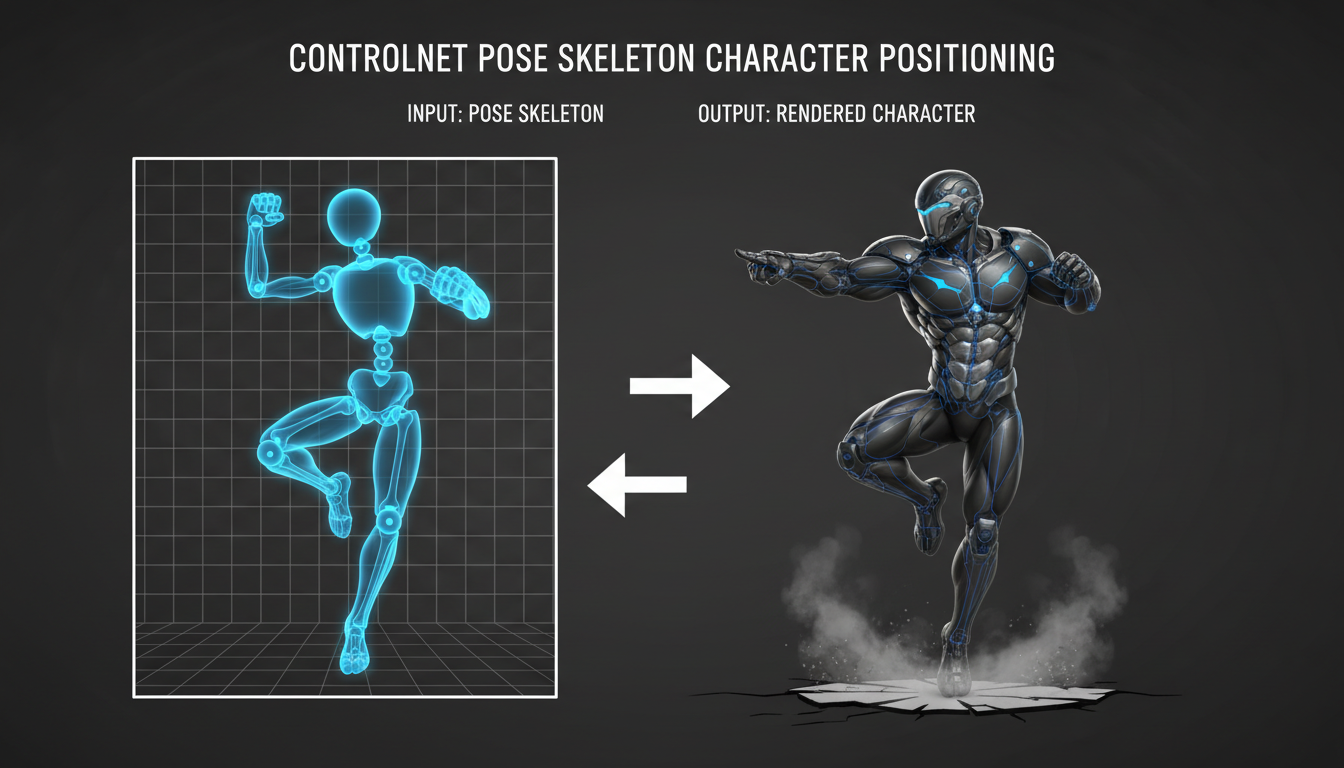
The process involves:
- Detection: Extract skeleton from reference image
- Preprocessing: Convert to pose format
- Application: Guide generation with pose structure
- Generation: AI creates image matching pose
Pose Detection Methods
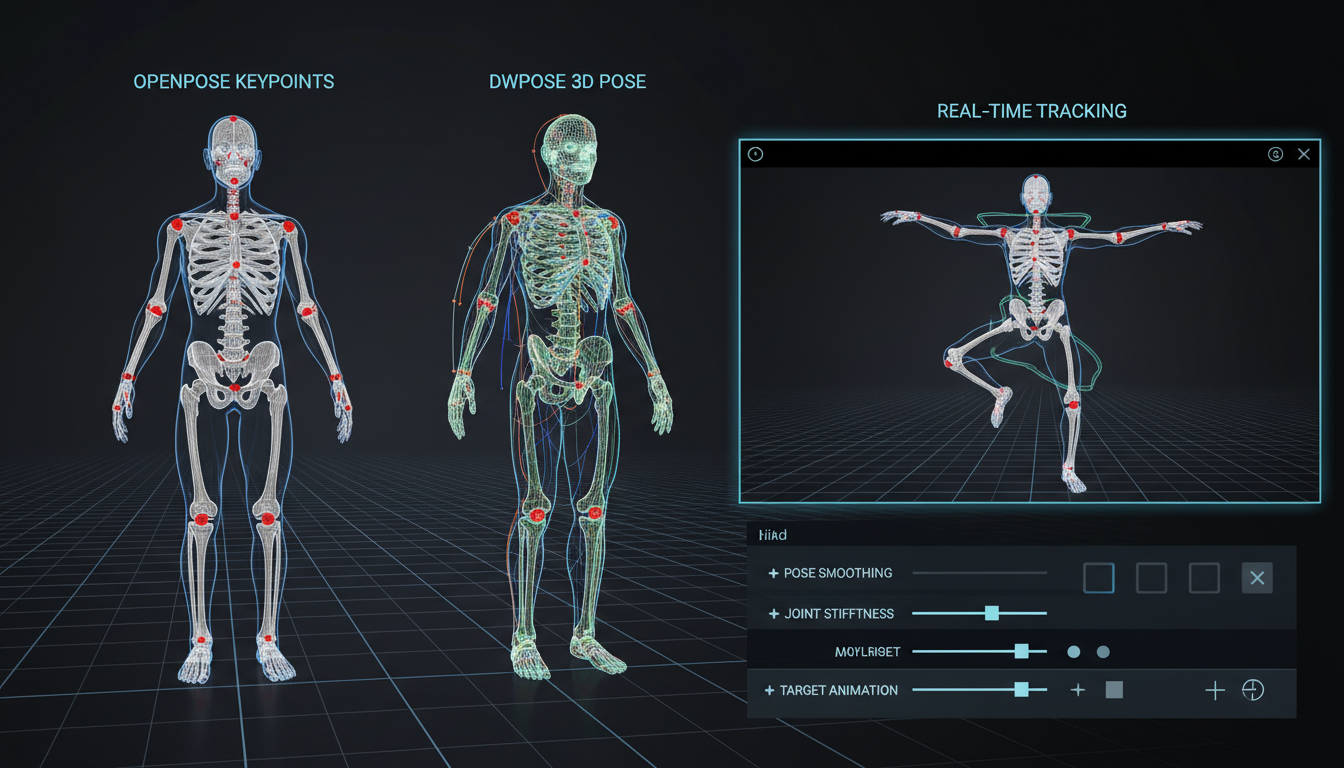
OpenPose: Original widely-used method.
- Body, face, and hand detection
- Good general accuracy
- Widely supported
DWPose: Improved detection.
- Better accuracy overall
- Superior hand detection
- Recommended for most use
MediaPipe: Alternative detection.
- Different skeleton format
- Good for specific applications
Basic Pose Workflow
Required Nodes
Set up core workflow:
[Load Image] ← Reference pose image
       ↓
[ControlNet Preprocessor] ← DWPose or OpenPose
       ↓
[Load ControlNet Model]
       ↓
[Apply ControlNet]
       ↓
[KSampler]
       ↓
[VAE Decode]
       ↓
[Save Image]
Preprocessor Setup
Configure pose detection:
DWPose preprocessor:
- Install via ComfyUI Manager
- Better accuracy than OpenPose
- Handles hands and face well
OpenPose preprocessor:
- Legacy but functional
- Choose body/face/hand options
- Faster but less accurate
ControlNet Settings
Key parameters:
Strength: How strongly pose guides generation (0.7-0.9 typical).
Start/End: When pose applies during generation.
Model: Match to your base model (SD1.5 or SDXL).
Advanced Techniques
Multiple Poses
For scenes with multiple characters:
Detection: Preprocessors detect multiple people automatically.
Challenges: Overlapping figures, occlusion.
Solutions: Clear reference images, careful composition.
Pose Editing
Modify detected poses:
Mask specific joints: Exclude parts from detection.
Combine poses: Merge different pose elements.
Manual adjustment: Edit pose skeleton directly.
Hand Pose Focus
Hands are notoriously difficult:
DWPose advantage: Better hand detection than OpenPose.
Dedicated hand models: ControlNet hand-specific options.
Reference quality: Clear hand visibility in reference.
Fallback: Inpaint hands separately if needed.
Combining with Other ControlNets
Pose + Depth
For better spatial accuracy:
Pose: Controls character positioning.
Depth: Controls overall scene depth.
Combination: More accurate 3D-feeling results.
Pose + Canny
For maintaining composition:
Pose: Character positioning.
Canny: Edge preservation.
Balance: Adjust strengths for desired effect.
Pose + Character Consistency
With LoRA or IP-Adapter:
Pose: Control positioning.
Consistency: Maintain character appearance.
Result: Same character in specified pose.
Reference Image Best Practices
Good Reference Characteristics
Clear visibility: All body parts visible.
Good lighting: No heavy shadows obscuring pose.
Clean background: Less confusion for detection.
Natural pose: Poses that make anatomical sense.
Problematic References
What to avoid:
Obscured limbs: Parts hidden behind objects.
Extreme poses: May not translate well.
Low quality: Blurry or low-resolution images.
Multiple overlapping people: Detection confusion.
Finding References
Sources for pose references:
Stock photos: Clear, professional poses.
Reference pose libraries: Created for artists.
Your own photos: Custom poses you need.
3D pose tools: Software for creating custom poses.
Troubleshooting
Wrong Pose Applied
Causes:
- Detection error
- Strength too low
- Conflicting prompts
Solutions:
- Try different preprocessor
- Increase strength
- Align prompt with pose
Unnatural Limbs
Causes:
- Anatomically impossible pose
- Detection errors
- Model limitations
Solutions:
- Use simpler reference pose
- Check detection output
- Increase pose strength
- Inpaint problem areas
Pose Not Matching Reference
Causes:
- Preprocessing issues
- Strength too low
- Prompt conflicts
Solutions:
- Verify preprocessor output
- Increase ControlNet strength
- Remove conflicting prompt elements
Multiple People Confusion
Causes:
- Overlapping detection
- Unclear reference
Solutions:
- Cleaner reference images
- Process subjects separately
- Use regional conditioning
Workflow Optimization
Batch Processing
For consistent pose across images:
Save pose map: Reuse detected pose.
Template workflow: Standardize for similar shots.
Consistent settings: Same strength across batch.
Quality vs Speed
Balance trade-offs:
Lower strength: Faster, more AI freedom.
Higher strength: Slower, more accurate pose.
Preprocessor choice: DWPose slower but better.
Frequently Asked Questions
Which is better, OpenPose or DWPose?
DWPose for accuracy, especially hands. OpenPose if DWPose unavailable.
What strength should I use?
Start at 0.7-0.8. Increase for more accurate pose, decrease for more AI freedom.
Can I pose characters from imagination?
Use 3D pose software or draw pose skeleton manually.
Why doesn't the pose match exactly?
Some stylization is normal. Increase strength for closer match.
How do I handle complex poses?
Clear references, higher strength, and possibly multiple passes.
Can I use video frames for pose?
Yes, extract frames and process each.
Does pose ControlNet work with SDXL?
Yes, with SDXL-compatible ControlNet models.
How do I combine pose with face consistency?
Use pose ControlNet with IP-Adapter or face LoRA simultaneously.
Conclusion
ControlNet pose control enables precise character positioning in ComfyUI. DWPose provides the best accuracy for most cases, while workflow configuration determines how strictly pose is followed.
Start with basic single-person poses, then progress to more complex multi-person scenes and pose combinations as you build experience. Combined with character consistency methods, pose control enables production of consistent characters in any position.
For character consistency across poses, see our consistency guide. For basic ControlNet understanding, check our essentials guide.
Some models you cannot download at any VRAM
Veo, Kling and Nano Banana have closed weights. There is no local build, no quantization, no 24GB workaround. Run them in the browser instead. Check current model access and generation costs in the app.
Related Articles

25 ComfyUI Workflow Tips: Settings and Review
Explore ComfyUI workflow organization, settings and output review, with a blank worksheet for comparing performance on your own setup.

7 ComfyUI Custom Nodes That Should Be Built-In (And How to Get Them)
Essential ComfyUI custom nodes every user needs in 2025. Complete installation guide for WAS Node Suite, Impact Pack, IPAdapter Plus, and more...

ADetailer Single Character Focus - How to Target Specific Faces in Multi-Character Images 2025
Master ADetailer and FaceDetailer to focus on single characters in multi-person images. Complete guide to targeting specific faces with different prompts in ComfyUI.