Inpainting and Outpainting Advanced Techniques: ComfyUI Guide 2025
Master advanced inpainting and outpainting in ComfyUI. Learn smooth object removal, image extension, and professional compositing techniques.
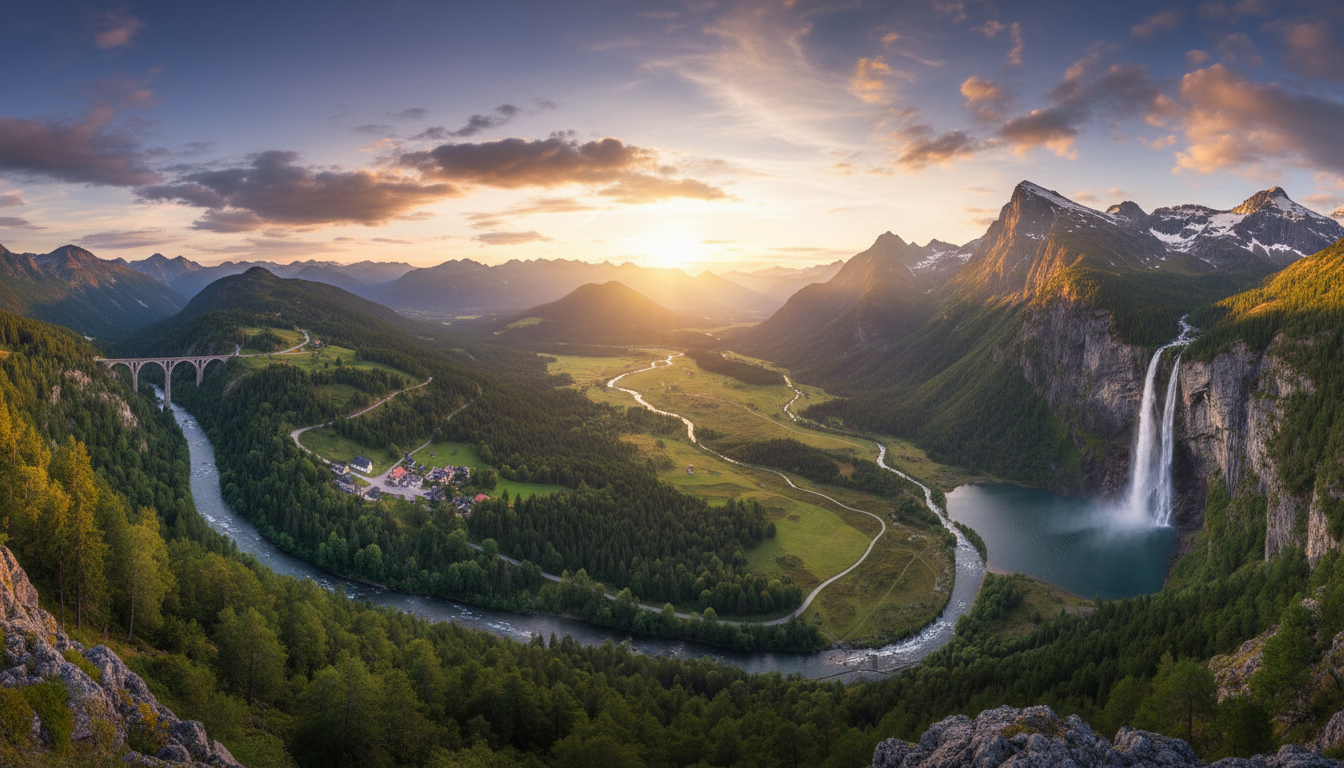
Inpainting replaces parts of images. Outpainting extends them beyond original boundaries. Together, they're the foundation of AI image manipulation—and advanced techniques unlock capabilities that basic tutorials never cover.
Quick Answer: Advanced inpainting uses specialized models (JuggernautXL Inpaint), soft inpainting for simple blends, and mask blur for natural edges. Outpainting works best with directional prompts, multiple passes, and careful attention to aspect ratio changes.
:::tip[Key Takeaways]
- Key options include First Pass: and Second Pass:
- Start with the basics before attempting advanced techniques
- Common mistakes are easy to avoid with proper setup
- Practice improves results significantly over time :::
- Choosing specialized inpainting models vs base models
- Mask blur and soft inpainting for invisible edits
- Multi-pass outpainting for large extensions
- Combining inpainting and outpainting in single workflows
- Dealing with perspective and lighting consistency
Inpainting: Beyond the Basics
Basic inpainting just masks and regenerates. Advanced inpainting produces edits that are genuinely undetectable.
Choosing the Right Model
Base Models: Can inpaint but weren't trained for it. Results often have visible seams or style mismatches.
Specialized Inpaint Models: Trained specifically for masked regeneration. Examples:
- JuggernautXL Inpaint
- RealisticVision Inpaint
- SD 1.5 Inpainting model
Specialized models understand how to blend with surrounding context far better than base models.
Mask Techniques
Hard Masks: Binary on/off. Clear boundaries but visible seams.
Feathered Masks: Gradual falloff at edges. Better blending but less precise control.
Soft Inpainting: ComfyUI feature that creates gradient blending at mask edges automatically.
For invisible edits, combine feathered masks with soft inpainting enabled.
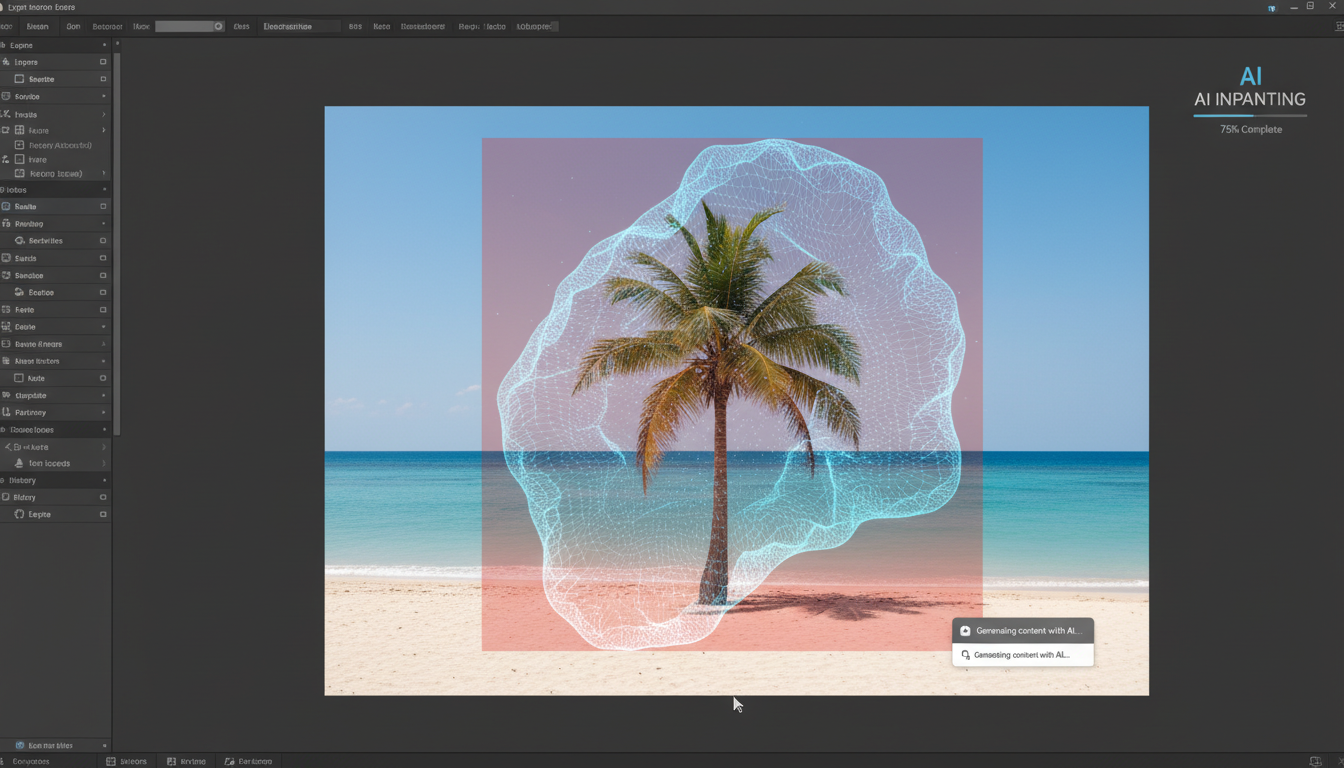 Outpainting extends scenes beyond original boundaries
Denoising Strength Control
Denoising strength controls how much the masked area changes:
- 0.0-0.3: Subtle modifications, preserves original closely
- 0.4-0.6: Moderate changes, good for object replacement
- 0.7-0.9: Major changes, generates new content
- 1.0: Complete regeneration, ignores original
For direct results, use lower denoising for texture fixes, higher for object replacement.
- Texture fix: Denoising 0.3-0.4, mask blur 8-12
- Object removal: Denoising 0.7-0.8, mask blur 12-20
- Object replacement: Denoising 0.8-1.0, mask blur 4-8
- Background change: Denoising 0.9-1.0, mask blur 8-16
Outpainting: Extending Reality
Outpainting adds new content beyond image boundaries. The challenge is maintaining consistency with existing content.
Directional Prompting
Guide outpainting with direction-aware prompts:
Extending Right:
continuing landscape to the right, more mountains,
extending horizon, consistent lighting from left
Extending Down:
continuing to show legs and ground, forest floor,
fallen leaves, consistent perspective
Multi-Pass Outpainting
For large extensions, don't try to generate everything at once:
- First Pass: Extend 20-30% beyond original
- Second Pass: Use first output as input, extend again
- Repeat: Until desired size reached
Each pass maintains better consistency than one massive extension.
Infinite Canvas Techniques
For panoramic creation:
- Start with a center image
- Outpaint left edge
- Outpaint right edge
- Outpaint top if needed
- Outpaint bottom if needed
- Blend overlapping regions
Tools like stablediffusion-infinity automate this process.
Combining Inpainting and Outpainting
The most powerful technique combines both:
Use Case: Replace background and extend
- Inpaint to replace the original background
- Outpaint to extend the new background
- Result: Subject in new, expanded environment
Use Case: Remove object and fill extended space
- Inpaint to remove unwanted object
- Outpaint to add more scene in that direction
- Result: Clean, larger image
Advanced ComfyUI Workflow
A professional inpainting workflow includes:
Load Image
    ↓
Create/Load Mask
    ↓
Load Inpaint Model (specialized)
    ↓
VAE Encode (masked)
    ↓
KSampler (with conditioning)
    ↓
VAE Decode
    ↓
Composite (blend with original)
    ↓
Save Image
Key nodes:
- VAE Encode for Inpainting: Properly handles masked regions
- Set Latent Noise Mask: Applies mask to latent space
- Composite: Blends result with original using mask
Dealing with Common Problems
Seams at Edit Boundaries
Solution: Increase mask blur, enable soft inpainting, use specialized inpaint models, lower denoising at edges.
Style Mismatch
Solution: Use the same model that created the original, match prompt style, consider img2img pass over the whole image to unify style.
Lighting Inconsistency
Solution: Add lighting direction to prompt, use reference images with ControlNet, post-process with color matching.
Perspective Errors
Solution: Use depth ControlNet to maintain perspective, provide vanishing point references, work with smaller outpaint regions.
Repeated Patterns
Solution: Vary prompts between passes, add "varied, diverse" to prompts, manually mask and regenerate repetitive areas.
Specialized Techniques
Transparent Object Inpainting
For glass, water, or translucent objects:
- Use lower denoising (0.4-0.6)
- Include "transparent, see-through" in prompts
- May need multiple passes for quality
Face Inpainting
For face-specific edits:
- Use ADetailer for automatic face detection
- Keep face-specific models loaded
- Lower denoising for subtle changes
- Consider separate face restoration pass
Text Removal
For removing text/watermarks:
- Mask slightly larger than text
- Use "clean background, no text" in prompts
- Multiple passes often needed
- Consider dedicated watermark removal models
Outpainting for Different Content
Landscapes
Works well because patterns are more forgiving.
extending landscape, continuous terrain, matching horizon line,
consistent sky, natural continuation
Portraits
Challenging—extending people rarely works well. Better to:
- Extend only background
- Crop to avoid extending the subject
Architecture
Moderate difficulty—perspective must be maintained.
continuing building architecture, consistent perspective,
matching architectural style, same lighting angle
Performance Optimization
Memory Management
Inpainting/outpainting at high resolution consumes significant VRAM:
- Process in tiles for large images
- Use lower working resolution, upscale after
- Enable attention slicing in ComfyUI
Speed Improvements
- Lower step counts work for inpainting (15-25 steps)
- Use SDXL Turbo/Lightning for faster iteration
- Preview at low resolution before final render
Frequently Asked Questions
Can I inpaint with Flux models?
Yes, Flux Fill is designed for this. It offers excellent quality but requires different workflow nodes than SDXL inpainting.
How large can I outpaint?
Practical limit is 2-3x original size per direction. Beyond that, use multiple passes.
Why do my inpainted areas look different in style?
Use specialized inpaint models and match prompts exactly. Consider a final img2img pass to unify style.
Can I inpaint video?
Frame-by-frame is possible but requires careful attention to temporal consistency. Dedicated video inpainting models work better.
What's the best model for realistic inpainting?
JuggernautXL Inpaint and RealisticVision Inpaint are top choices for photorealistic content.
Conclusion
Advanced inpainting and outpainting transform AI from image generation to true image manipulation. The key differentiators are: specialized models, proper mask handling, appropriate denoising settings, and iterative multi-pass approaches.
Master these techniques and you can smoothly remove objects, extend scenes, and composite elements that appear genuinely part of the original image.
Some models you cannot download at any VRAM
Veo, Kling and Nano Banana have closed weights. There is no local build, no quantization, no 24GB workaround. Run them in the browser instead. Check current model access and generation costs in the app.
Related Articles
5 Proven AI Influencer Niches That Actually Make Money in 2025
Discover the most profitable niches for AI influencers in 2025. Real data on monetization potential, audience engagement, and growth strategies for virtual content creators.
AI Background Replacement: Professional Guide 2025
Master AI background replacement for professional results. Learn rembg, BiRefNet, and ComfyUI workflows for smooth background removal and replacement.

AI Character Consistency: How to Maintain Virtual Persona Identity Across Content
Learn techniques for maintaining AI character consistency across hundreds of images. Master the art of creating recognizable virtual personas with consistent visual identity.